


Ensai Session Assistant is an AI‑powered tool designed to simplify and enhance your documentation workflow in Fusion. Follow the steps below to install the Chrome extension, activate your account, and complete your first login.
Jump to Section:
Sign In
- Open your browser and go to: https://app.fusionwebclinic.com/
- Sign in using your Fusion credentials.
Enable Ensai Session Assistant in Fusion
PERMISSIONS REQUIRED: Users will need their individual Ensai Session Assistant license to be enabled by their organization Admin prior to using the add on in Fusion. See the Admin: Enable Ensai Session Assistant article for more information.
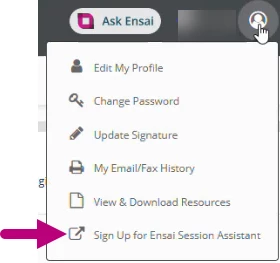
- Select My Account in the top-right corner of Fusion.
- Choose Sign Up for Ensai Session Assistant.
- Select your specialty as it is configured within Fusion and click Continue.
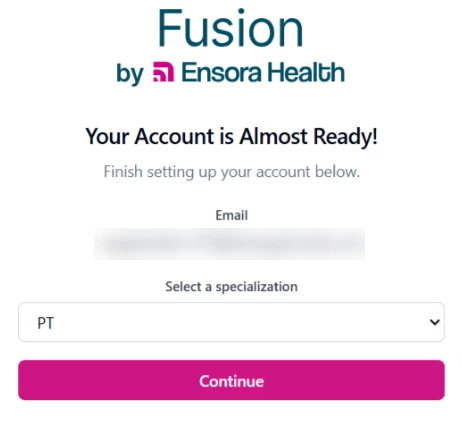
- Complete the signup process.
NOTE: If you do not receive the activation emails within a few minutes, please check your Spam or Junk folder.
After signing up, you will receive an email containing your temporary username and password. These credentials are required for your first login to the Ensai Session Assistant Chrome extension.
- Be sure to check your Spam or Junk folder if the email is not in your inbox.
- You may update your password after logging in.
Install the Chrome Extension
- Visit the Chrome Web Store page: Fusion Ensai Session Assistant.
NOTE: The extension can be applied to the Microsoft Edge browser by the unique URL and will appear as an unlisted extension.
- Select Add to Chrome.
- Approve the installation when prompted.
NOTE: The extension name in the Chrome Web Store may reference the underlying technology provider, but it supports the Ensai Session Assistant feature in Fusion.
Retrieve your Temporary Credentials
- Open the Ensai Session Assistant extension in Chrome.
- Enter the temporary credentials provided by email.
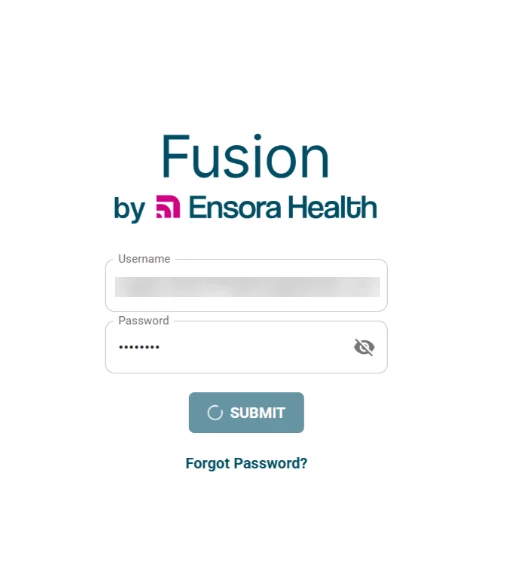
- If prompted, create a new password.
- Enter the One-Time Password (OTP) sent to your email to complete login.
IMPORTANT: Ensai Session Assistant requires an OTP each time you log in. You may configure an alternative OTP after your initial login. If you do not receive the OTP, check your Spam or Junk folder.
Configure One-Time Password (OTP) Preferences (Optional)
After your initial login, you may choose to use Time-based One-Time Passwords (TOTP) instead of email-delivered OTPs.
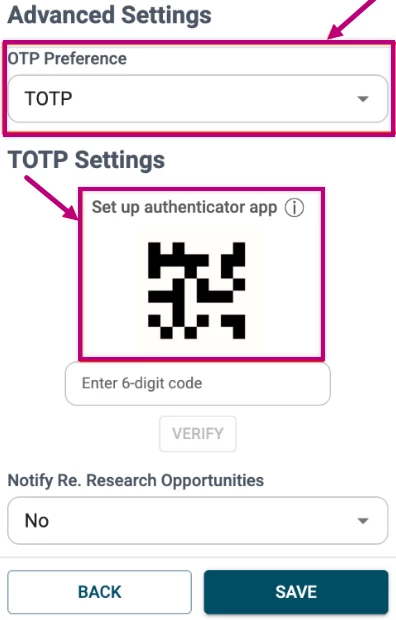
Select TOTP as your OTP Preference
- Open Fusion Ensai Session Assistant and log in using your current settings and preferences.
- Open the three dot menu in the top right corner.
- Select Advanced Settings.
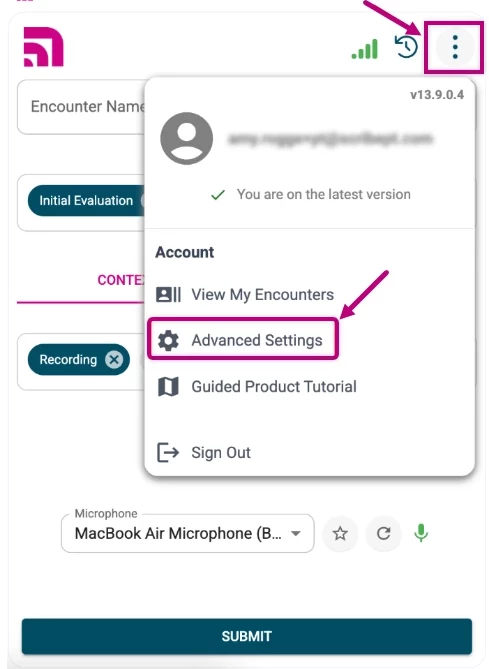
- Scroll down to OTP Preference and click the bar to view the available options.
- Select TOTP.
Set up TOTP
- Scan the displayed QR Code with your mobile device camera. A link will appear.
- Click the link to open your authentication application.
- Select Yes to add the token to your authentication app. The Ensora token will appear in your list of authentication codes.
- Enter the 6-digit code generated in your authenticator app into the blank field.
- Click Verify.
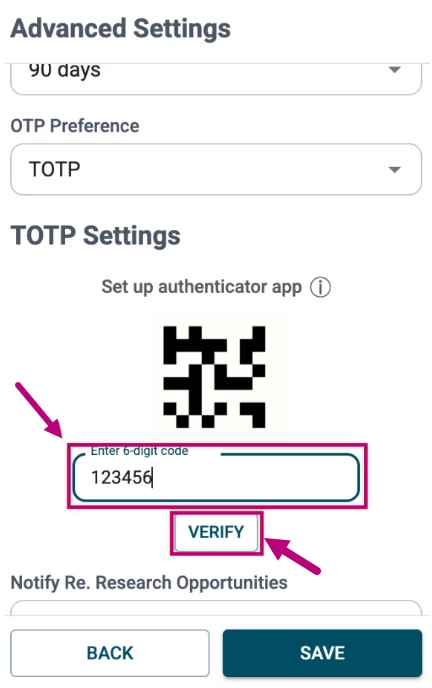
- Click Save.
Use TOTP to Log In
At next login:
- Enter your email address and password as usual.
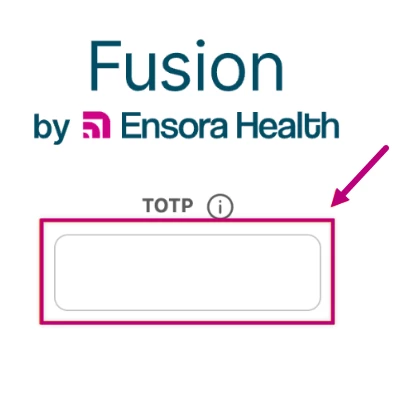
- When prompted for TOTP, open your authenticator app.
- Locate the Ensora token.
- Enter the code generated into the TOTP field in Fusion Ensai Session Assistant.
Mobile Setup: Add Ensai Session Assistant to your Home Screen
Ensai Session Assistant can also be added to the home screen on an iPhone or iPad for quick, app-like access. A short video walkthrough is included below for users who plan to access Ensai Session Assistant on a mobile device.
Adding Session Assistant to the homescreen
- Open Safari on your iPhone or iPad and navigate to www.ensorascribe.com.
- Open the Ensai Session Assistant web app.
- Tap the Share icon in Safari.
- Select View More.
- Select Add to Home Screen.
- When prompted, name the icon “Ensai Session Assistant” and select Open as Web App.
- Click Add to add the icon to your home screen.
- Tap the new icon on your home screen to launch Ensai Session Assistant.
Once added, Ensai Session Assistant opens in a full-screen, app-like view when launched from the home screen.
Start Using Ensai Session Assistant
Once logged in, Ensai Session Assistant will be available to help streamline your documentation workflow in Fusion.
TIP: If you added Ensai Session Assistant to your iPhone or iPad home screen, you can launch it directly from the home screen in a full-screen, app-like view.
If you need additional assistance, please contact Support or refer to related Ensai Session Assistant documentation: