


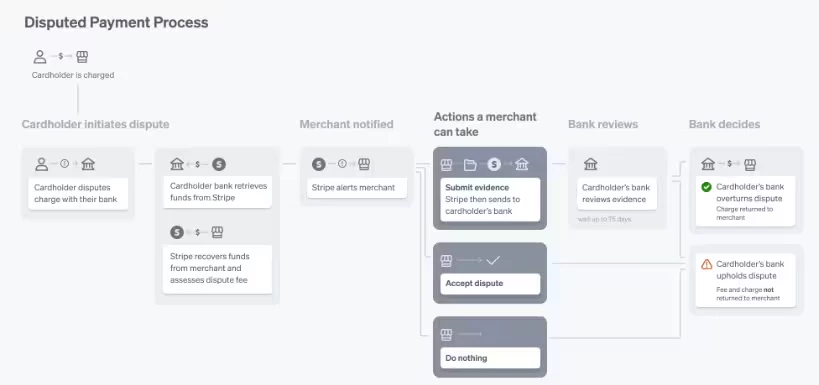
A dispute, also called a chargeback, occurs when a client questions a card payment with their card issuer. For example, a client may report that they did not authorize the charge or believe the charge is fraudulent.
When a dispute begins, the disputed amount is deducted from your account and conditionally credited to the cardholder. If the dispute is decided in your favor, the disputed amount is returned to your account, minus the dispute fee.
IMPORTANT: Do not issue a refund to the cardholder because credit has already been issued through the dispute process.
NOTE: For payment-related questions, please contact the payments team at 877-288-5583 Option 2 then 6 or payments.support@ensorahealth.com
Jump to Section:
Handle a Dispute or Chargeback: Ensora Payments & Stripe
You can respond to disputes through your Stripe dashboard. Stripe notifies you by email when a cardholder issues a dispute. You can also set up Stripe push notifications. See Set Up Stripe Push Notifications for Disputes for more information.
To access your Stripe dashboard:
- Click on the Organization tab in the menu bar.
- Select Settings.
- Click on the Ensora Payments tab.
- Click the green View Dashboard button.
You can also access your dashboard through the link in your dispute notification.
You will be prompted to log into your Stripe account to view your dashboard. Once you are logged in, you can access any Disputes in the Payments section. From here, Stripe will walk you through the process of Responding to Disputes. Stripe also provides additional resources to help you learn about Disputes and Fraud.
If you choose to refute the dispute, you will need to counter the dispute in Stripe. To learn more about countering a dispute and strategies to prevent future disputes, see Chargeback Best Practices for more information.
Automatically Respond to Disputes with Smart Disputes
Stripe's Smart Disputes feature uses AI to automatically build and submit evidence on your behalf if a dispute is left unanswered. Here's how to turn it on and what to know before you do. See Smart Disputes for more information.
How to Enable Smart Disputes
- Log into your Stripe Dashboard at dashboard.stripe.com.
- Go to Settings > Disputes and Fraud.
- Locate Smart Disputes. You'll see two separate toggles — don't mix them up.
- Manual evidence submission (auto-submit): Saves the evidence you enter and auto-submits it when due.
- Smart Disputes (auto-respond): Uses Stripe's AI to build and submit an evidence packet automatically if you take no action.
- Toggle on Enable auto-respond. This turns on Smart Disputes. The change applies immediately — including to any open disputes still awaiting a response, not just future ones.
What to Know Before Turning on Smart Disputes
- Not every dispute qualifies. Eligibility depends on the dispute reason code and how much transaction data Stripe has on file. Some disputes will still require manual handling.
- Fees only apply if you win. There's no Smart Disputes fee on a lost dispute.
- Winning isn't guaranteed. The card issuer makes the final decision — Smart Disputes just automates the submission.
- You're still in control. Even with auto-respond on, you can manually submit your own evidence, add more evidence to strengthen the AI-built packet, or accept the dispute at any time before the deadline.
- You'll be notified. Stripe emails you and flags it in the Dashboard whenever a dispute is Smart Disputes–eligible — it won't act without your knowledge.
- You can turn it off anytime, with the change taking effect immediately.
If You Are Able to Determine with the Client That the Dispute Was Issued in Error
Please have the cardholder notify the card-issuer or bank that the dispute was in error and that the transaction should be honored.
Additionally, ask the Client to sign a letter stating they have contacted the card-issuer or bank, requested the transaction be honored. You can include this as a document to refute the dispute.
IMPORTANT: Please be aware that having your client contact the card-issuer or bank will help the process but will not resolve the dispute. You will still need to send in Supporting documents to refute the Dispute. See the next section.
Send in Supporting Documents to Refute Dispute
Please send as many of the following supporting documents as possible to aid the system in refuting the Dispute.
NOTE: Please send copies of the following documents. Do not send in the originals.
-
Copies of signed credit card processing agreements, no show and cancelation policy, invoices, service agreement, order forms, and/or any item with the cardholder's signature.
-
A written and signed rebuttal letter supporting your case and refuting the reason for the Dispute. We will use the documents you provide to re-present the Dispute to the card-issuing bank. The card issuer will then decide to either let the Dispute stand or reverse the money back to your account.
-
A copy of the Payment Processing Transactions Report from the system. See Payment Processing Transactions Report for more information.
IMPORTANT: Do not send full credit card details in your information to refute the Dispute.
Follow up: Win or Lose
You will be able to track the deadline for the dispute itself to counter it, and the ETA to get a response once countered. Stripe will notify you via email of the outcome should you have the proper notification setup: Set Up Stripe Push Notifications for Disputes. If you "win" the Dispute, the funds will be issued back to you. If you "lose" the Dispute, funds will be kept in the Client's account.
Additional Notes about Disputes
Disputes may reflect negatively on Merchant Accounts. If too many disputes are issued against your Account, penalties could be imposed, and/or the Account could be closed.
Download Ensora Payments Report
As mentioned above, the Ensora Payments Report is a helpful supporting document to send in to refute a dispute.
- Click Reports in primary navigation bar and click Ensora Payments under Billing section.
- Set appropriate Date Filters.
- Click the CSV and PDF button on the upper right tab to download a copy.