PERMISSIONS REQUIRED: You need the Insights permission to use Reports.
If your clinic is enrolled in Payment Processing, you can run transaction reports on the payments your clinic processes in the system using pre-built reports in New Insights. See Enroll in Payment Processing with Ensora Payments for more information.
Payment Processing Transactions Report: Ensora Payments & Stripe
Clinics processing payments using Ensora Payments & Stripe will use pre-built reports in New Insights. The Payment Processing Transactions Report will display a list of all transactions processed within the system. You can use the filter buttons at the top of the report to customize your report and organize how the report data is displayed.
NOTE: For payment-related questions, contact Ensora Payments at payments.support@ensorahealth.com or 877-288-5583 (option 2 then 6 for Payments).
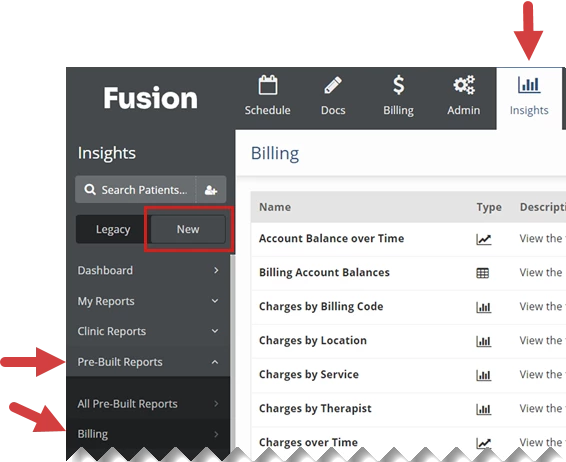
- Click the Insights Tab at the top of the screen.
- Click the New button in the menu on the left.
- Click Pre-Built Reports.
- Click Billing.
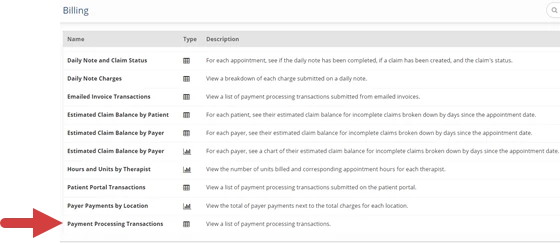
- Select Payment Processing Transactions.
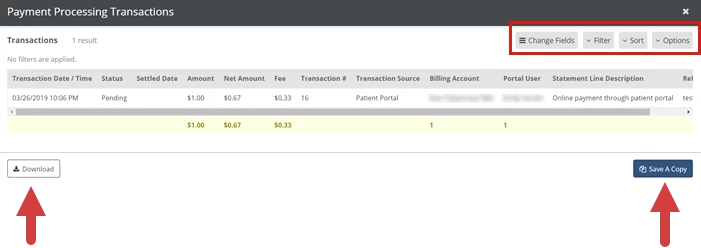
- The Payment Processing Transactions Report displays.
- Click the Change Fields button select or reorder to fields the report will display.
- Click the Filter button to filter the report by transaction time and date range or select additional filters.
- Click the Sort button to sort a column by a column by ascending or descending order.
- Click the Options button to display or hide a Total Row at the end of the report.
- Click the Download button to download the report.
- Click the Save a Copy button to save a copy of the report to your My Reports section.