


Once Practice Chat is activated for your Organization, you can use it to quickly and effectively communicate within your practice.
Jump to Section:
Individual Chats
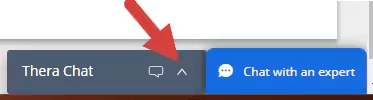
- Click the blue chat bar to expand or minimize Practice Chat.
Start Individual Chat Conversations
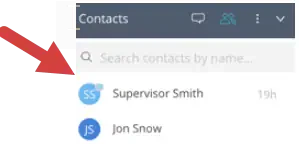
- Expand Practice Chat and click the people icon
.
- Search for Staff Member and double click on their name.
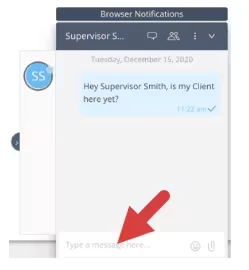
- Type message and hit Enter on your keyboard.
Start Group Chat Conversations (two or more people)
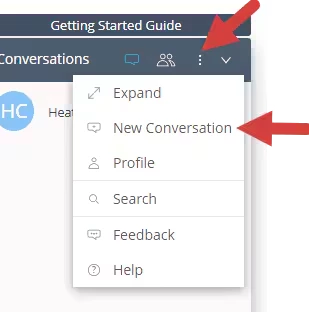
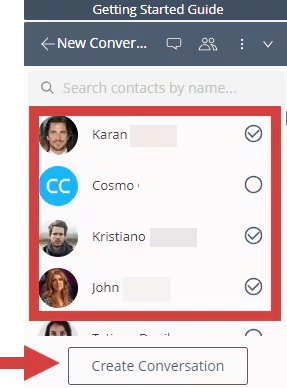
- Click the three vertical dots and select New Conversation.
- Check appropriate Staff Members.
- Click Create New Conversation.
Attach Images and Files in Chat
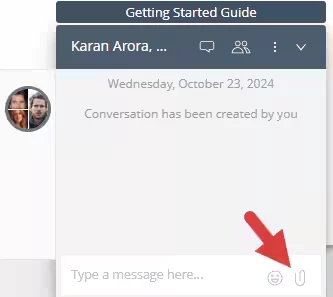
You can attach images and files to a chat message to be shared with one team member or a group.
- Create a new conversation or open an existing chat message.
- Click the paperclip icon and select appropriate file from your computer.
Manage Chat Conversations
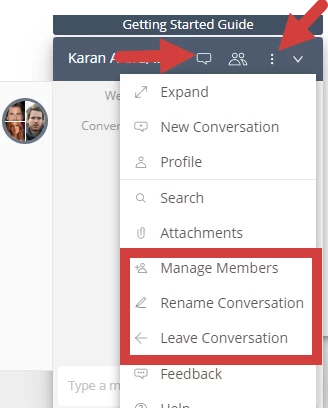
You Search your conversations, manage Group Chat Members, Rename Chats, or leave a Group Chat.
- Click the talk bubble icon to see all message conversations.
- Click on desired chat to open.
- Click the three vertical dots and manage as appropriate.
Keep Track of Staff
- You can use chat to keep track of staff members around the office.
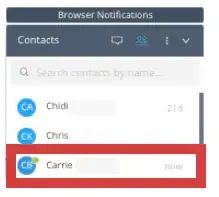
- Staff Members who are currently logged into the system have a Green or Yellow dot by their name.
- Green Dot = Staff Member is actively using the system. Active Minutes display to the right of name.
- Yellow Dot = Staff Member is logged in, but not actively using the system. The number of minutes since Staff Member was last
active displays to right of name.
Related Articles: