This report is intended to show how much each Rendering Provider has billed and collected for their services provided within the specified date range. The report pulls billed amounts based on either Service Date or Invoice Date, depending on which Date Range Filter you select, and payments based on Payment Date regardless. Units are shown regardless of whether you are looking at a billed amount or a payment amount. Each transaction is shown on its own line.
NOTE: Deactivated Staff Members and archived Clients are included in this Report. This report displays amounts based on the Rendering Provider from the invoice which may not necessarily be the staff member that was assigned to the appointment.
Jump to Section:
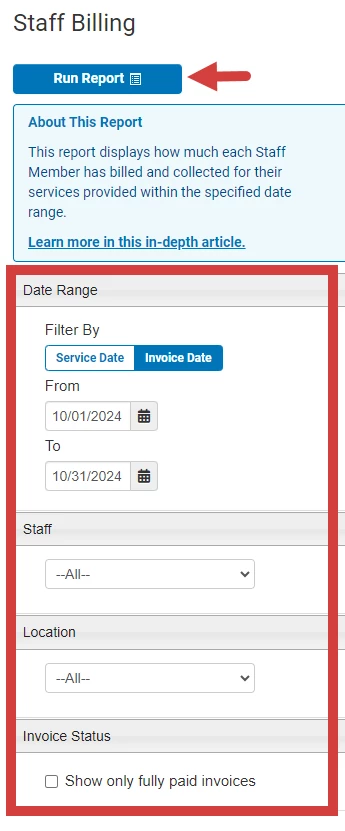
Set Report Parameters (Filter)
- Click Reports in the primary navigation bar and click Staff Billing under the Billing section.
- Set Filters:
- Set Date Range by Service Date or Invoice Date
- Staff - *Unassigned* = Unapplied Payments/Credits on Ledger
- Location
- Invoice Status
- Click Run Report.
NOTE: Change the number of Clients shown per page (10, 25, 50, or 100) by clicking the desired unit at the top of the report.
Read the Report
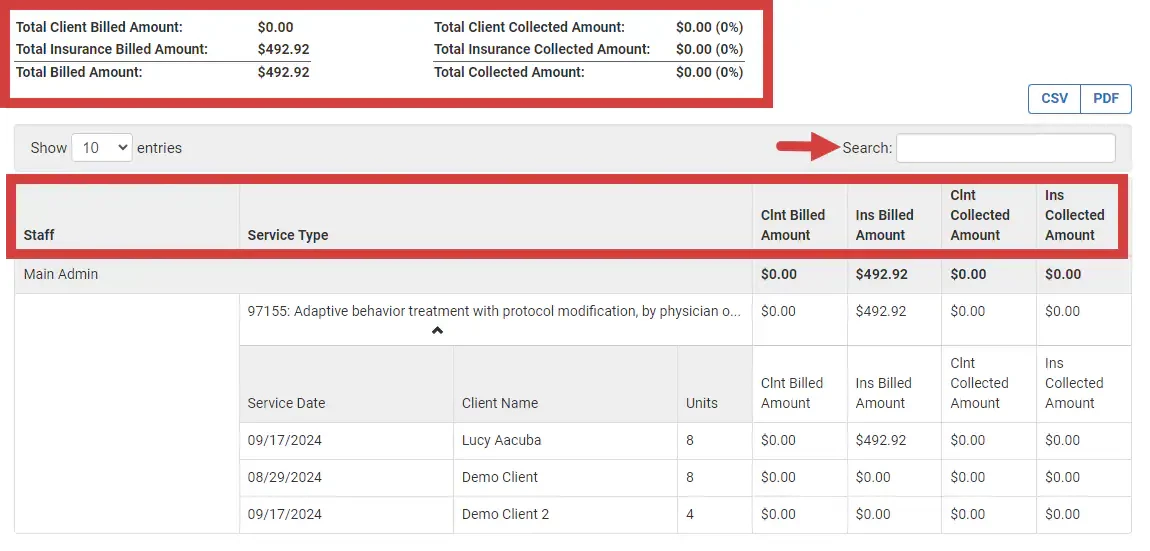
- You can Search the Report for a specific name or word. i.e. Status, Client Name, Service Type, etc.
- At the top, you can get a quick "at a glance" view of the Report.
- From left to right, you can see:
- Staff listed on the Invoice
- Service Types listed in Invoice
- Client Billed Amount
- Insurance Billed Amount
- Client Collected Amount
- Insurance Collected Amount
Download Report
Once you have run the Report, you can copy or download the CSV, Excel, and PDF version directly to your computer.
- Click the CSV and PDF button on the upper right tab.