PERMISSIONS REQUIRED: Organization Admin
Perm
This report displays all payments collected in the specified payment date range for services performed by the Rendering Provider, with payouts calculated according to the Rendering Provider's payout settings.
This Report pulls in:
- Pulls in Payments that were accepted in the specified date range.
- Does NOT pull in Open/Unapplied Payments.
NOTE: This report includes Archived Clients.
Jump to Section:
Set Report Parameters (Filter)
- Click Reports in the primary navigation bar and click Payroll by Rendering Provider under the Billing section.
NOTE: If Payroll by Rendering Provider is not included in the Billing section you need to Track Payouts Owed to Therapists.
- Set Filters:
- Transaction Date Range
- Rendering Provider if desired.
- Payment Methods if desired.
- Select or deselect Show Items Already Paid Out to Therapists.
- Select or deselect Show Payment Refunds.
NOTE: Only payments that were Refunded from the Ensora Payment Report will show as Refunded with the "Show Payment Refunds" selection.
- Click Run Report.
NOTE: Change the number of Clients shown per page (10, 25, 50, or 100) by clicking the desired unit at the top of the report.
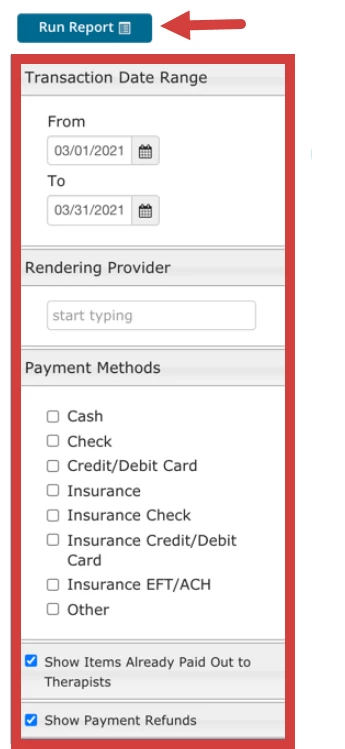
Transaction Date Range - the date the payment was accepted, not applied.
Payment Methods
- Cash - Client paid with cash.
- Check - Client paid with check.
- Credit/Debit - Client paid with credit/debt card.
- Insurance - Client has insurance on file that will be billed.
- Insurance Check - Insurance Company sent a check for Client payment.
- Insurance Credit/Debit Card - Client paid with FSA/HSA card, etc.
- Insurance EFT/ACH - Check directly from the Insurance Company.
- Other - Payment made via methods outside of the options above.
Show Items Already Paid Out to Therapist.
Show Payment Refunds - If checked, payments that were refunded will display in report.
Read the Report
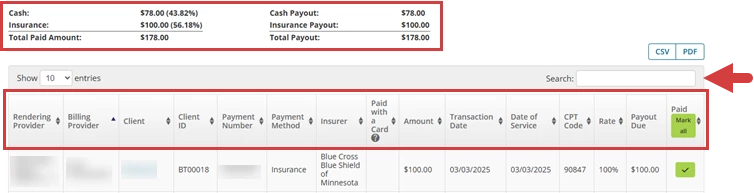
- You can Search the Report for a specific name or word. i.e. Status, Client Name, Service Type, etc.
- At the top, you can get a quick "at a glance" view of the Report.
- From left to right, you can see:
- Rendering Provider - Staff Member on the invoice under General Information. Obtained from invoice.
- Billing Provider - The provider or entity responsible for submitting claims and receiving payments from payers.
- Client - Client the service was provided for. Obtained from payment details.
- Client ID - Unique identifier assigned to the client.
- Payment Number - Internal number of payment. Obtained from payment details.
- Payment Method - Payment Method recorded. Obtained from payment details.
- Insurer -Name of insurance if Client used. Left blank if not used. Obtained from payment details.
- Paid with a Card - Credit card type and number if a card was charged via the application. Obtained from payment details.
- Amount - Amount paid for specific service. Obtained from payment details.
- Transaction Date - Date payment was entered in the system. Obtained from payment details.
- Date of Service - Date when service was rendered. Obtained from invoice item.
- CPT Code - Code of service. Obtained from invoice item.
- Rate - Payout rate for specific Rendering Providers for specific dates. Obtained from Payroll Payout Settings table using Rendering Provider and Date of Service.
- Payout Due - Amount to pay out. Obtained as Amount multiplied by Rate from the previous column.
-
Paid - Action column, used to mark/unmark items as paid out. There is also the ability to mark all returned items as paid out via the Mark all button.
Mark as Paid
Users with Organization Admin level Permissions can mark a transaction as paid out.
IMPORTANT: The Mark All button marks EVERY item in the pulled report as Paid, not just what is visible on the page.
Download Report
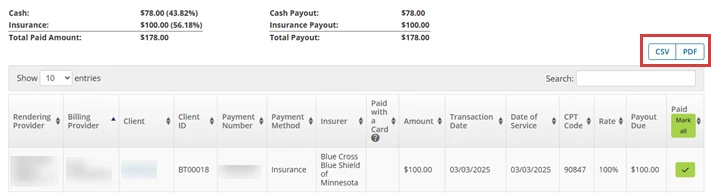
Once you have run the Report, you can copy or download the CSV, Excel, and PDF versions directly to your computer.
- Click the CSV and PDF button on the upper right tab.