PERMISSIONS REQUIRED: You must have Organization Administration Permissions.
The Ensora Payments Report shows all Client Payments made in the system that are tied to Payment Processing transactions using Ensora Payments with Stripe. If the system is using Ensora Payments with Stripe as the merchant processor for your practice, you can use this report to quickly see the fees for each transaction, and net deposit amount after processing fees. The Ensora Payments Report reflects your individual transactions and Net Amount, per transaction. System Administrators can also void pending charges and refund settled charges from this report.
IMPORTANT: Refunds processed through the Stripe dashboard will NOT display in the system. If you process a refund through the Stripe dashboard, there will be a discrepancy between the transactions shown in Stripe and the Ensora Payments report in the system.
Related Articles:
- How Does the System Process My Payments?
- Payment Processing: Payouts to Your Bank Account and Bank Reconciliation
- Void a Payment
- Refund a Payment
Jump to Section:
Access the Ensora Payments Report
- Click on the Reports tab in the menu bar.
- Click on the Ensora Payments Report in the Billing section.
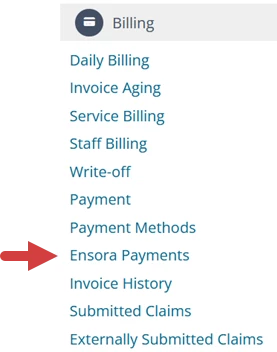
- The Ensora Payments Report displays.
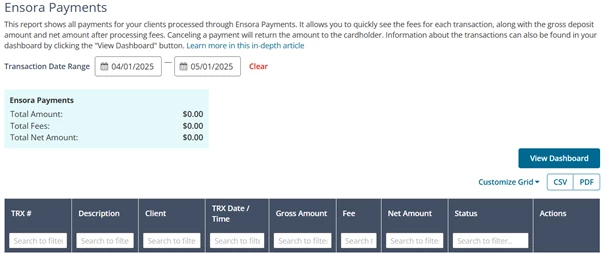
Set Ensora Payments Report Parameters
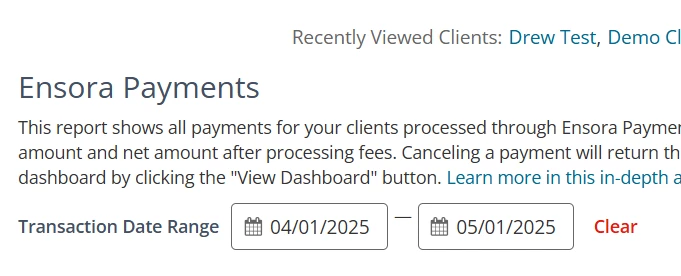
By default, the Ensora Payments report pulls in the current month for the Transaction Date Range. You change the Transaction Date Range to filter results, sort data by column, and customize the report columns.
- Enter the Transaction Date Range to search for the appropriate transaction.
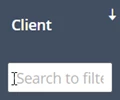
- Click a Column Header to sort the report according to that column's ascending or descending order, or use the Search to Filter field in the column header to narrow results.
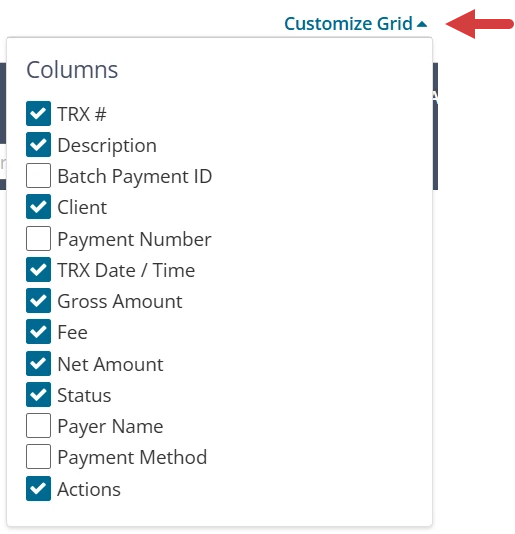
- Click the Customize Grid drop-down to hide or show report columns.
Read the Ensora Payments Report
At the top of the report, you have an at-a-glance summary of Total Amount, Total Fees, and Total Net Amount for the date range you selected. You also have a View Dashboard button that links to your Stripe Dashboard. The report displays underneath the summary with the columns you selected to include.
Understand the Ensora Payments Columns:
- TRX # - Transaction Number associated with the payment (transaction).
NOTE: If a transaction is refunded a new transaction number will display. Each transaction will reference the partner transaction.
- Description: Payment Intent (PI) Number from the Stripe transaction.
NOTE: PI Numbers will not display for transactions made before 8/20/24.
- TRX Date/Time: Date and time the payment payment (transaction) took place.
- Gross Amount: Transaction amount prior to fees.
- Fee: Total Fees calculated for settled items.
NOTE: Reflects the total fee for each individual transaction
- Net Amount: Pending items are not included as they don't yet have a Net amount (fees are not yet known).
- Status:
- Pending/Submitted: A Pending transaction that has been authorized but not yet settled.
- Authorized: An Authorized transaction is an approved transaction.
- Settled: A Settled transaction has been batched or completed. The merchant (you) will be funded and the transaction will post to the cardholders account (Client).
- Refund: Funds that were returned to a cardholder's account.
- Payer Name: This will display the name of the payer if the payment was processed as an insurance payment. The cardholder's name will not display if the payment was processed as a client payment. You can view payer names for client payments in the Stripe Dashboard by clicking the View Dashboard button at the top of the report.
- Actions: Use the Cancel Payment button to process a Refund or Void, and use the Refund Receipt button to create a printable refund receipt. You will not be able to Cancel Payment on a transaction with a pending dispute.
NOTE: If the payment has not yet been processed, the Cancel Payment button will Void the transaction and remove it from the report. However, since payments using Ensora Payments with Stripe process almost immediately, most cancelled transactions process as refunds.
Download the Ensora Payments Report
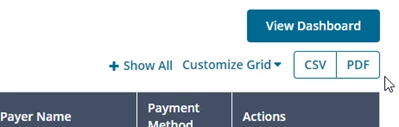
Once you have entered your Transaction Date Range and set your Report Parameters, you can copy or download the CSV/Excel or PDF version directly to your computer by clicking the CSV or PDF button in the upper right corner.