PERMISSIONS REQUIRED: You must have Billing Permissions.
Jump to Section:
Run the Report
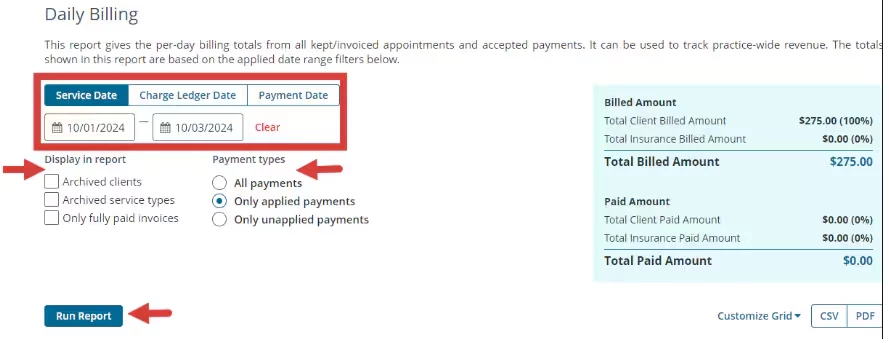
This Report gives the per-day billing totals from all Kept/Invoiced Appointments and accepted payments. It can be used to track practice-wide revenue and view unapplied Payments. The totals shown in this Report are based on the applied Date Range filters. It can also be customized using the customize grid option.
- Click Reports in primary navigation bar and click Daily Billing under the Billing section.
- Set Filters:
- Date Range
- Service Date - date of service listed on the invoice.
- Change Ledger Date - date the invoice was created.
- Payment Date - date the payment was entered on ledger ("Date" on payment details).
- Display in Report
- Archived Clients
- Archived Service Types - Archived Service Types are service types no longer able to be used for appointments or added to invoices.
- Only Fully Paid Invoices
- Payment Types to display.
- All Payments
- Only Applied Payments - Applied Payments are payments that have been applied to an Invoice.
- Only Unapplied Payments - Unapplied Payments are payments that were accepted from the Client but live in the Unapplied payments/credits and refunds section of a Client's Ledger and have yet to be applied to an Invoice.
- Click Run Report
NOTE: Change the number of Clients shown per page (10, 25, 50, or 100) by clicking desired unit at top of report.
Read the Report
- Totals Calculated in Report - As you Search or Filter the Report, these totals will update.
- You can Search the Report using the column. From left to right, you can see:
- Service Date
- Client
- Rendering Provider
- Service Type
- Payment Date
- Client Amount Billed
- Client Amount Paid
- Insurance Amount Billed
- Insurance Amount Paid
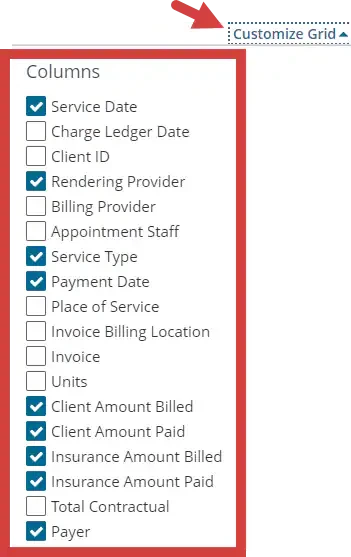
- Payer - The payer will populate when a payment is applied from the ERA Received tab or Manual Insurance Payments tab. You may need to add the Payer column from the Customize Grid menu.
NOTE: Use Customize Grid to manage columns.
Download the Report
Once you have run the Report, you can copy or download the CSV, Excel, and PDF version directly to your computer. Click the CSV and PDF button on the upper right tab.