PERMISSIONS REQUIRED: Admin or higher.
Create your Organization's commonly used Service Types using CPT Codes, as well as their Rates. Service Types cannot be deleted, but can be archived if they are no longer used.
NOTE: The American Medical Association owns the rights to all CPT codes and is now enforcing the collection of licensing fees for each Rendering Provider who submits Claims utilizing these codes. For additional information see CPT Codes, Code Modifiers & Rates.
Jump to Section:
Add Service Types
IMPORTANT: Service Type CPT Codes (including modifiers) are hard-coded. Therefore you would need a separate Service Type for each CPT/modifier combination. If you are billing to more than one payer, you can create Service Types for each payer.
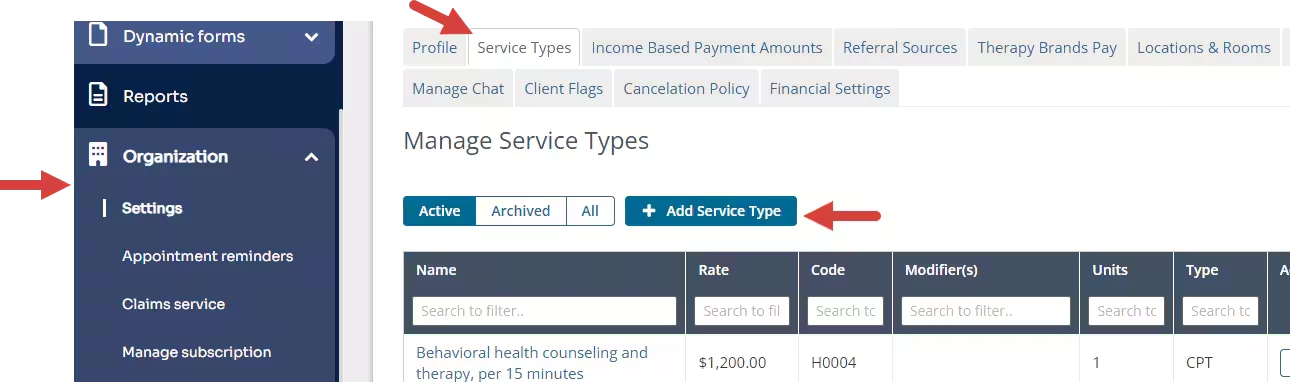
- Click the Organization and Settings in the navigation bar.
- Click the Service Types tab.
- Click +Add Service Type. The Add Service Type window opens.
- Enter information and click Save Service Type.
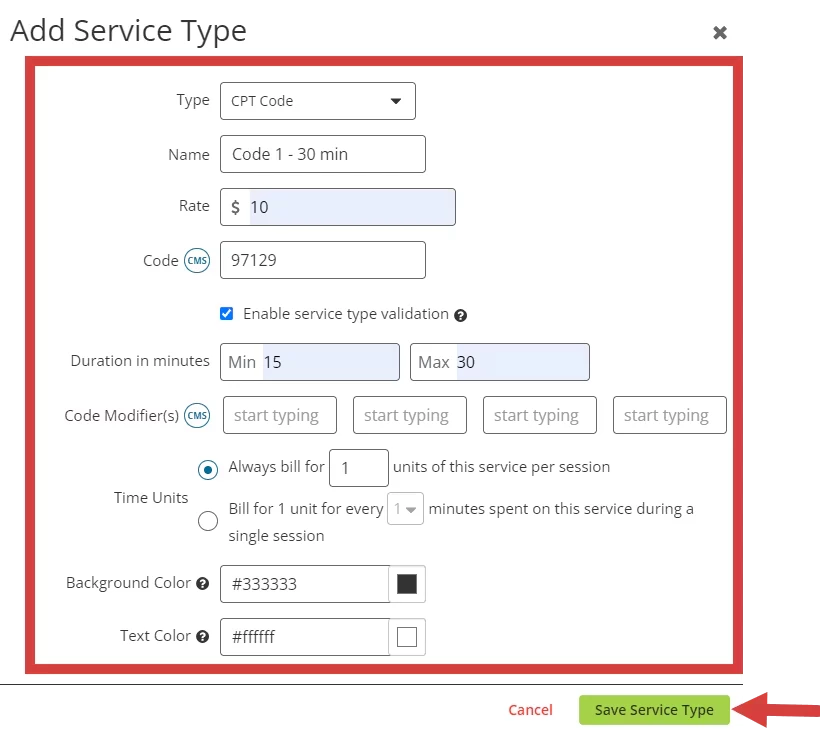
- Type - Select CPT Code or Non-CPT Code:
- CPT Code - This is the code used for submitting insurance claims and must be selected if billing to insurance.
- Non-CPT Code - If you are not billing to insurance you may create your own code to use for billing purposes.
- Name - This should be a Client Friendly name, not the CPT Code name.
NOTE: This is what Client will see as Service Type on any Billing documents as well as in the Client Portal. Do not use things like "Tier 1 Rate," "Discounted Rate," or "New Rate," etc.
- Enter Rate for Service Type - The Rate is a per unit rate. This relates to Units below
- Type to search for Code (CMS) - This is the code used for submitting insurance claims and must be selected if billing to insurance. See FAQ: CPT Codes & American Medical Association Fees for more information.
- Enable service type validation - when checked, any progress notes for this service type must have a duration within the specified range in order to be signed. See Sign Notes & Documents for more information.
- IF you enabled the service type validation, you will enter the minimum and maximum duration in minutes.
- Enter Code Modifiers - Modifiers provide additional information to payers to make sure the provider gets paid correctly for services rendered.
- Time Units
- Always Bill For - Does NOT look at the Appointment length. The Appointment will always be billed for the number or units in this box regardless of Appointment length. The number of units in the box, multiplied by the dollar amount entered in the Rate field (above) will be your invoice line item amount for that service.
- Bill for 1 Unit for every - DOES look at the Appointment length.
You may select increments from 1 to 120 minutes. The amount billed for the session will be calculated using:
Appointment Length in minutes/increment = Total Units
Total Units x Rate = Invoice AmountNOTE: For service types that bill 1 unit for a certain time interval, units are calculated based on a mid-point rounding system. The calculated number of units will round up once the midpoint is reached, and round down if the midpoint is not reached based on the length of the appointment. The number of units will never round down to 0. For example:
If the service type bills 1 unit for every 15 minutes, the midpoint is reached at 8 minutes
- An appointment from 2:00 - 2:38 PM would round up to 3 units.
- An appointment from 2:00 - 2:37 PM would round down to 2 units.
If the service type bills 1 unit for every 60 minutes, the midpoint is reached at 30 minutes
- An appointment from 2:00 - 3:30 PM would round up to 2 units.
- An appointment from 2:00 - 2:29 PM would round down to 1 unit.
- Create a Service Type Color (optional) - Select a Background Color and Text Color for Service Type. This displays on the Calendar view in each Appointment.
- Click Save Service Type.
- Type - Select CPT Code or Non-CPT Code:
Edit Service Types
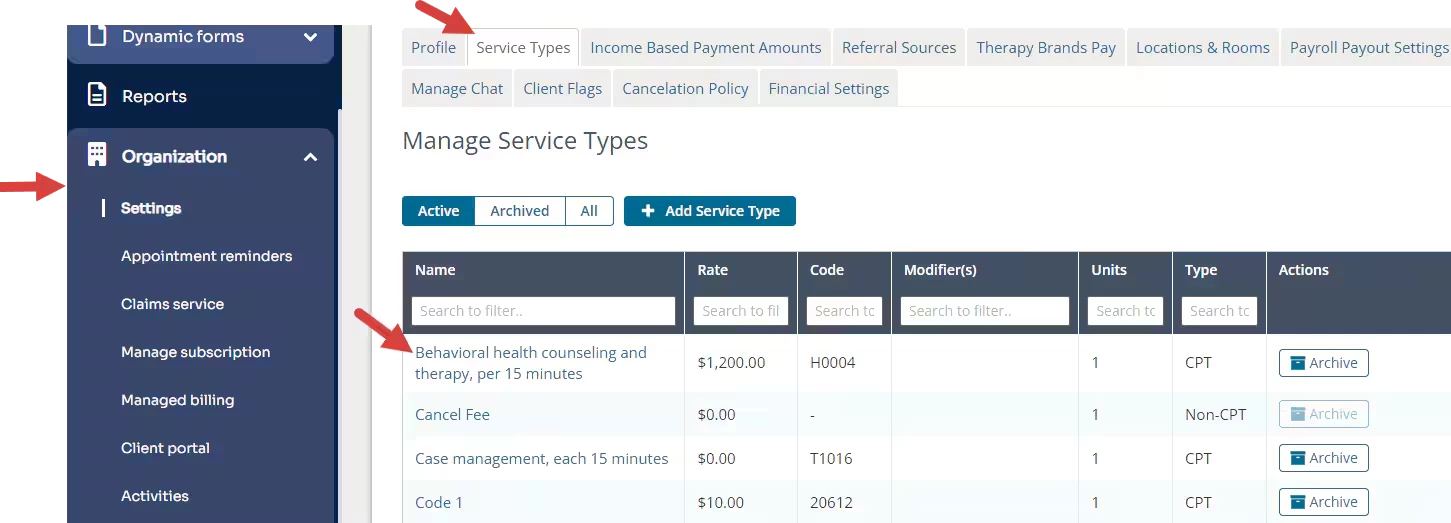
- Click the Organization and Settings in the navigation bar.
- Click the Service Types tab and locate desired Service Type.
NOTE: You may search for service types by entering the desired text in the field at the top of a column. More than one column may be used to narrow the search.
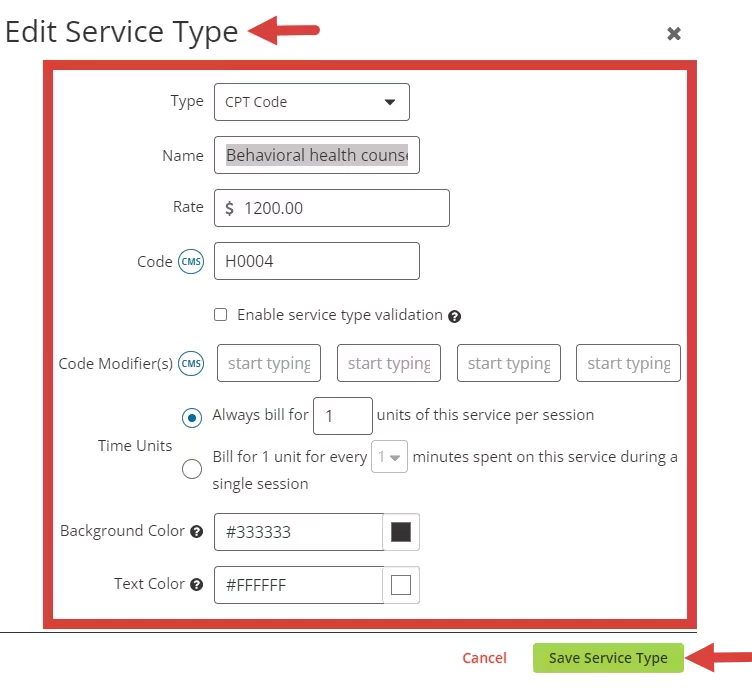
- Click the Name of the Service Type. The Edit Service Type window opens.
- Edit information and click Save Service Type.
IMPORTANT: The service type will now be updated for all past and future appointments. If you do not wish to impact past appointments, archive the existing Service Type and create a new one with the updated information.