


IMPORTANT: You must have an Ensora Experience Hub account with a first and last name in order to register for a webinar. To learn more about setting up your Expereince Hub account see Login to the Ensora Experience Hub.
Webinars are a great way to learn more about Ensora Health products, explore best practices, and connect with experts in real time. Registering ensures you’ll receive the event details, reminders, and access links directly in your inbox. Follow the steps below to sign up and save your spot for upcoming sessions.
Register for a Webinar
-
Navigate to the Experience Hub at https://experience.ensorahealth.com/
-
In the upper right-hand corner of the home page, click the Login button. Then click the large button that says Login with your Support Hub Account. Sign in using your Ensora Health Support Hub credentials.
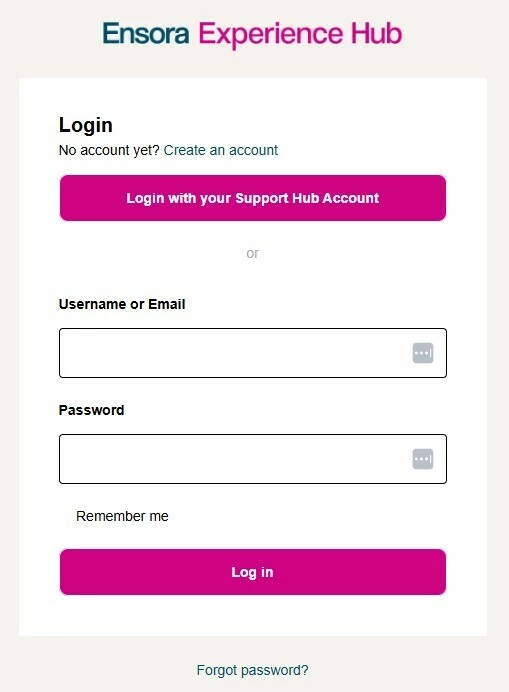
NOTE: If you have never logged in before or have questions about logging in, please read Log into the Experience Hub
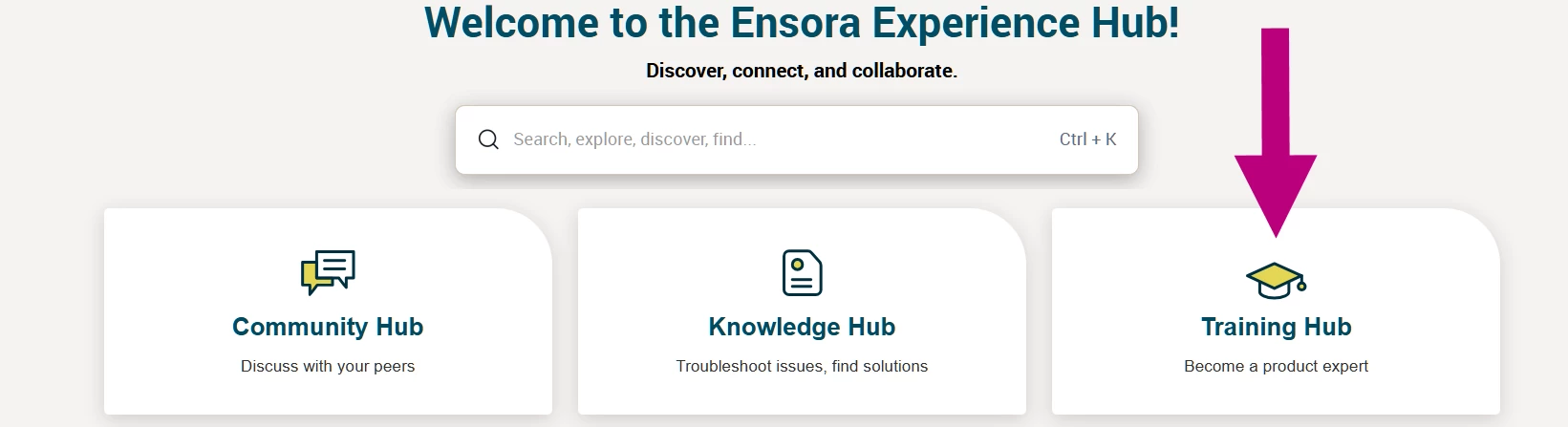
- Click the Training Hub tile.
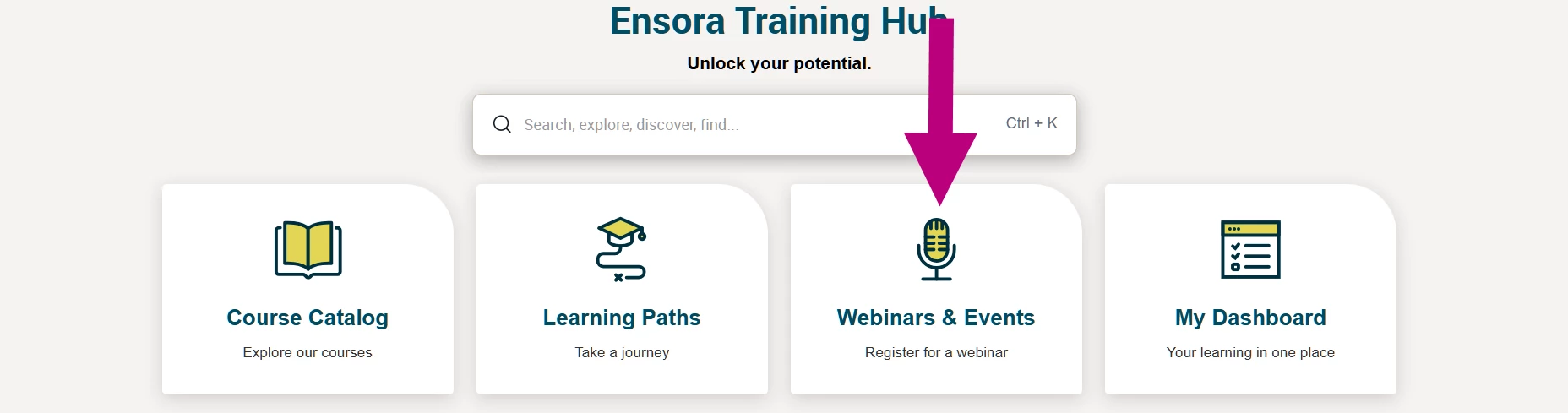
- Click the Webinars & Events tile.
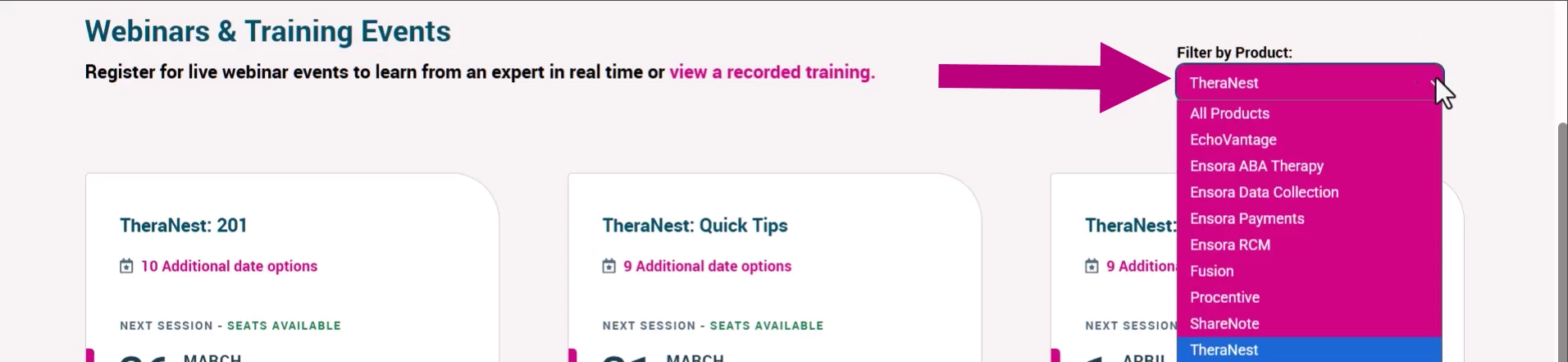
- Select the Filter by Product drop-down menu and browse.
NOTE: Webinars and events that are not associated with a specific product can be found under the Ensora Health filter.
- Once you have filtered by product, browse!
NOTE: The date you see under each title is next available session. More occurrences are available.
- To learn more about a webinar that interests you, click View all dates.
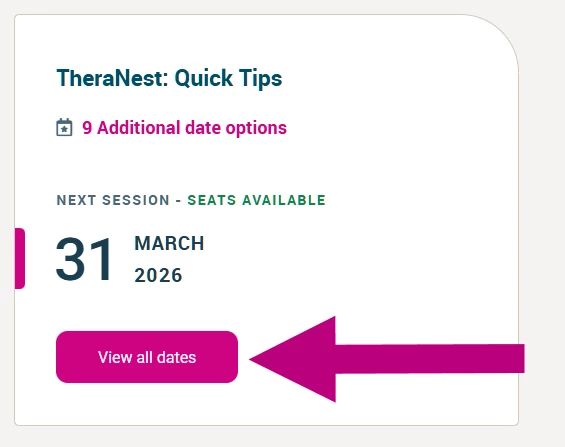
- You will now see the date, time, event description, and a Register button. Select the webinar occurrence that works for your schedule and click Register.

- Once registered, the Seats Available heading will update to read Pending – Waiting Approval. Within a few seconds, this should refresh to say You’re Registered! Once your registration is approved you will receive an email confirmation with the event details.
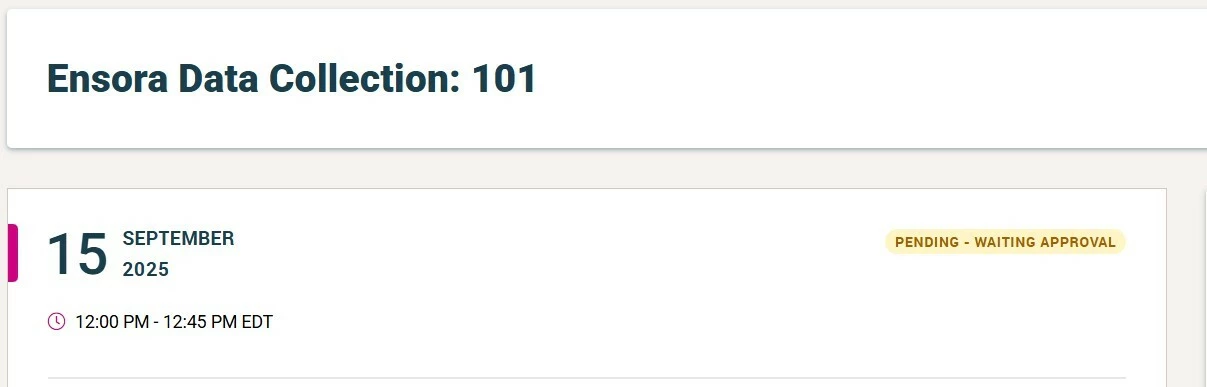
NOTE: If your screen continues to display the Pending – Waiting for Approval message, try refreshing the web page. If that doesn’t work, please reach out to the team at customereducation@ensorahealth.com.
Need Help?
If you run into any issues, contact us at customereducation@ensorahealth.com.