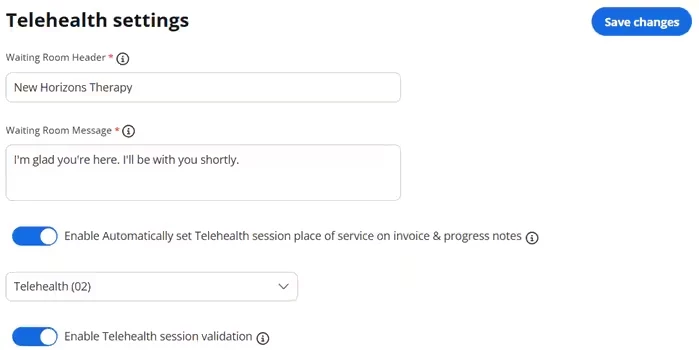
PERMISSIONS REQUIRED: You must have Organization Administration Permissions.
- Go to Organization tab in primary navigation bar.
- Click Settings on side menu.
- Click the Telehealth Settings tab.
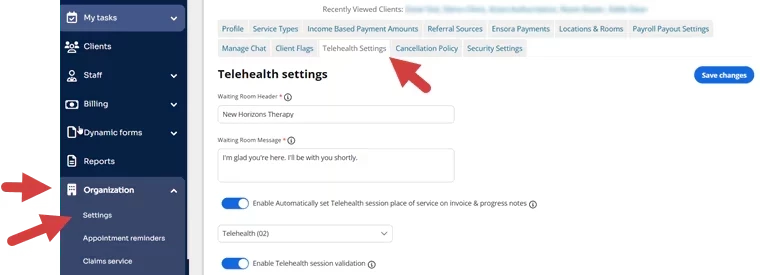
- Choose telehealth settings:
- Waiting Room Header - This is a client-facing message. The default message is: Welcome to the waiting room.
- Waiting Room Message - This client-facing message appears on the waiting room screen when a Client enters a session.
NOTE: If you are a current telehealth user, your existing message will display here if it is less than 100 characters. If you are a new user or an existing user with a message of more than 100 characters, the default message will display: Your provider will be with you shortly.
- Enable Automatically set Telehealth session place of service on invoice & progress notes: When enabled, the selected code will relace the default place of service when invoices and progress notes are created for telehealth appointments. The code can be modified when creating an appointment.
- Enable Telehealth session validation: If enabled, the telehealth session duration will populate the duration field on the progress note once complete. This will also prevent the note from being signed if the session is still active.
- Click Save Changes.