


As a Staff Member in the system you are able to establish a variety of settings or preferences that apply only to you.
NOTE: Many settings or preferences are set at the Organization level by an Administrator. Contact your Administrator if you have questions about any of these.
- Click your Name in top right corner and select My profile and settings.

- Click Preferences tab.
- Mark checkbox(s) for desired Preferences.
- Click Save Preferences.
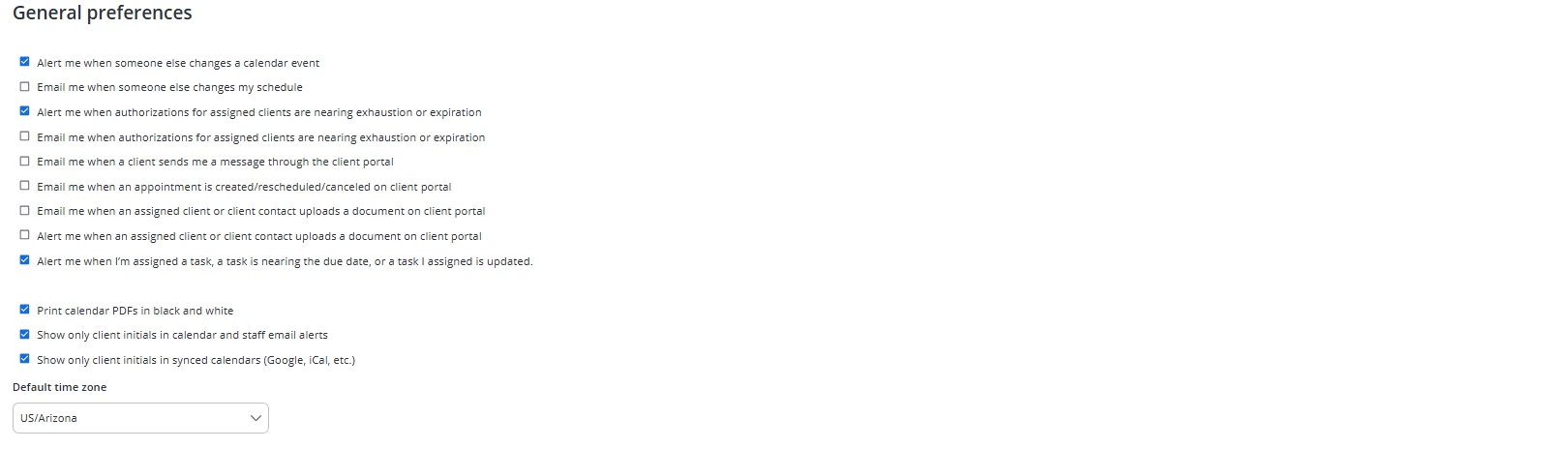
General Preferences
- Alert me when someone else changes a calendar event sends an alert to the Alerts section of the system when someone changes a calendar event in which you are listed as a staff member. This includes appointments and events. The alerts section is the bell icon found in the global navigation bar.
- Email me when someone else changes my schedule sends an email to the email address listed in the system when someone changes a calendar event in which you are listed as a staff member.
- Alert me when authorizations for assigned clients are nearing exhaustion or expiration sends an alert to all staff assigned to the client when an authorization is nearing exhaustion and exhausted (meaning when all available units have been used up before the Authorization expires). This alert is sent when there are 1 and 0 remaining units left in the authorization. Additionally will send out an alert 7, 30, and 60 days before the expiration date of the authorization and a final expiration reminder on the day it is set to expire.
- Email me when authorizations for assigned clients are nearing exhaustion or expiration sends an email to all staff assigned to the client when an authorization is nearing exhaustion and exhausted (meaning when all available units have been used up before the Authorization expires). This alert is sent when there are 1 and 0 remaining units left in the authorization. Additionally will send out an alert 7, 30, and 60 days before the expiration date of the authorization and a final expiration reminder on the day it is set to expire.
- Email me when a client send me a message through the Client Portal sends an email notification to you letting you know you received a secure message. This is useful for system users who are not checking the system daily.
- Email me when an Appointment is created/rescheduled/canceled on Client Portal sends an email notification to let you know when an appointment has been created/rescheduled/canceled.
- Email me when an assigned client or client contact uploads a document on Client Portal sends an email notification when a new document has been uploaded via the client portal.
- Alert me when an assigned client or client contact uploads a document on Client Portal creates an alert when a new document has been uploaded via the client portal.
- Alert me when I’m assigned a task, a task is nearing the due date, or a task I assigned is updated. will allow the user to receive alerts for the following:
- A task is created by them or assigned to them is 7 days out from the due date.
- A task created by them or assigned to them is the day of the due date.
- A task has been assigned or unassigned to them from another staff member.
- A task assigned to them has been deleted.
- When a task has been edited or marked as complete or reopened by another staff member.
- Print Calendar PDFs in black and White will allow for a user to print the calendar in black and white instead of the colors of the calendar.
- Show only client initials in calendar and staff email alerts changes client names to initials on your individual calendar and staff email alerts for privacy.
- Show only client initials in synced calendars changes client names to initials on your synced calendar. This is a recommended setting for individuals who use push notifications on their mobile devices.
-
Default Time Zone allows you to select a default time zone that is different from the organization & location time zone settings. It will display on the system calendar, agenda, & appointments. All signed documentation will still reflect the organization's time zone, and client-facing reminders will reflect the location time zone.