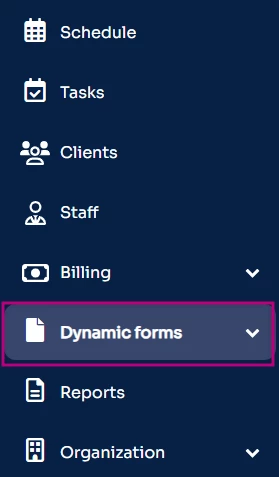
PERMISSIONS REQUIRED: You must have Administrator Permissions or higher.
There are five different levels of Permissions you can assign Staff. Learn more about the different levels in the Staff Permissions Glossary.
- Click Staff in the navigation bar.
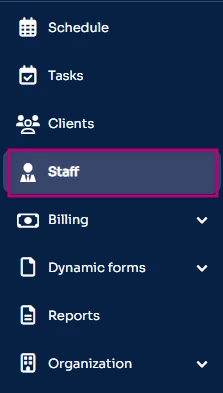
- Use the Search field to locate the staff member. The staff list table can be sorted by Full name, Position, or Default location to refine the results. Once the correct staff member is identified, navigate to the Actions column located to the far right of the row and select the three-dot (ellipsis) icon to open the Action menu.
-
Click Permissions.
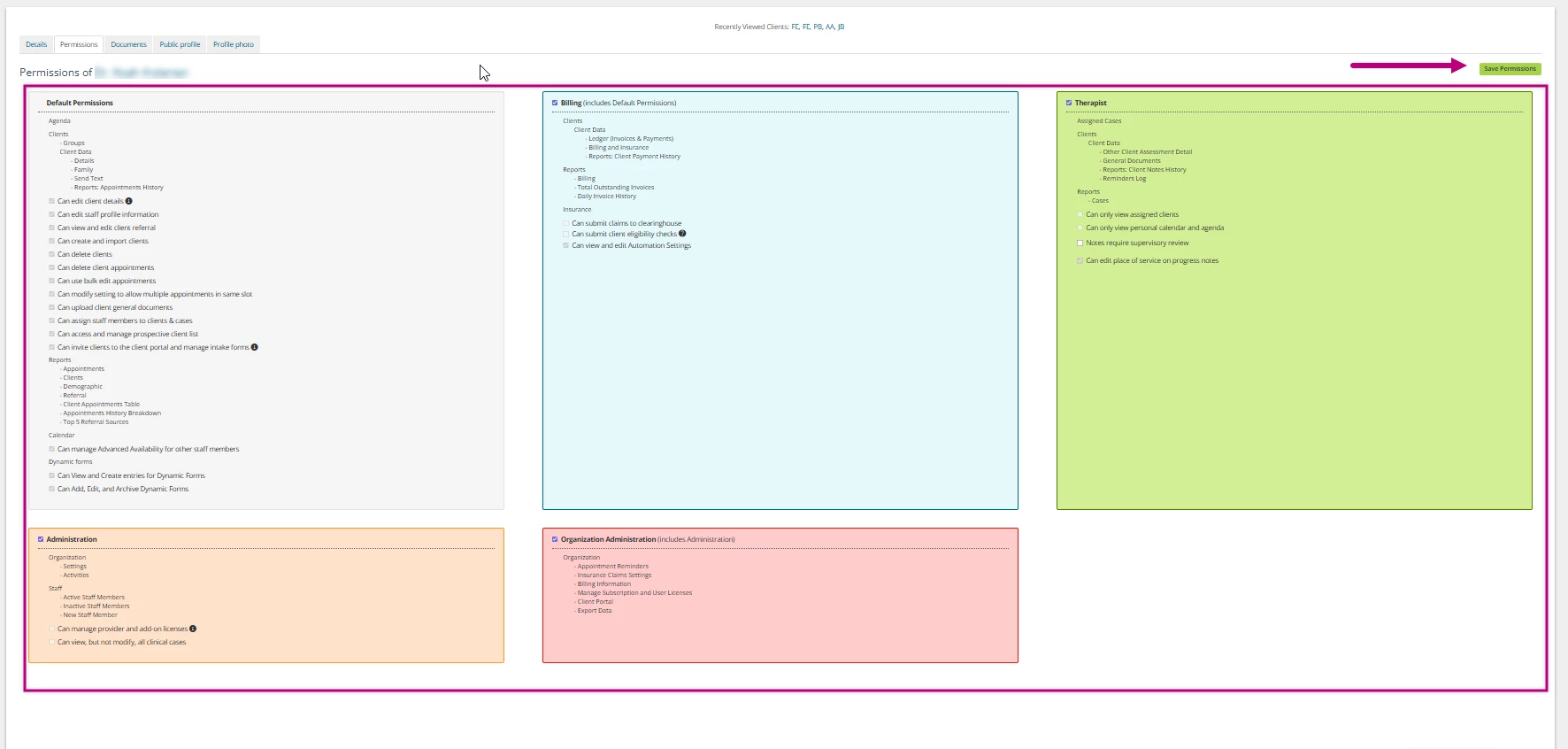
- Select appropriate Permissions and click Save Permissions.
NOTE: Before assigning permissions that grant clinical access, ensure the staff member has an active Provider License. Permissions cannot grant clinical documentation access.
FAQ: Permissions
- How do I assign a Therapist to only see their own Clients?
- Select the box Can view only assigned client information within the Therapist column.
- What do I do if I want a Therapist to see Notes and Billing information for only their Clients?
- Enable permissions in the Billing column and select the Can view only assigned client information box from the Therapist column.
- How do I assign Supervisors?
- Click here to learn how to Assign Supervisor(s) to Review Initial Assessments, Treatment Plans & Notes.
- Why can't I see my own permissions?
- System users are not able to view their own permission settings. Here’s how it works:
- If you are not the account owner:
- Contact an Organization Administrator. They can review or update your permissions as needed.
- If you are the account owner:
- You already have all available permissions. If you have questions about how to complete a specific task, reach out to Support.
- If you are an Admin needing changes to your own permissions:
- Another Admin in your practice will need to update them for you.
- If you are not the account owner:
- System users are not able to view their own permission settings. Here’s how it works:
- What happens when I update staff permissions?
- The staff member will be logged out of the system so the new permissions can be applied. Make sure the staff member saves their current work before confirming the update. A pop-up window opens to confirm you want to complete the action.
- The user will be logged out of the system and this pop-up will open so they can re-authenticate their permissions.
- The staff member will be logged out of the system so the new permissions can be applied. Make sure the staff member saves their current work before confirming the update. A pop-up window opens to confirm you want to complete the action.
- What is the difference between “Can View and Create entries for Dynamic Forms” and “Can Add, Edit, and Archive Dynamic Forms” under Default Permissions?
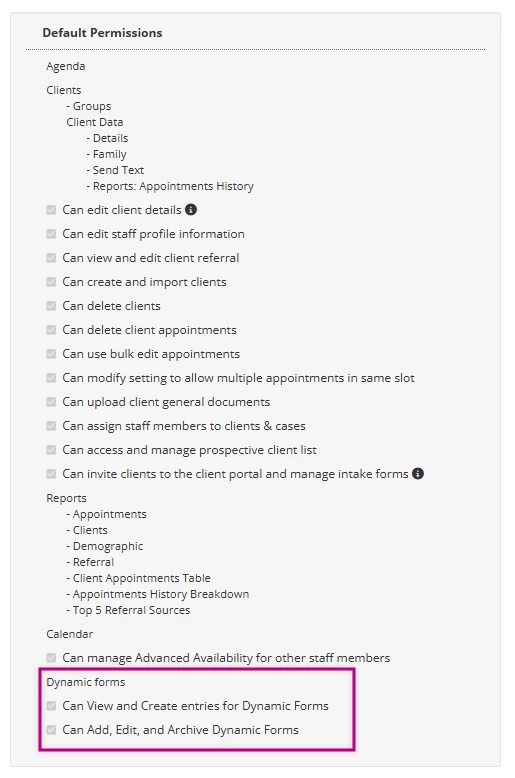
- Can View and Create entries for Dynamic Forms:
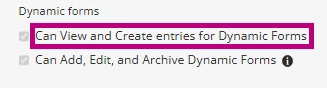
- This permission allows staff members to fill out existing Dynamic Forms under:
- Client
- Client Details
- Client > Notes
- Client
- With this permission, the Dynamic Forms menu will not appear in the left navigation panel.
- This permission allows staff members to fill out existing Dynamic Forms under:
- Can Add, Edit, and Archive Dynamic Forms:
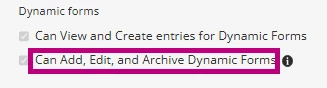
- This level of access is typically reserved for Administrative Staff, as it controls forms used across the whole practice.
- This permission allows staff members to manage Dynamic Forms for the entire practice. With this permission, they can:
- Create new Dynamic Forms
- Edit existing forms
- Archive or delete forms
- See the Dynamic forms menu in the left navigation panel