


PERMISSIONS REQUIRED: You must have Administrator Permissions or higher.
Deactivating a Staff Member immediately deactivates their account and prevents them from accessing the system again.
Jump to Section:
Deactivate a Staff Member
- Click Staff tab in primary navigation bar.
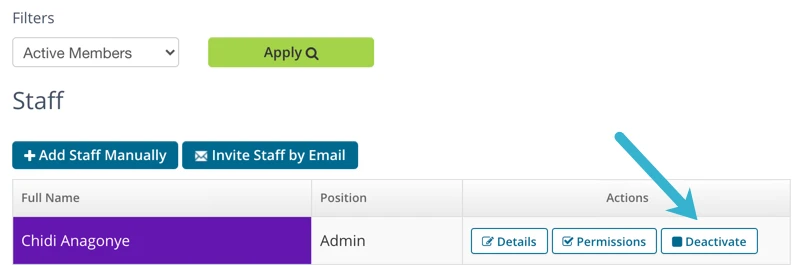
- Click Deactivate button next to appropriate Staff name.
NOTE: If the Deactivate button is greyed out it means they have Administration Permissions in the system. You must remove those Permissions first. See below.
- Click the Deactivate button next to the staff member's name. Staff Member is immediately deactivated.
Remove Staff from Subscriptions
- Click Organization tab in primary navigation bar.
- Click Manage Subscriptions in side menu and select appropriate Subscription.
- Remove appropriate Staff Member.

Deactivate an Administrator or Organization Administrator
Before you Deactivate an Administrator or Organization Administrator:
- If the Administrator is the Subscription Owner, it is important to transfer that Subscription Ownership to another Organization Administrator.
- To deactivate an Administrator you first need to remove their Administrator Permissions in the system.
- Click Staff tab in primary navigation bar.
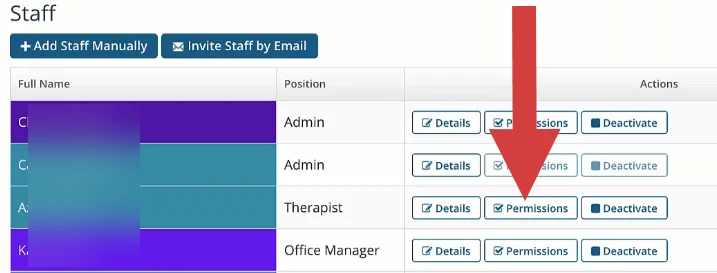
- Click Permissions button next to appropriate Staff name.
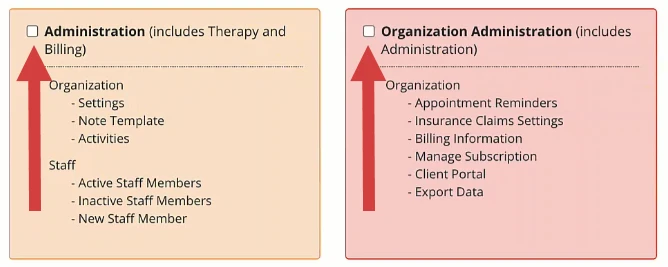
- Deselect Administration and Organization Administration Permissions.
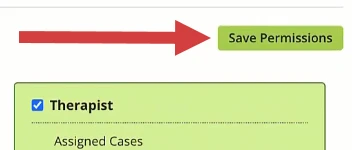
- Click Save Permissions button.
- Then follow steps above to deactivate.