


PERMISSIONS REQUIRED: You must have Administrator Permissions or higher. You also need Administrator Permissions to turn on the AMA CPT License for a staff member.
You can add a new Staff Member two ways, either through an email invitation or by manually entering them into the system.
IMPORTANT: If a Staff Member is added manually, you will not be able to invite them by email and vice versa. This is to prevent duplicate accounts.
You must also enter a unique email address for any new staff member added to the system.
Jump to Section:
Import Staff
You can import Staff into the system using an Excel spreadsheet. Download the Sample Import Template (from the Import page) to help guide you as you structure your Staff Data. The first line of the Template indicates how to structure your Staff Data in the Excel spreadsheet. The column headings on the spreadsheet must match the order and names on the Import Staff page or data will not be imported.
See Import Staff for more information.
Invite a Staff Member by Email
You can invite Staff to the system via email. You can add Staff one at a time, or in bulk. This sends an email invitation to the Staff Member. From this email, they will be able to set up their Staff Profile in the system.
NOTE: While you can assign basic Permissions when inviting them via email, you will want to go into Staff Permissions to set more specific permissions. See Staff Permissions Glossary for more information.
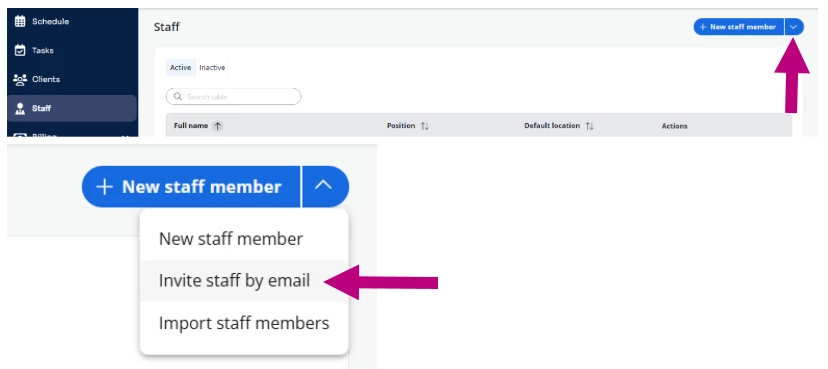
- Click Staff in the navigation bar.
- Click the down arrow next to +New Staff Member.
- Choose Invite Staff by Email option.
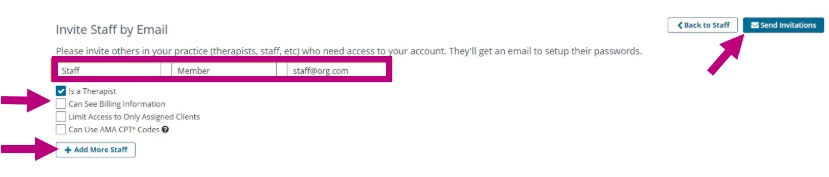
- Type the Staff Member's first & last name, and email address.
- Select basic Staff Permissions:
- Is a Therapist
- Can See Billing Information
- Limit Access to Only Assigned Cases
- Can Use AMA CPT Codes
NOTE: If you selected, this confirmation will be displayed before sending the email.
-
Enter additional Staff using +Add More Staff.
-
Click the Send Invitations button.
-
Your new Staff Member will receive an email similar to the one below. When they click the link in the invitation email, their account will officially be created and they will be able to use the system.
Add a Staff Member Manually
NOTE: If an email invite is sent but then you decide to enter the staff member manually, the original email registration link will no longer work. This happens to prevent duplicate entries of new staff members.
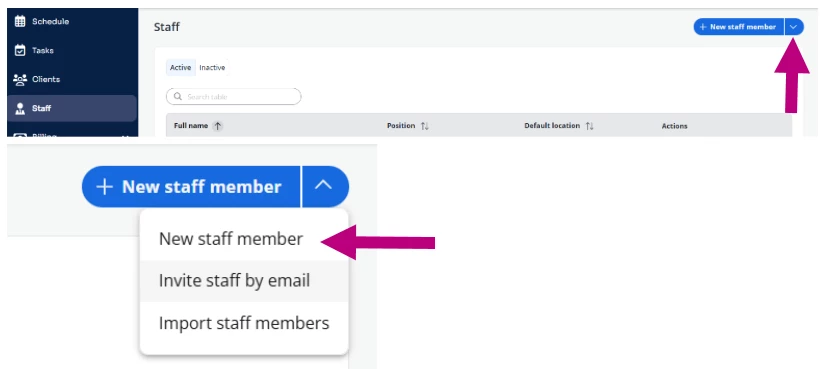
- Click Staff in the navigation bar, then select Active Staff Members from the drop-down.
- Click the down arrow next to +New Staff Member.
- Choose New Staff Member option..
- Enter Staff Member Details.
NOTE: Use the email and password the Staff Member will use to initially log into their account.
- Click Save Details.
- Staff Members must use the email address and password entered above when initially logging into the system.
See Change or Reset Your Password for more information on updating after initial login.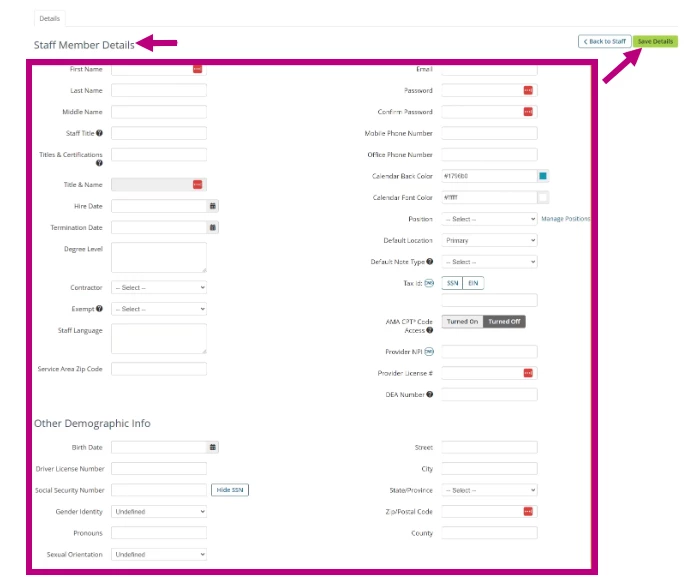
NOTE: Therapists who will be the rendering provider for a client will be assigned a CPT license to ensure compliance with the AMA CPT copyright. Select AMA CPT Code Access to provide this license. See Assign AMA CPT License to Staff for more information.
Edit Staff Member Details
NOTE: Use the Can edit staff profile information permission in Default Permissions to control who can edit their own profile. See Staff Permissions Glossary for more information.
- Click Staff in the navigation bar, then select Active Staff Members from the drop-down.
- Click the Details button for the appropriate Staff.

- Edit information.
- Click the Save Details button.

NOTE: Therapists who will be the rendering provider for a client will be assigned a CPT license to ensure compliance with the AMA CPT copyright. Select AMA CPT Code Access to provide this license. See Assign AMA CPT License to Staff for more information.
Related Articles: