



You are able to sync your system calendar to your Apple Calendar on both your Mac and your iOS Device (i.e iPhone & iPad). The Calendar sync is only one-way sync from the system to Apple and not vice versa.
Because of iCloud changes made by Apple in 2017, you must sync your Mac and your iOS devices individually, NOT over iCloud. i.e. Sync to your Mac and then sync to your iOS device.
IMPORTANT: If you are using Push Notifications on your phone, we recommend that you set your Calendar Preferences to only show Client's Initials. This will protect your Client's privacy.
Jump to Section:
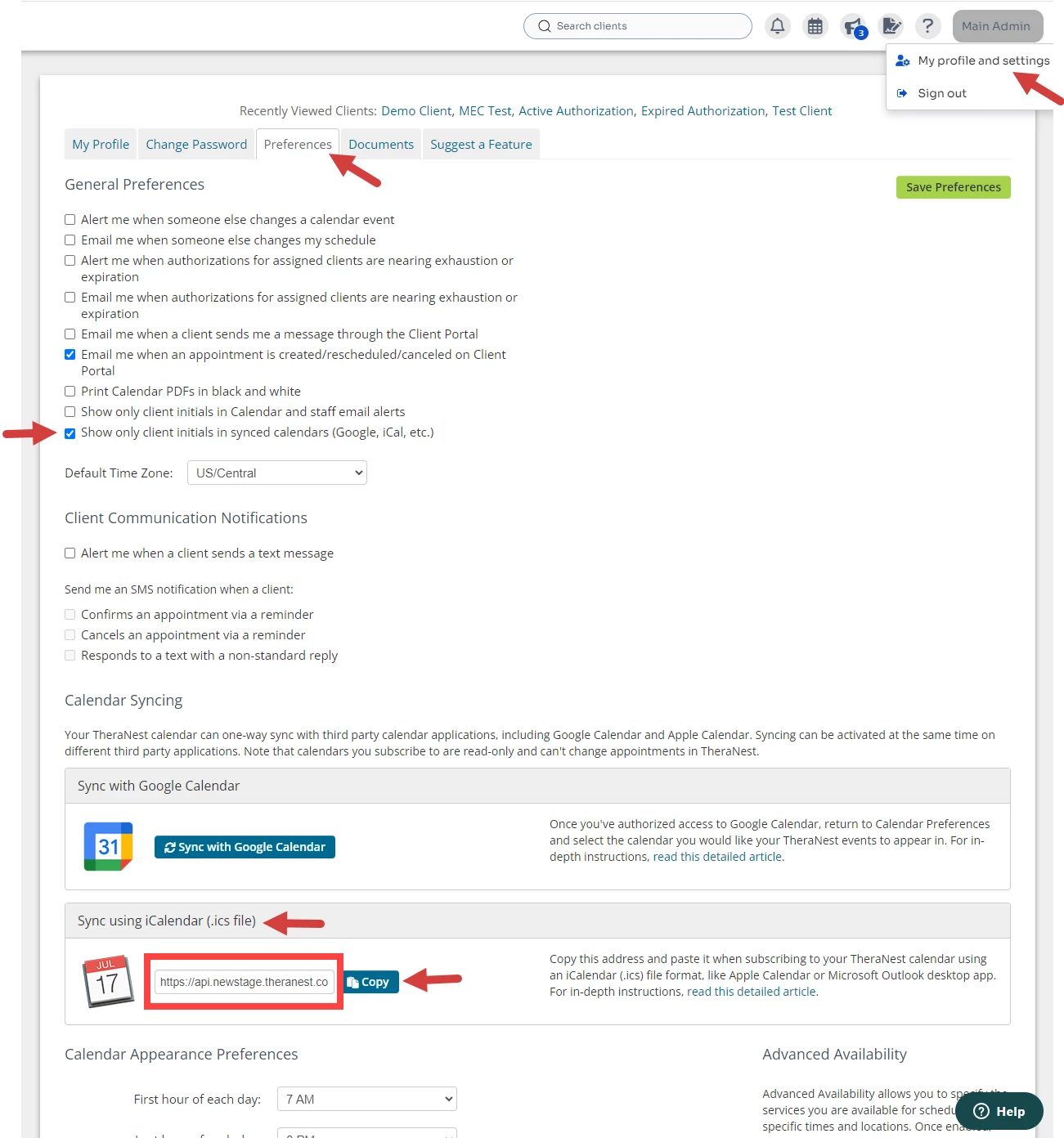
Copy iCalendar Syncing Link
- Click your Name in top right corner and select My profile settings from the drop-down.
- Click the Preferences tab.
- Recommended: Mark Show only Client Initials in Synced Calendars box to protect your Client's Privacy.
- Scroll to Sync using iCalendar section and click Copy button.
- Then Paste the link for your Mac OR for your iOS Device.
Paste iCalendar Link on Mac
- Open your Apple Calendar app.
- Click File > New Calendar Subscription.
- Paste the iCalendar link from above.
- Enter your system credentials to Authenticate the calendar sync.
- Enter Calendar Title.
- Set Location to On My Mac.
IMPORTANT: Do NOT sync to iCloud.
- View your system Calendar under Other in your Apple Calendar account.
Paste iCalendar Link on iOS Device
- Click Settings on iOS device.
- Scroll to Calendar.
- Click Accounts.
- Click Add Account and select Other.
- Click Add Subscribed Calendar.
- Paste in iCalendar link from above.
- Enter your system credentials to Authenticate the calendar sync and click Save.
- View your system Calendar in your iOS Calendar.
Un-Sync iCalendar
- Open iCalendar on iOS device.
- Click Calendars to see all linked calendars.
- Select information icon for the system calendar.
- Click Unsubscribe.