Both the Provider and the Client can share their screen and audio during a Session. It is important to note the following:
- You cannot share a screen from an iPhone or iPad as this functionality is not supported.
- Mac computers block screen sharing by default, so be sure to enable screen sharing before you begin your session.
IMPORTANT: Do NOT show anything that would violate HIPAA. We recommend you close out all other screens or apps before sharing your screen to ensure that you are not sharing HIPAA information.
Jump to Section:
Share Screen
- Join the Session.
- Click Share Screen at the bottom of the screen.

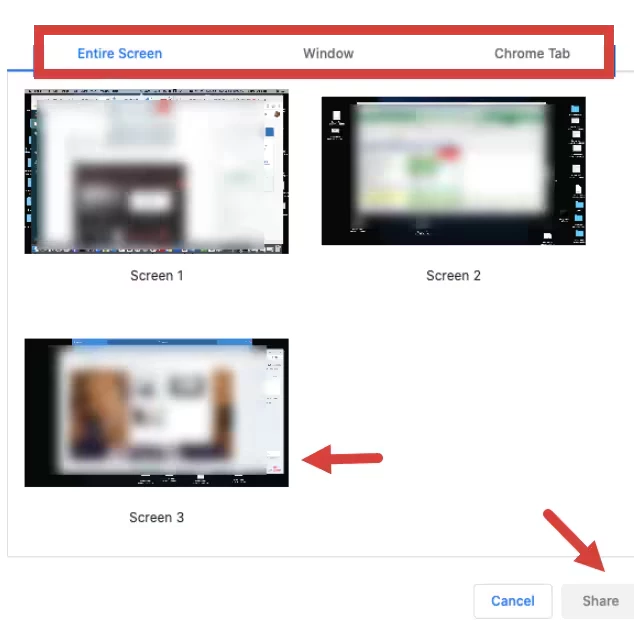
- Select to share Entire Screen, a specific Window, or specific Chrome Tab.
- Click appropriate screen.
- Click Share
Enable Telehealth Screen Share on Mac
On newer Mac devices:
- Click the Apple icon.
- Click Preferences and select Security and Privacy.
- Click Screen Recording and add Chrome.
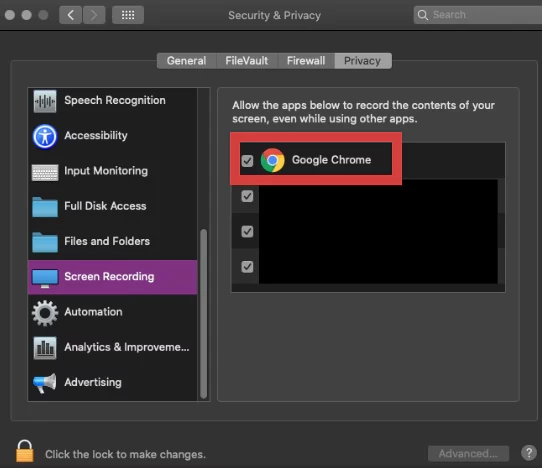
- You should only need to do this once, but note that this setting can occasionally revert back after a software update.
Stop Screen Share
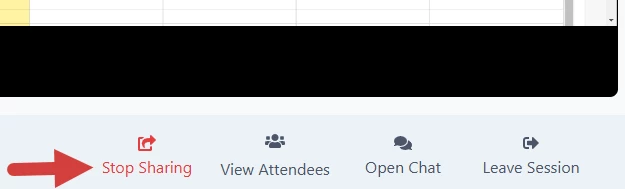
- Click the Stop Sharing button in the Telehealth window.
NOTE: While you are sharing, this button is red. When not sharing the Start Sharing button appears in blue, and the other person on the call can now share their screen if they meet the system requirements.