


PERMISSIONS REQUIRED: You must have Organization Administration Permissions.
Before you get started, take a look at the Automatic Appointment Reminder Overview article to understand the different types of Appointment Reminders.
SUBSCRIPTION: Feature availability depends on your subscription plan.
NOTE: Appointments marked as Telehealth will receive the Telehealth reminder template.
Jump to Section:
Before You Begin
To use text (SMS) appointment reminders, your organization must have a valid Practice Website and Location Address entered in your Organization Profile.
- Go to Organization > Settings > Profile.
- Practice Website
- Enter a public website URL in the Practice Website field.
- This website should be publicly accessible and clearly represent your organization. A company website, Facebook profile, or LinkedIn page are acceptable options.
-
NOTE: A Practice Website is required to register for text appointment reminders. Without it, SMS functionality may not be available.
- Enter a public website URL in the Practice Website field.
- Location Address:
- Populate the following fields:
- City
- State/Province: Only a two-character state code can be used (e.g., SC for South Carolina). The full name of the state cannot be entered into this field.
- Zip/Postal Code: Use only a 5-digit zip code (e.g., 12345) or a zip+4 can be used as long as a hyphen is inserted before the last 4 digits (e.g., 12345-6789). There can be no spaces before or after the hyphen.
- Address: The street address for your location cannot be a PO Box.
- Tax ID Number
- Tax ID (EIN)
- Tax ID Type (such as SSN, EIN, etc.; this is a dropdown option)
- Business Type (such as sole proprietorship, partnership, LLC, etc.; this is a dropdown option)
- Company Type (private, public or non-profit; this is a dropdown option)
- Stock Exchange (Required only if company type is public)
- Stock Exchange Symbol (Required only if company type is public)
- Populate the following fields:
NOTE: You will receive an email notification if your SMS registration is unsuccessful.
IMPORTANT: A mobile number is now required for Sole Proprietor business types for our SMS partner, Twilio, to validate your business as a verified entity to send SMS messages. The mobile number listed in the account owner's staff profile will receive a One Time Password (OTP) text message, and you must reply with ‘YES’ within 24 hours to confirm registration. This converts your organization’s SMS messaging campaign to Verified status. Look for this text in the coming days. The text message will come from The Campaign Registry (TCR) and will appear as below:
If you do not respond to the text from The Campaign Registry (TCR) within 24 hours, you will have the option to resend the OTP verification code to your mobile number via a Resend button on the Appointment Text Reminders page in the system.
In the Staff Profile for the owner of your system account:
- First Name
- Last Name
- Email Address
- Mobile Phone Number
Appointment Reminder Settings
You will set Appointment Reminder Settings for in-person and telehealth appointments once and they will apply to all Reminders. If you have already done this, skip to the next section.
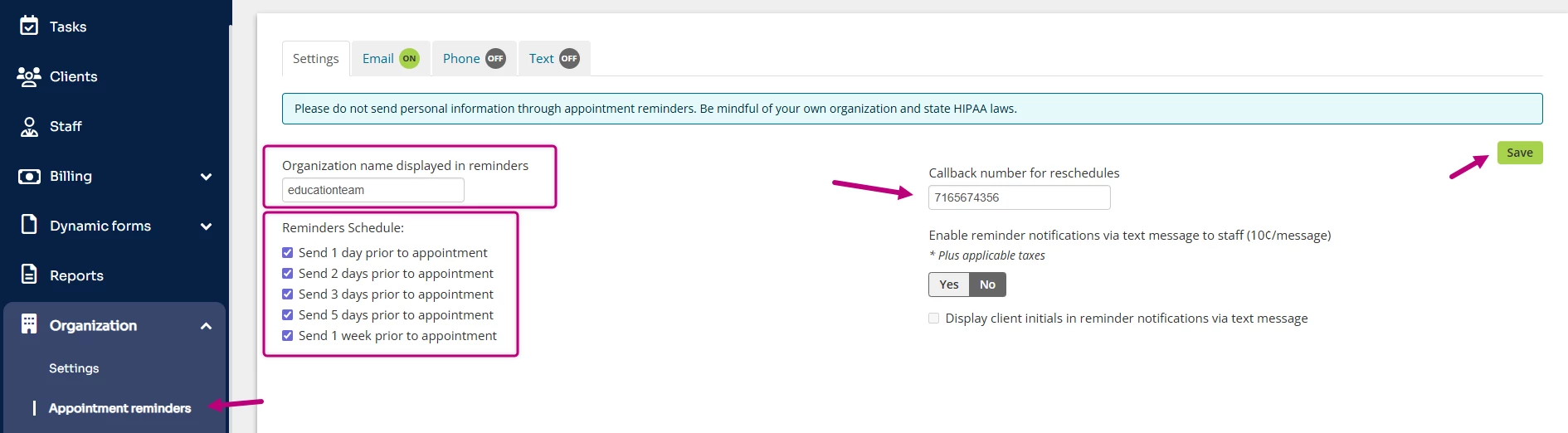
- Click Organization tab and Appointment reminders in side menu.
- Enter your Organization Name as you would like it displayed (or said) in your Reminders.
- Set your Reminders Schedule.
NOTE: You have the ability to select multiple reminder schedules so your clients can receive more than one message about upcoming appointments. Additional reminders will be sent even if the appointment is confirmed, but no additional reminders will be sent if the appointment is canceled.
- Enter a Callback Number for Reschedules. This is typically your office number.
- Click Save.
Text Message (SMS) Reminders
A nominal fee is charged per text message in the United States per 160 characters (includes spaces). The fee is charged for both reminders sent to clients, AND their responses back to you.
- 0 - 160 Characters = 1 Text Message
- 161 - 320 Characters = 2 Text Messages
- 321 - 480 Characters = 3 Text Messages
To setup text reminders:
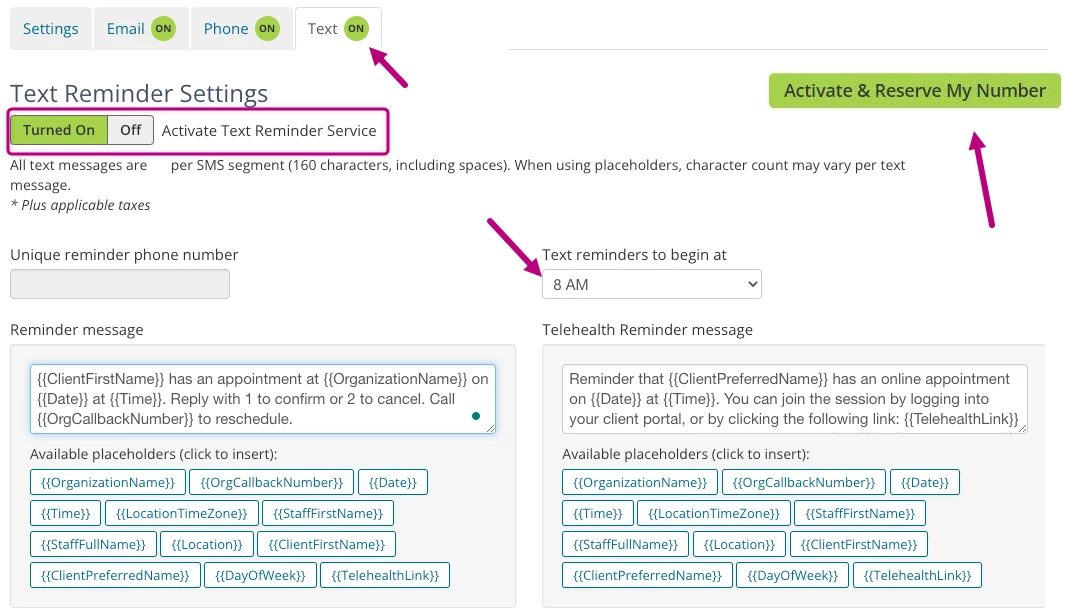
- Click Text tab.
- Set Activate Text Reminder Service to Turned On.
- Reminder and Telehealth Reminder messages display in the message boxes.
Placeholders will pull Appointment or Client information into the Reminder. Click appropriate Placeholder to add it to your message.NOTE: If your organization has text reminders enabled the message shown in the Reminder Message box will display in the Telehealth Reminder Message box. You can make edits to the telehealth reminder if your organization is subscribed to this feature.
- Select when you would like the phone reminders to go out each day.
NOTE: The time entered will match the appointment location time zone.
- Click Activate & Reserve My Number.
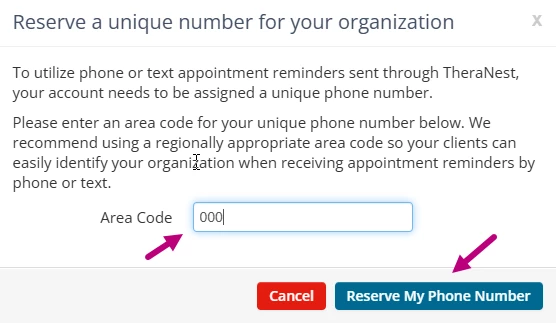
- Enter Area Code in the pop-up window to generate your Unique Reminder Phone Number and click Reserve My Phone Number.
NOTE: You cannot select the Reminder Phone Number, but you can select the area code.
- Click Save. You will receive confirmation and a reminder there is a short (usually within 24 hours) approval wait time.
- You can Enable Text Reminder Response Notifications to be notified when clients respond to your messages.
Troubleshooting: SMS Reminders
Check the following:
- A valid Practice Website is entered in Organization > Settings > Profile.
- The URL is publicly accessible (not a private/internal page).
Related Articles: