


You are able to schedule Client Appointments and Staff Events in the system. There is a lot of flexibility within scheduling to meet your Organizations needs.
Jump to Section:
You can schedule:
- Individual Client Appointments and Group Client Appointments.
- Recurring Appointments
- For Multiple Locations and Book/Reserve Rooms
- Telehealth Appointments
- All Day or Multi-Day Appointments
Once Appointments are scheduled you can keep your Practice organized by updating an Appointments status (Upcoming, Kept, Canceled, No Show, Late Cancel, Rescheduled) as well as use our Appointment Check-In and Check-Out feature.
Agenda Features & Functions
Highlights
- Personalize your Agenda view with event filtering options
- Client contact cards provide quick access to contact details and messaging and balance information
- Prominent text and phone reminder statuses
- Mobile responsive design to make the Agenda easy to use on any device
- Quickly see missing progress notes and invoices at a glance
- Print today's events
Navigation
You can access the Agenda from the Schedule tab in the navigation bar.

The Agenda defaults to Today, but you can use the arrows to go back and forth or click the date to select the desired date.

The Agenda displays Appointment or Event Cards. In each Event Card, you can view the Appointment Details, Client Name, Copay, Balance Information, Client Balance Due, Insurance Balance Due, Assigned Staff, Appointment Status, and other key Actions.
You can click on the Appointment Date/Time to view or edit the Appointment.
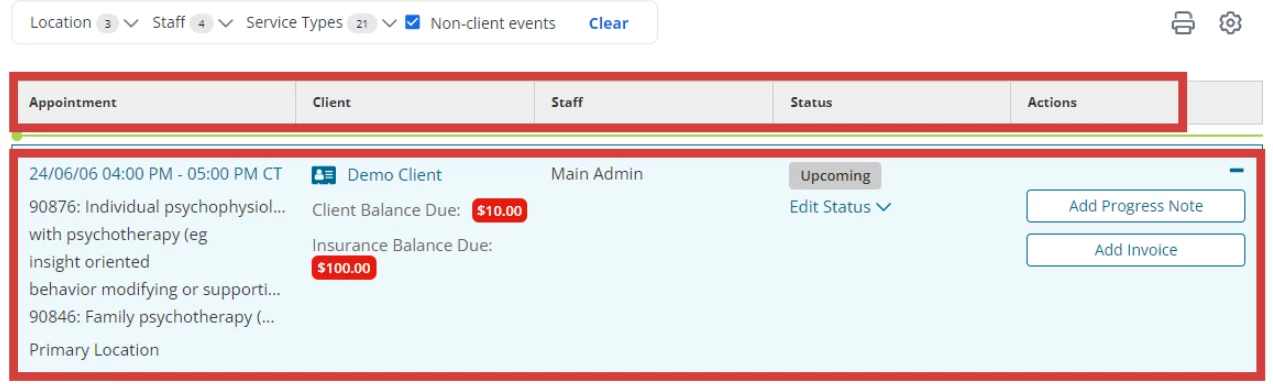
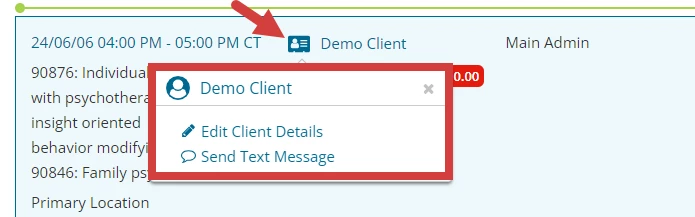
You can view Client Contact information by clicking the Contact Card icon by the Client name.
Calendar Filters
You can customize your Calendar and Agenda view with our Filter options. Filter by Location, Staff, Clients and Service Type.

Use Calendar Filters to Display Results
When you open a calendar filter, the list displays up to 100 results at a time.
- If no search text is entered, the filter shows the top 100 results.
- If you type in the search field, the filter updates to show the top 100 results that match your search.
- To find a specific staff member, client, location, or service type, begin typing the name or refine the list.
Apply Calendar Filters
Filter selections are applied to the Calendar or the Agenda after you finish making your selections.
- Open a filter dropdown (Location, Staff, Clients, or Service Types).
- Select one or more items from the list. Select All to select all values within the filter list.
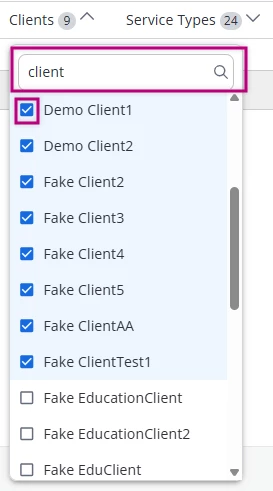
- Click outside the filter panel to apply the filter to your Calendar/Agenda view.
The Calendar or Agenda updates once you exit the filter panel.
View Selected Filter Items
When you reopen a filter, any items you have already selected appear at the top of the list, making it easier to see which filters are currently applied.
NOTE: Staff Filter is sorted alphabetically by last name.
To display the Client filter, select Yes for Show Client filter on Calendar and Agenda setting in your Calendar Preferences.

Non-Client Events
You also have the ability to show or hide non-client events when filtering events and appointments on your calendar, so you can have a less cluttered schedule view.
