PERMISSIONS REQUIRED: You must have Administration or Organization Administration Permissions.
You can edit or delete existing availability entries when your availability changes.
NOTE: Existing appointments will not be affected if you edit or delete your availability.
- if you select Only this block, the Repeat setting will be disabled.
- If you select All future blocks for a series that ends after a set number of occurrences, you will see the number occurrences left in the series.
Jump to Section:
IMPORTANT: When you edit an existing availability block the following may apply:
- You cannot create overlapping availability blocks.
- You will be alerted if locations & service types have been archived. See Add & Edit Locations and Add & Edit Service Types for more information.
- Telehealth & client online appointment settings will be disabled if you are not subscribed to those services. See Telehealth Overview and Client Portal Overview for more information.
- You can edit and delete availability blocks for other staff members. You cannot edit the staff field.
Edit Single Block
- Click the Availability tab and select Staff or Week view. See Availability Schedule Views for more information.

- Click in the block to open details.
NOTE: You can also double click in the block to open the Edit window.
- Click the edit icon
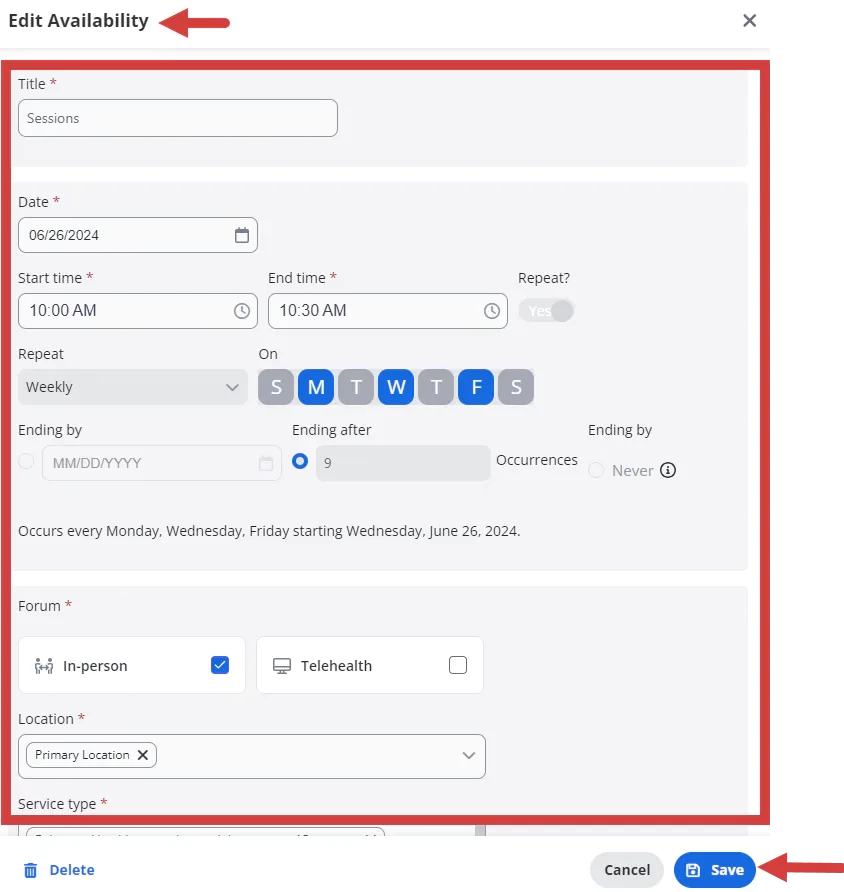
. The Edit Availability window opens.
- Make edits to fields as needed.
- Click Save.
Delete Single Block
- Click the Availability tab and select Staff or Week view. See Availability Schedule Views for more information.

- Click in the block to open details.
NOTE: You can also double click in the block to open the Edit window and click Delete at the bottom.
- Click the edit icon
.
- Click Delete Availability in the confirmation pop-up.
Edit Repeating Series
- Click the Availability tab and select Staff or Week view. See Availability Schedule Views for more information.

- Click in the block to open details.
NOTE: You can also double click in the block to open the Edit window.
- Click the edit icon
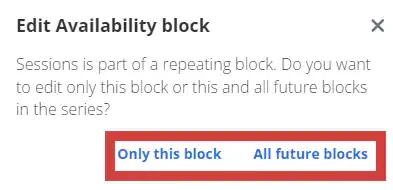
- Select one:
- Only this block - edit only this block
- All future Blocks - edit this and all future blocks.
NOTE: If you select Only this block, the Repeat setting will be disabled. If you select All future blocks for a series that ends after a set number of occurrences, you will see the number occurrences left in the series
- Make edits to fields as needed.
- Click Save.
Delete Repeating Series
- Click the Availability tab and select Staff or Week view. See Availability Schedule Views for more information.

- Click in the block to open details.
NOTE: You can also double click in the block to open the Edit window and click Delete at the bottom.
- Click the edit icon
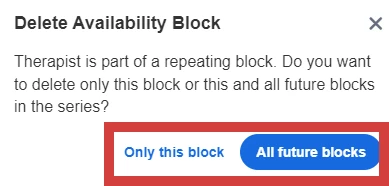
- Select one:
- Only this block - edit only this block
- All future Blocks - edit this and all future blocks
NOTE: If you select Only this block, the Repeat setting will be disabled. If you select All future blocks for a series that ends after a set number of occurrences, you will see the number occurrences left in the series.