Advanced Availability allows you to specify the services you are available for scheduling at specific times and locations. You can add blocks for: single availability, repeating availability, and other staff member's availability. Enable Advanced Calendar Availability in My Profile settings.
NOTE: You cannot add availability that overlaps with existing availability blocks. If you have a preferred time zone set, your availability will show in that time zone. If you create advanced availability for another staff member, the block will show in their preferred time zone. See Set Your General Preferences for more information.
Jump to Section:
Add Availability Block
NOTE: Feature availability depends on your subscription plan.
- Click Schedule from the side navigation.
- Click +Add and Availability from the drop-down menu.

NOTE: You can also drag your cursor directly on the calendar to select the desired date & time and open the new availability window.
- Enter information in the Add Availability pop-up for Single block or Repeating block:
- Title
- Staff name - click in the search field to find staff names. Only staff members who have advanced availability enabled are available.
PERMISSIONS REQUIRED: Can manage Advanced Availability for other staff. The Staff selection field will not show if you do not have this permission. See Staff Permissions Glossary for more information.
- Date
- Start time & End time - The start time setting reflects your current time and defaults to the next logical 15-minute increment.
Click the clock icon to open the time field and use the up and down arrows to select the time. - Repeat?
- Set to No for a single block - this is the default setting.
- Set to Yes for Repeating Availability (daily, weekly, monthly, yearly) - weekly is the default setting
- Forum: In-person / Telehealth - if subscribed to telehealth
NOTE: You can select one or both forum types.
- Location
- Service type - you can select specific services or all services
- Setting to allow clients to request appointments online - if subscribed to the client portal. See Enable Client Portal Features/Settings for more information.
NOTE: If the setting is set to Yes, clients will see the time as available when requesting appointments via the client portal. If telehealth is also selected as a forum, clients will be able to request telehealth appointments via the client portal.
Single Availability Block
Repeating Availability Block
Add Availability for Other Staff
- Click Save or the drop-down arrow and Save and new.
- Save - save the block and close the Add Availability window.
- Save and new - save the block and keep the Add Availability window open to add another block.
Repeating Daily Availability
- Click Schedule from the side navigation.
- Click +Add and Availability from the drop-down menu.

- Select Daily from the Repeat dropdown menu.
- For the availability:
- Select one option for when the availability will repeat:
- Every [1, 2, 3, etc.] Day
- Select one option for when the repeating availability will end:
- Ending by: Date
- Ending after [1,2,3, etc.] occurrences
- Ending by: Never - Block is active for 5 years and will be extended if the series is edited
- Select one option for when the availability will repeat:
- Click Save or the drop-down arrow and Save and new.
- Save - save the block and close the Add Availability window.
- Save and new - save the block and keep the Add Availability window open to add another block.
Repeating Weekly Availability
- Click Schedule from the side navigation.
- Click +Add and Availability from the drop-down menu.

- Select Weekly from the Repeat dropdown menu. This is the default setting.
- For the occurrence:
- Select the day of the week when the availability will repeat
- Select one option for when the repeating availability will end:
- Ending by: Date
- Ending after [1,2,3, etc.] occurrences
- Ending by: Never - Block is active for 5 years and will be extended if the series is edited
- Click Save.
- Click Save or the drop-down arrow and Save and new.
- Save - save the block and close the Add Availability window.
- Save and new - save the block and keep the Add Availability window open to add another block.
Repeating Monthly Availability
- Click Schedule from the side navigation.
- Click +Add and Availability from the drop-down menu.

- Select Monthly from the Repeat dropdown menu.
- For the occurrence:
- Select how the availability will repeat:
- Repeat every [1, 2, 3, etc.] Month(s)
- Select either a specific day of the week or a specific date
- On [1, 2, 3, etc.] Day
- On [first, second, third, etc.] [day of the week]
- Select either a specific day of the week or a specific date
- Repeat every [1, 2, 3, etc.] Month(s)
- Select one option for when the repeating availability will end:
- Ending by: Date
- Ending after [1,2,3, etc.] occurrences
- Ending by: Never - the block will be active for 5 years
- Select how the availability will repeat:
- Click Save or the drop-down arrow and Save and new.
- Save - save the block and close the Add Availability window.
- Save and new - save the block and keep the Add Availability window open to add another block.
Repeating Yearly Availability
- Click Schedule from the side navigation.
- Click +Add and Availability from the drop-down menu.

- Select Yearly from the Repeat dropdown menu.
- For the occurrence:
- Select how the availability will repeat:
- Repeat every [1, 2, 3, etc.] Year(s)
- Select either a specific day of the month or a specific date
- On [month] [1, 2, 3, etc.] Day
- On [first, second, third, etc.] [day] of [month]
- Select either a specific day of the month or a specific date
- Repeat every [1, 2, 3, etc.] Year(s)
- Select one option for when the repeating task will end:
- Ending by: Date
- Ending after [1,2,3, etc.] occurrences
- Ending by: Never - the block will be active for 5 years
- Select how the availability will repeat:
- Click Save or the drop-down arrow and Save and new.
- Save - save the block and close the Add Availability window.
- Save and new - save the block and keep the Add Availability window open to add another block.
View Availability Blocks in the Schedule
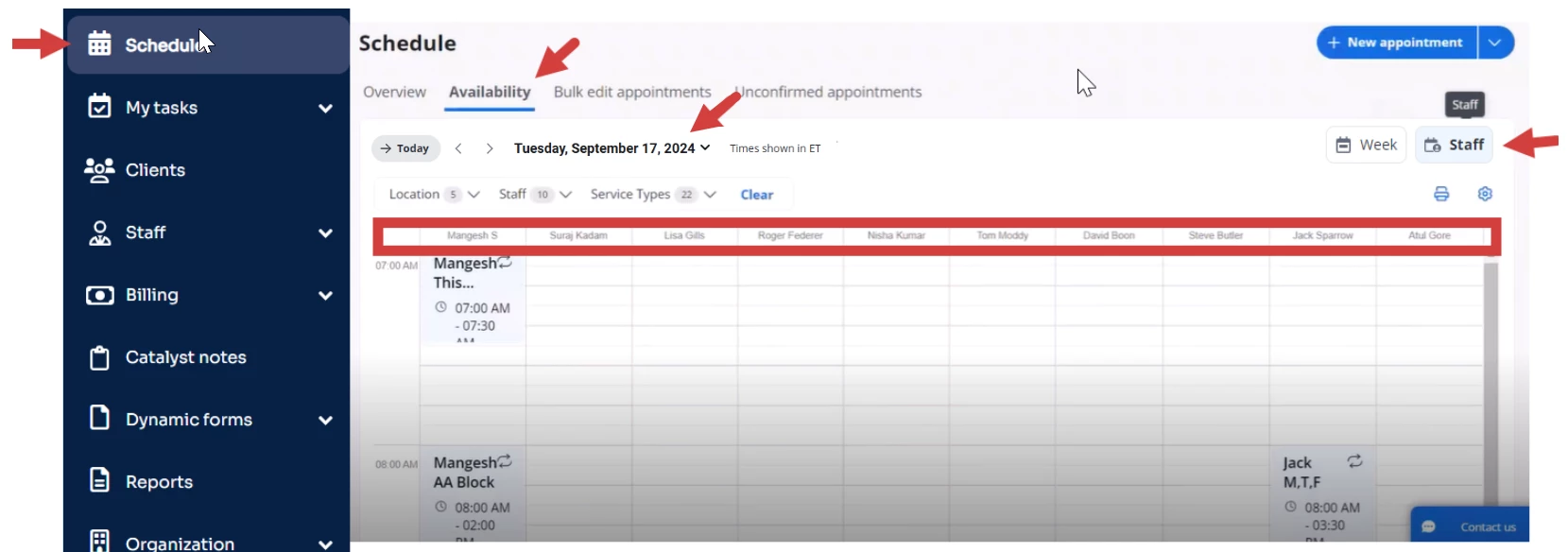
- Click the Availability tab. You can view availability by the staff member's individual schedule or by the combined weekly schedule of all staff members. See Availability Schedule Views for more information.
Staff View
Week View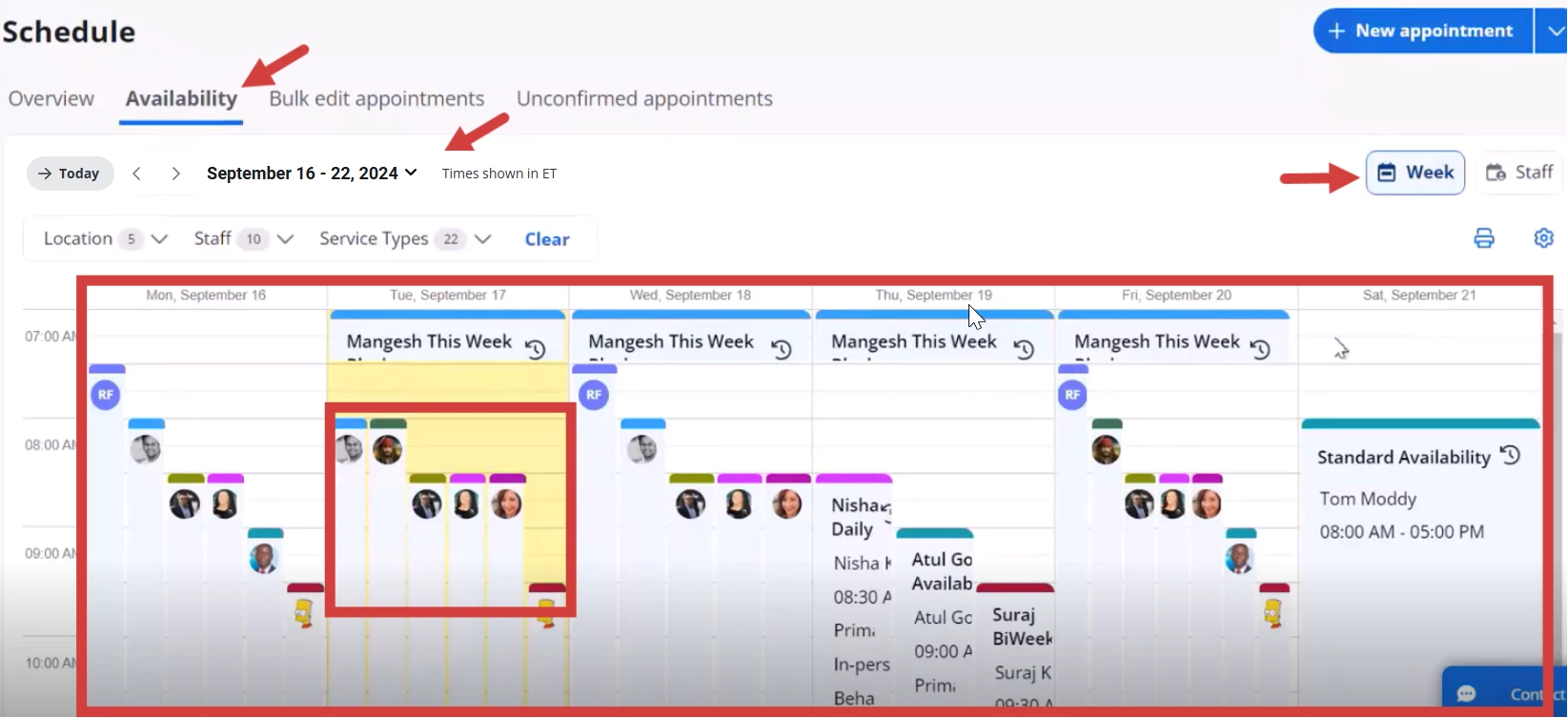
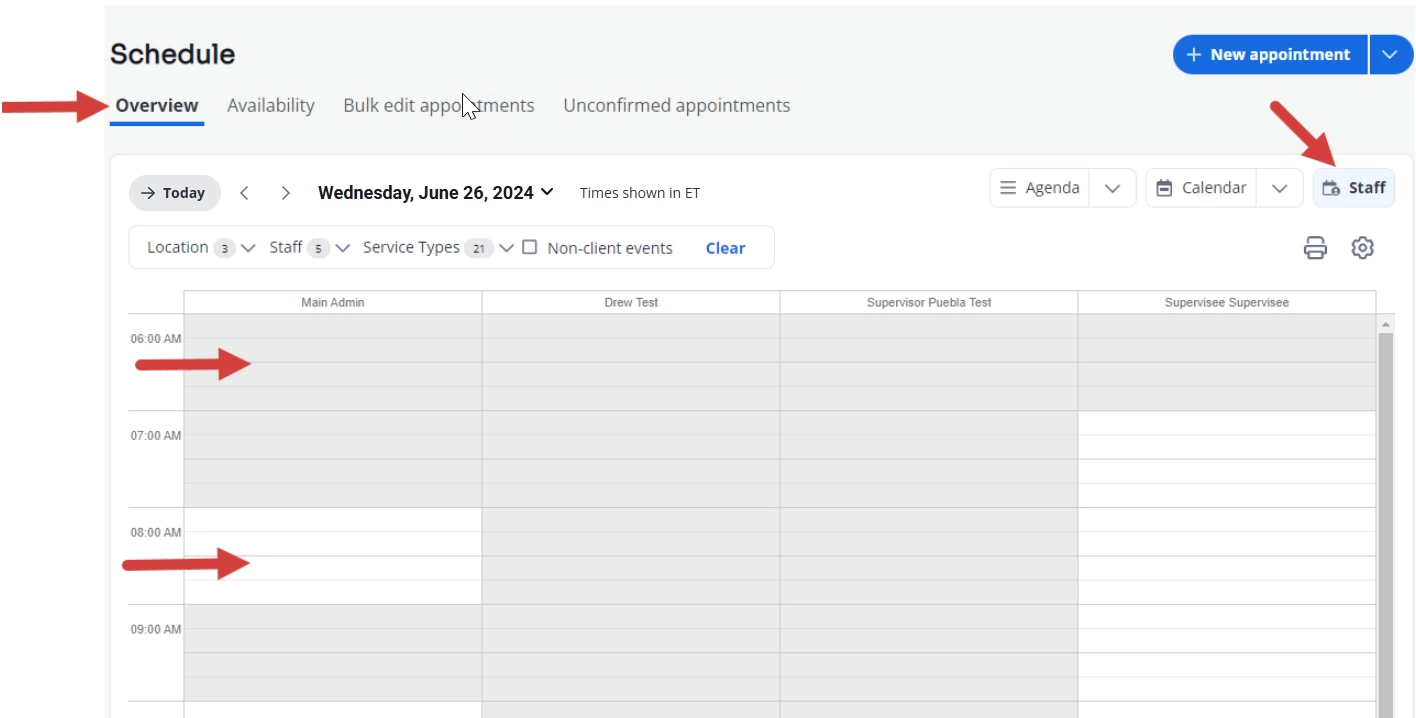
- Click the Overview tab and Staff button to view see staff members' availability and unavailability.
- availability will be open
- unavailability will be grayed out