



ABA Therapy

Staff Permissions Glossary

  • August 13, 2025
  • 0 replies
  • 104 views

Ensora Education Team
Forum|alt.badge.img


PERMISSIONS REQUIRED: You must have Organization Administration Permissions.

There are 5 general levels of Permissions and there is a lot of customization you can do with them.  


Jump to Section:


Default Permissions

By default, when a Staff Member is added, they will automatically be given these permissions.
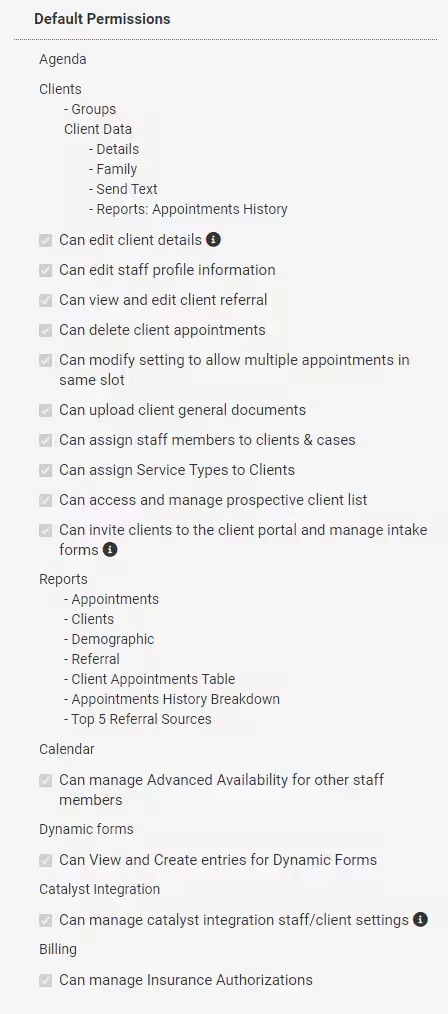
 

Agenda

  • User will be able to view the Agenda for all Therapists and Edit Appointment Status.

Clients

  • User will be able to add and manage Groups.
  • User will be able to view Client Details tab.

Clients Optional - If selected User:

  • Can edit client details
  • Can edit staff profile information
  • Can view and edit client referral
  • Can delete client appointments
  • Can modify setting to allow multiple appointments in same slot
  • Can upload client general documents
  • Can assign staff members to clients & cases
  • Can assign service types to clients 
  • Can access and manage prospective client list
  • Can invite clients to client portal and manage intake forms

Reports

  • User will be able to view the listed Reports.

Calendar

  • User will be able to view the Calendar for all Therapists and add Appointments.

Dynamic Forms

  • If selected, user will be view and create entries for Dynamic Forms in the Client Profile.
  • If selected, User can add, edit, and archive Dynamic Forms as well as modify Intake Forms.

Ensora Data Collection Integration

  • Can manage Ensora Data Collection integration staff/client settings
    If selected, user will be able to match/un-match students and users in Ensora Data Collection to clients and staff. Users will be able to see all clients/staff in Ensora Data Collection when managing the integration settings. 

Billing 

  • Can Manage Insurance Authorizations
    If selected, will allow non Billing/Admin users access to manage insurance authorizations in the Bill To and Insurance Info page for clients.  


[Back to Top]


Billing

2022-10-26_12-43-51.png

Client Data

  • User will be able to view the Client Ledger including all Invoices created and Payments made.
  • User will be able to view and edit the Client Billing and Insurance on their Bill To & Insurance Info tab.
  • User will be able to view the Client Payment History Report.

Reports

  • User will be able to view the Billing Reports.

Insurance

  • If selected, User will be able to submit Claims to the Clearinghouse. They will be able to see all tabs on the Billing > Claims tab (Awaiting Submission, Submitted, Rejected/Denied, etc.) and manage Claims in any state.

[Back to Top]


Therapist

Default Permissions will also automatically enable when you select Therapist Permissions. You can manually deselect certain Default permissions if desired.
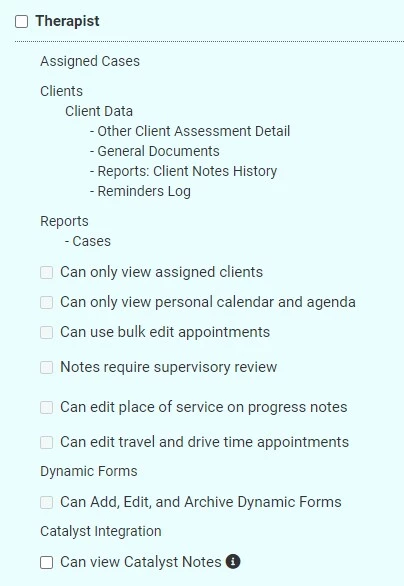
 

Assigned Cases

  • User will be able to view all Assigned Cases unless the Can only view assigned clients is checked.

Client Data

  • User will be able to view and manage Other Client Assessment details.
  • User will be able to view and manage a Client's General Documents.
  • User will be able to view the Client Notes History Report.
  • User will be able to view the Client's Reminder Log tab in their Client Profile.

Reports

  • User will be able to view the Cases Reports.

Dynamic Forms

  • Can Add, Edit, and Archive Dynamic Forms

Ensora Data Collection Integration

  • Can view Ensora Data Collection Notes


Optional - If selected, User:

  • Can only view assigned Clients - If the Therapist is not assigned to the Client, they will not be able to see that Client at all in the system. Additionally, if selected, all Client Data permissions will apply only to Client's you are assigned to. 
  • Can only view personal calendar & agenda - When selected, Therapist will only have access to their calendar and agenda and cannot see others' calendars or agendas.
  • Can use bulk edit appointments - When selected, Therapist will have the ability to use the bulk edit appointments feature.
  • Notes Require Supervisory Review - If selected, you will enter their Supervisors name. Any Notes this Therapist writes will be submitted to their Supervisor.

    NOTE: A staff member assigned as a Supervisor cannot also have a Supervisor. This will cause errors in the supervisory review process. 

     
    • Can Access Patient Notes
    • Must Review and Approve all Notes - Supervisor will be alerted when there is a new Note to be reviewed. They will review and approve the Note. The Note will be sent back to the Therapist to make changes and then save and e-sign if applicable.
    • Must Review and Co-Sign all Notes - Supervisor will be alerted when there is a new Note to be reviewed. They will review the Note and then co-sign the Note. It will be sent back to the Therapist, they will also co-sign the Note and save it. 
  • Can Edit Place of Service on Progress Note

    NOTE: If Therapist also has Billing Permissions, this will be selected by default.

Dynamic Forms

  • Can Add, Edit, and Archive Dynamic Forms - If selected User will be able to add and manage Dynamic Forms for you Organization.

[Back to Top]


Administration

Default and Billing Permissions will also automatically enable when you select Administration Permissions. In addition to those Permissions, Administrators will be able to access Organization level settings and Staff functions.
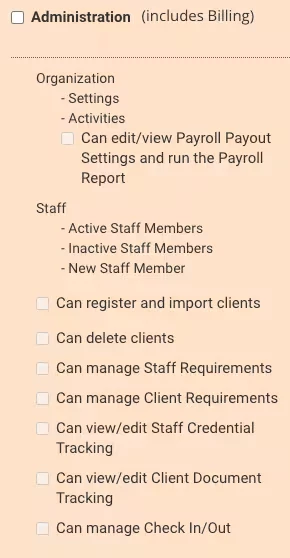
Organization

  • User will be able to set and manage Organization wide Settings such as Service Types, Locations and Rooms, etc.
  • User will be able to view all Staff Activity in the Activity Log.
  • Can edit or view the Payroll Payout Settings and run the Payroll Report.
    DOES NOT have this permission by default.
  • User can register and import clients.

Staff

  • User will be able to add and manage Staff. This includes giving Staff appropriate Permissions, tracking staff credentials and managing staff & client requirements. Additionally, an Administrator will be able to Inactivate and Activate Staff members in the system.


[Back to Top]


Organization Administration

Default, Billing, and Administration Permissions will also automatically enable when you select Administration Permissions. In addition, Organization Administrators will be able to do the following.

2021-06-18_10-04-31.png

Organization

  • User will be able to enable and setup Appointment Reminders.
  • User will be able to setup and manage Insurance Claim Settings.
  • User will be able to setup and manage Billing Information for their Organization, this includes updating payment methods for your system Subscriptions.
  • User will be able to enable and manage Subscriptions, including things like Telehealth, e-Prescribe, etc.
  • User will be able to enable and manage organization wide Client Portal settings.
  • User will be able to Export Client Data.
  • User will be able to enable and manage the system/Ensora Data Collection Integration from within the system.

[Back to Top]

This topic has been closed for replies.