


If you are subscribed to Jituzu Client Portal, you will be able to create custom Client Homework.
NOTE: If you subscribe to Wiley Treatment Planner, you will be able to create Homework using data saved from the Wiley Treatment Planner.
Jump to Section:
Create Custom Homework
- Select Client from drop down list and click the green Progress Note (pencil) icon.
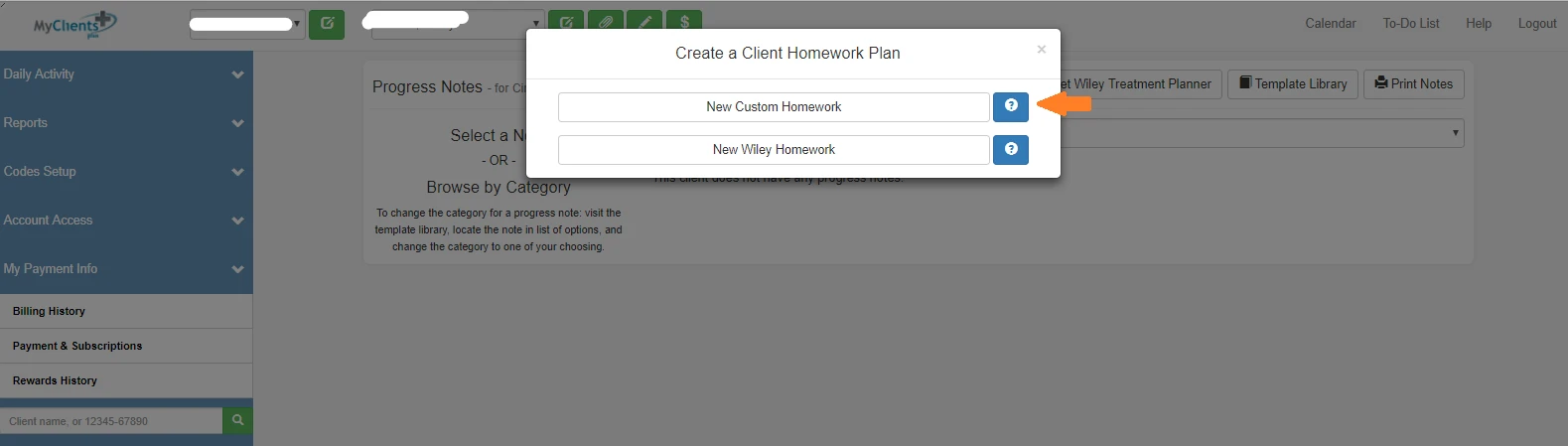
- Click Homework button and click New Custom Homework.
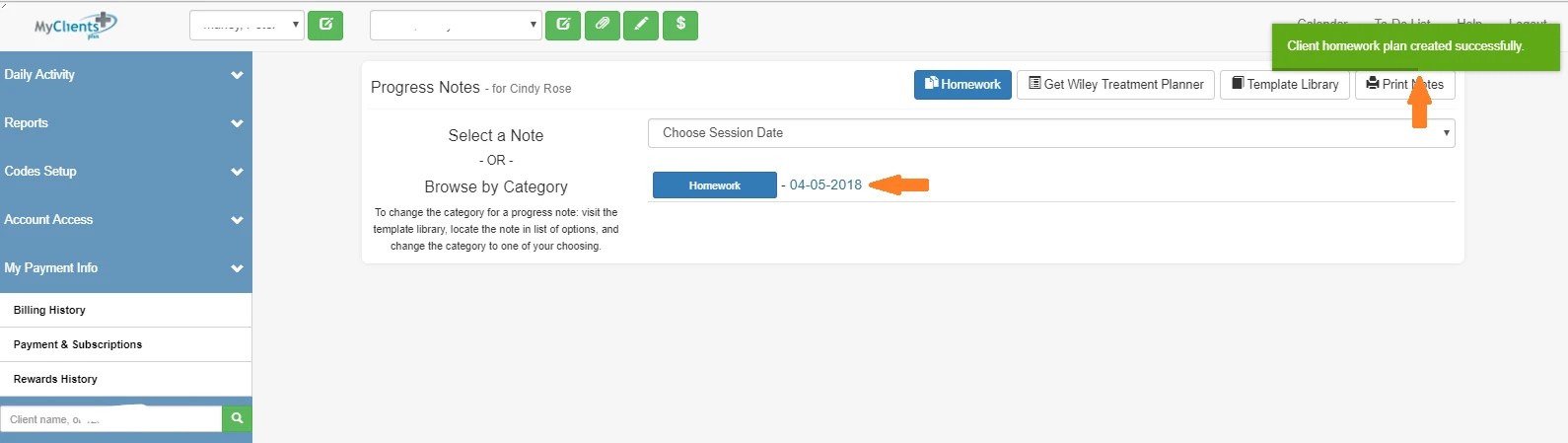
- Click the appropriate homework date to open the newly created homework.
- Add Homework Plan Name.
- Click + Add Homework button.
- Name Homework and set Status.
- Within new homework, click + Add a Goal and enter in Goal for homework assignment.
- Repeat steps 5-7 until all desired homework is added.
- Click Save.
Assign & Manage Homework
Once homework is created, you can manage (edit) or assign it to the Client.
- Select Client from drop down list and click the green Progress Note (pencil) icon.
- Click Homework button or recently created homework link.
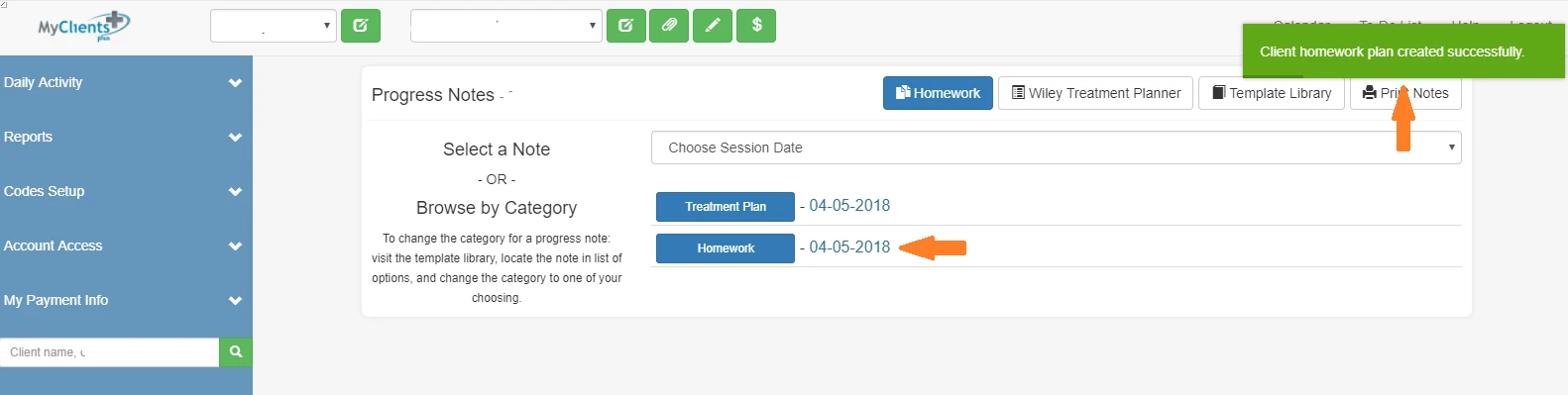
- From this screen you can edit the Homework.
- Rename
- Add or Remove Homework or Goals
- Add Provider Note
- Delete Homework
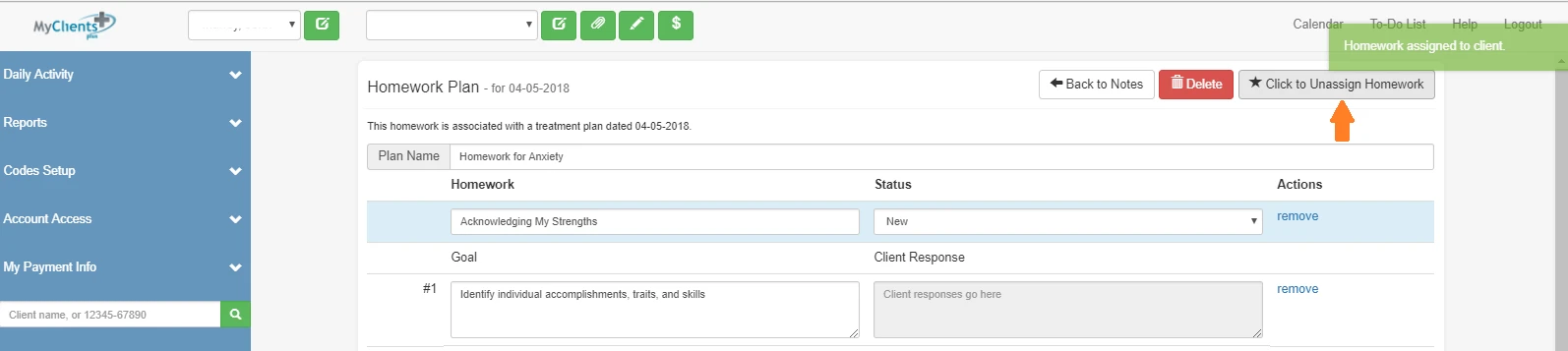
- Additionally, you can Click to Assign Homework to Client button to assign it to Client.
View Homework Responses
Once a client has entered responses, you will be able to view this in your Account