Payment processing and enrollment errors with Ensora Payments & Stripe can often be resolved by adjusting your browser, device, or operating system settings. You can also check to make sure you are using a Credit Card Accepted by TheraNest.
Common errors include:
- An error message that states "An Unknown Error Occurred" while trying to process a payment.
- Continuous spinning wheel when trying to process a payment.
- Unable to add a credit card to the client record/Nothing happens when you click the Manage Payment Methods or Add Payment Method buttons.
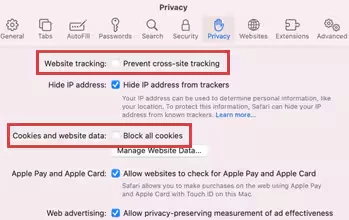
If you experience these errors while trying to enroll or process a payment with Ensora Payments & Stripe, make sure you have your settings configured appropriately. Browser pop-up blockers should be disabled or turned off for all browsers, and Chrome is the recommended browser for Ensora Payments & Stripe. If you are using an iPhone, iPad, or Mac, your settings should allow cross-site tracking and cookies.
NOTE: For payment-related questions, please contact the Ensora Payments Team at payments.support@ensorahealth.com or 877-288-5583 (option 2 then 6 for Payments)
Jump to Section:
Enable Payment Processing with Chrome on Windows
Chrome is the recommended browser for Ensora Payments & Stripe. To enable payment processing with Ensora Payments & Stripe on Chrome, set settings to allow third-party cookies and pop-ups, or add ensorahealth.com and other Ensora Payments websites as trusted sites and allow third-party cookies and pop-ups on trusted sites.
NOTE: Microsoft Edge is not a supported Ensora Payments & Stripe browser.
Allow Cookies or Allow Cookies on Trusted Websites:
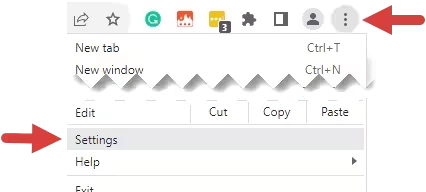
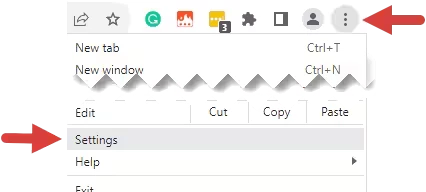
- Click the Customize and Control icon (Three Dots) at the top right.
- Select Settings.
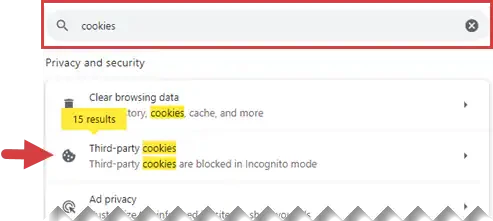
- Enter Cookies in the Search field.
- Select Third-Party Cookies.
- You can either allow third-party cookies or add ensorahealth.com and other Ensora Payments websites as trusted sites and allow third-party cookies on trusted sites.
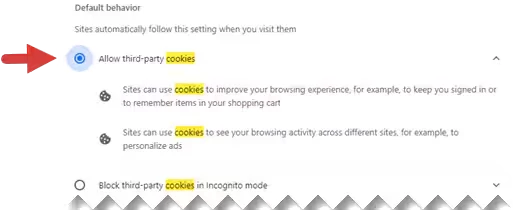
- Allow third-party cookies: Select Allow Third-Party cookies in the Default Behavior section.
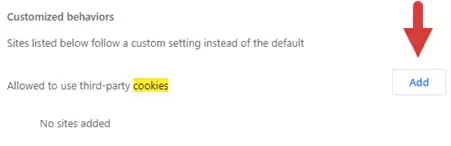
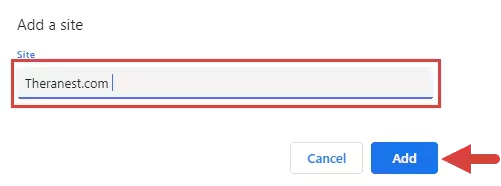
- Add ensorahealth.com as a trusted site and allow third-party cookies on trusted sites: Click the Add button next to Allowed to Use Third-Party Cookies in the Customized Behaviors section, then enter ensorahealth.com in the site field and click the Add button. Click the Add button again to add other Ensora Payments websites, such as your client portal link for self-pay (for example, username.ensorahealth.com).
- Allow third-party cookies: Select Allow Third-Party cookies in the Default Behavior section.
Allow Pop-Ups or Allow Pop-Ups on Trusted Websites:
- Click the Customize and Control icon (Three Dots) at the top right.
- Select Settings.
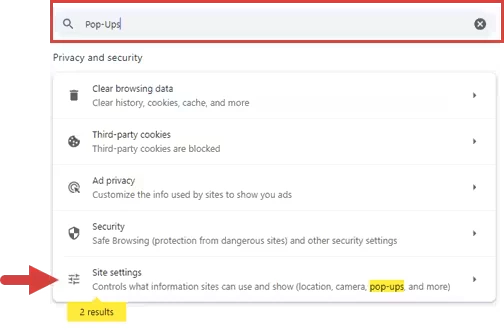
- Enter Pop-Ups in the Search field.
- Select Site Settings.
- Select Pop-Ups and Redirects.
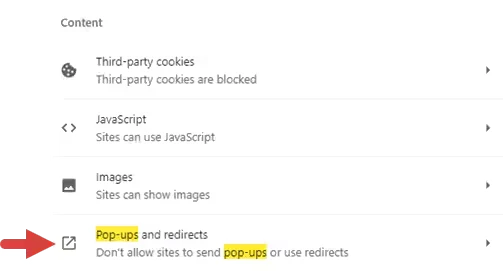
- You can either allow pop-ups, or add ensorahealth.com and other Ensora Payments websites as trusted sites and allow pop-ups on trusted sites.
- Allow third-party pop ups: Select Sites Can Send Pop-Ups and Use Redirects in the Default Behavior section.
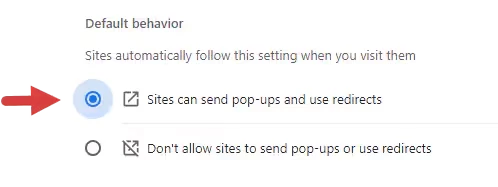
- Add ensorahealth.com as a trusted site and allow pop-ups on trusted sites: Click the Add button next to Allowed to Send Pop-Ups and Use Redirects in the Customized behaviors section, then enter ensorahealth.com in the site field and click the Add button. Click the Add button again to add other Ensora Payments websites, such as your client portal link for self-pay (for example, username.ensorahealth.com).
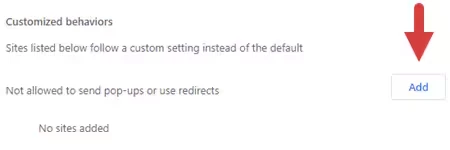
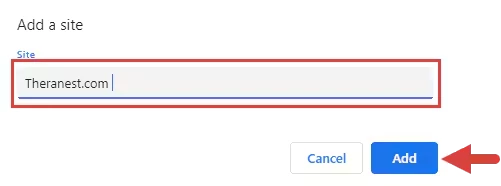
- Allow third-party pop ups: Select Sites Can Send Pop-Ups and Use Redirects in the Default Behavior section.
Enable Payment Processing on iPhone & iPad
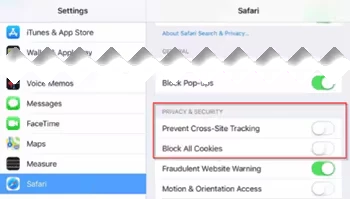
To enable payment processing with Ensora Payments & Stripe on your iPhone or iPad, go to your Settings > Safari and toggle off Prevent Cross-Site Tracking and Block All Cookies.
Enable Payment Processing on Mac
To enable payment processing with Ensora Payments & Stripe on your Mac, choose Safari > Preferences, click Privacy, then uncheck Prevent Cross-Site Tracking and Block All Cookies.