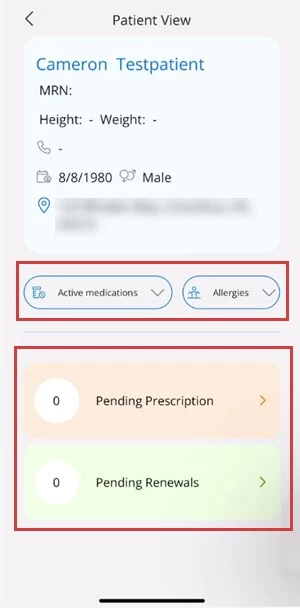
Use the Patient Search in the mobile app to look up patients by patient name, phone number, or MRN. The patient search will pull up the Patent View, where you can see a snapshot of the patient's demographic and contact information, review the patient's active medications and allergies, and access their pending prescriptions and pending renewals. You can use the Patient Search to view this patient information even if the patient does not have prescriptions waiting to be sent to the pharmacy.
Search for a Patient in the Mobile App
- Log in to the Mobile App.
- Tap the Patient Search button.
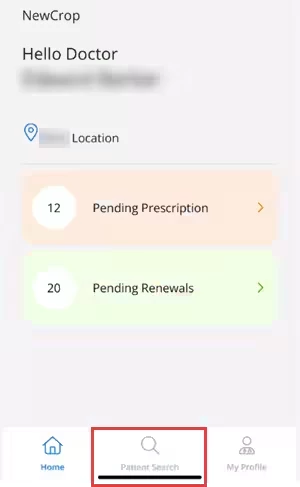
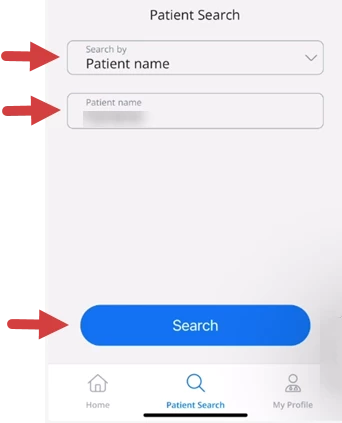
- Tap the Search By field to select how to search for the patient. Tap to select Patient Name, Phone Number, or MRN.
- Tap the next field to enter your search criteria. (For example, if you selected Patient Name in the previous field, this is where you will enter the name of the patient.) When you tap the field, the on-screen keyboard on your phone will open. Enter what you are searching for, then press return.
- Tap the Search button.
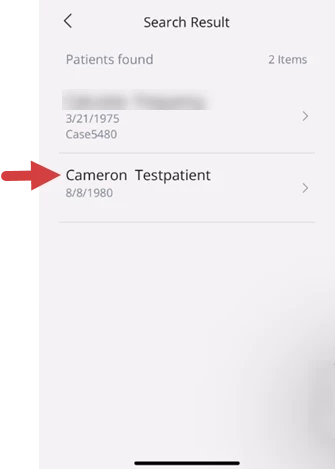
- Tap the Patient to open the Patient View.
NOTE: The Patient Search Results may list multiple patients, depending on your search criteria.
TIP: Use the Back Arrow in the top left corner of the Search Result or the Patient View to return to the previous screen.
- The Patient View displays.
- Tap the Active Medications button to view the patient's active medications.
- Tap the Allergies button to view the patient's allergies.
- Tap the Pending Prescriptions tab to access the patient's pending prescriptions.
- Tap the Pending Renewals tab to access the patient's pending renewals.