


PERMISSIONS REQUIRED: You must have Billing Permissions.
If you have unlicensed Clinicians you may be required to include the Supervisors name and NPI on the Claim.
You can submit with a supervisor 2 ways in the system:
- Set the Default Rendering Provider to the Supervisor.
-OR- - You can populate this information in Box 17 of the CMS-1500 Claim Form, Loop 2310D on the 837P EDI File. (This is the least common way to submit a claim with a supervisor.)
Jump to Section:
Set Default Rendering Provider
You can now set a default Rendering provider so that when you are billing under a Supervisor NPI you no longer have to change the Rendering Provider every time on the Invoice details to populate the Supervisor NPI as the Rendering.
NOTE: This will affect the Payroll Report. Any dollars collected for this Invoice will appear on the Payroll Report under the Rendering Provider name that is entered on the Invoice.
Enable Payer Settings
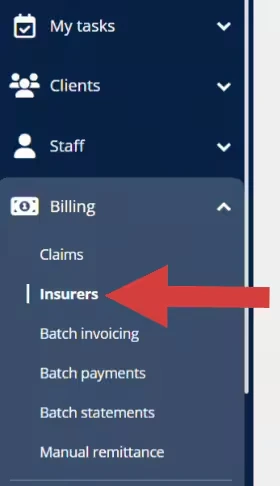
- Click the Billing tab in the primary navigation bar.
- Click Insurers in the side menu.
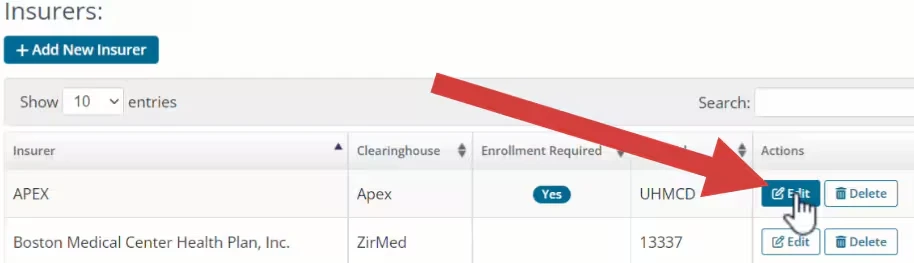
- Locate the appropriate Payer and click Edit.
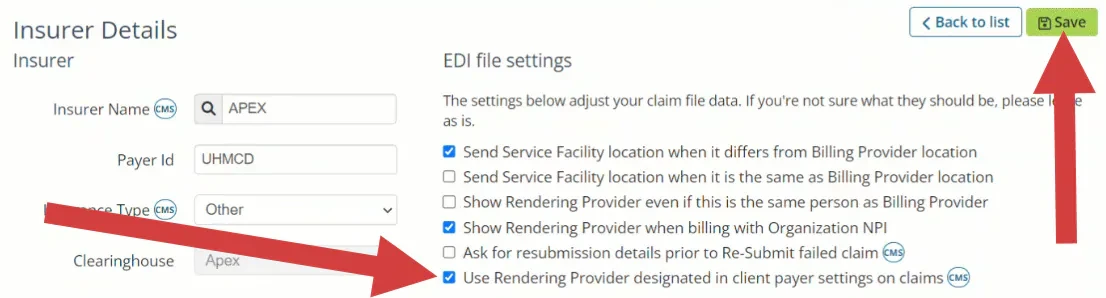
- Select Use Rendering Provider designated in Client Payer Settings on Claims.
- Click Save.
Set Rendering Provider in Client Profile
- Locate the Client and open the client Profile.
- Click the Bill To & Insurance Info tab.

- Scroll to the Manage Insurance section and click Edit for appropriate Insurance.
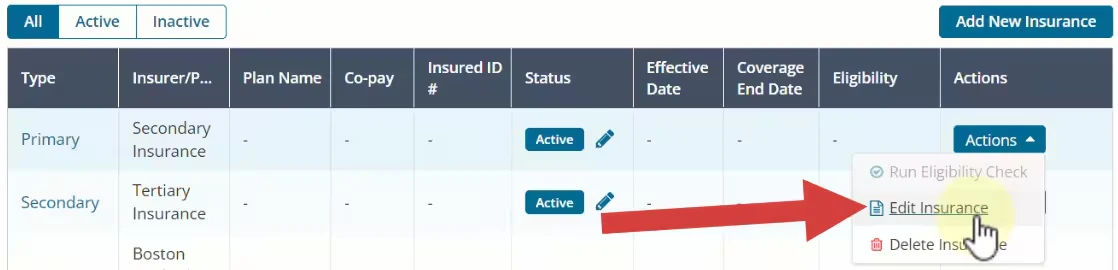
- Select the appropriate supervising provider in the Rendering Provider drop-down.
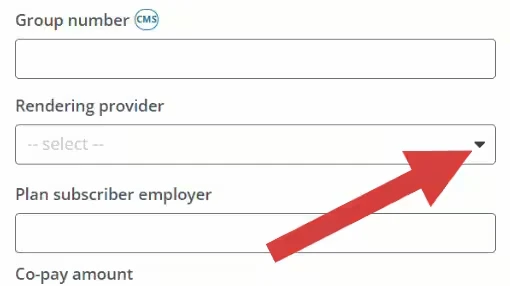
- Click Save in the upper-right corner.

Change the Rendering Provider on the Invoice Details
- Locate Client and open Client Profile.
- Click Ledger in the side menu.
- Click Action for the appropriate Invoice and select View Details.
- Under Rendering Provider, select the Supervisor's Name.
- Click Save.
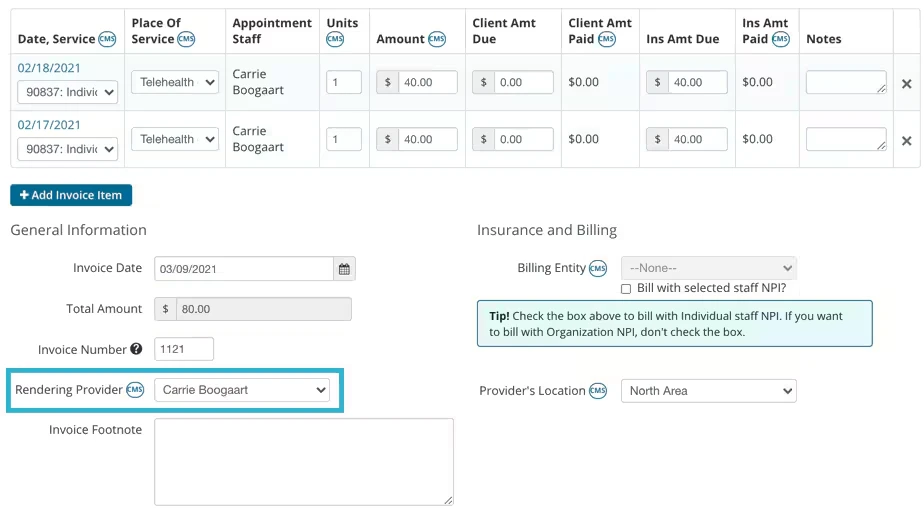
Populate Box 17: Name of Referring Provider or Other Source
- Locate Client and open Client Profile.
- Click Bill To & Insurance in the side menu.
- Scroll down to the Referrer section.
- Enter the Supervisor's First and Last Name.
- Enter Supervisors NPI.
- Select YES for Use Supervising Provider on Claims.
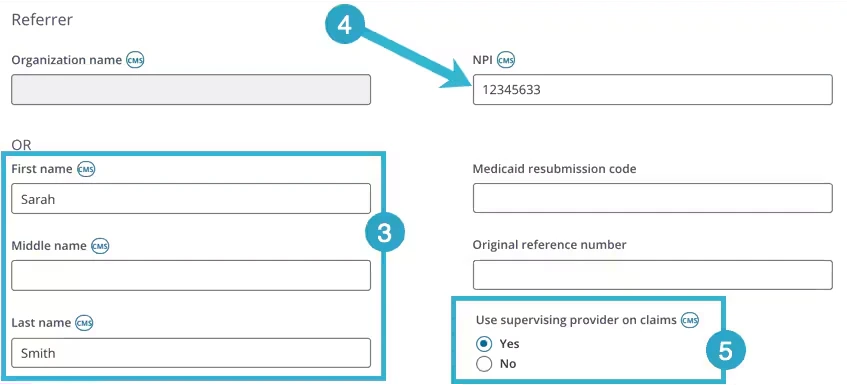
The Supervisor's name will populate on the Claim with the "DQ" Supervisor qualifier.
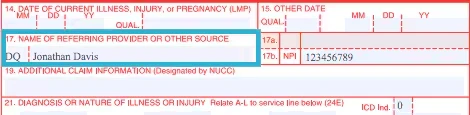
Some Insurance Companies require the Supervisor's name to replace the unlicensed Clinician's name as the Rendering Provider in boxes 24 and 31.
In these cases, you will need to make the change directly on the Client's invoice, or you can set a default rendering so that the invoice will default to the Supervisor regardless of the appointment staff.