


Once you receive the ERA, the software has the ability to auto-process ERAs that match certain criteria. If an ERA is not auto-processed, you will then be able to make adjustments, write off a balance, shift the balance to the client, or leave it as is from within the ERA Received tab.
NOTE: Feature availability depends on your subscription plan.
Jump to Section:
Enable Automated ERA Processing
- Click Claims Service under Organization.
- Click the Automation Settings tab.
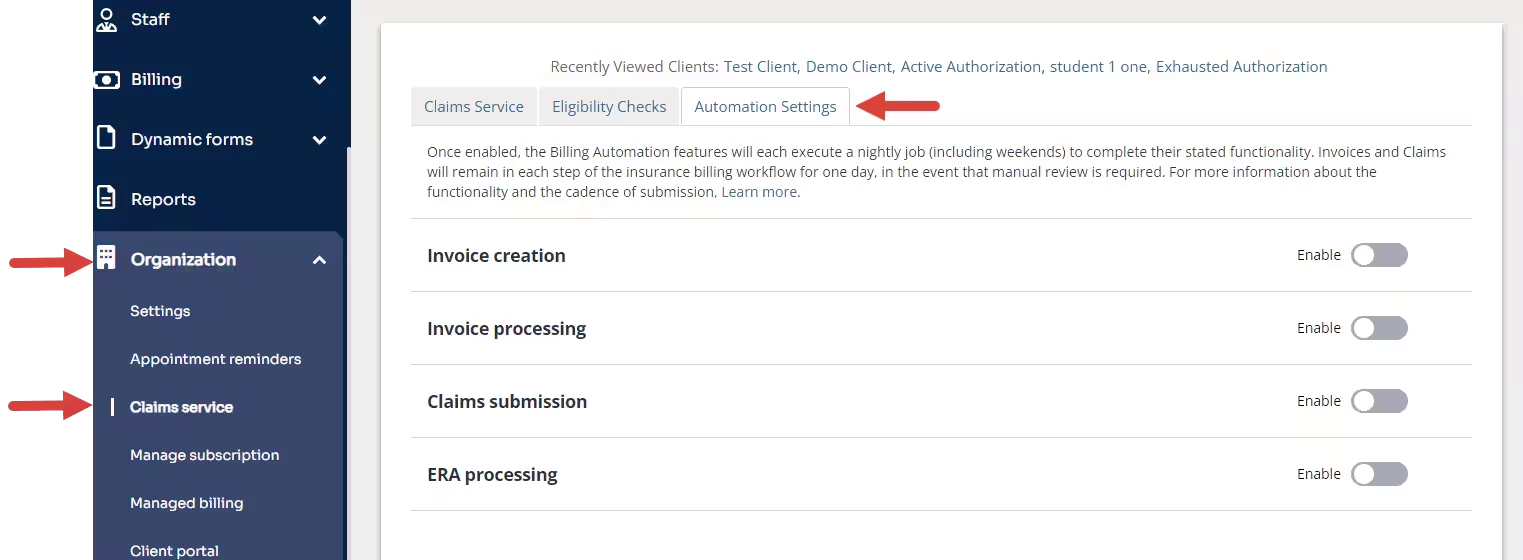
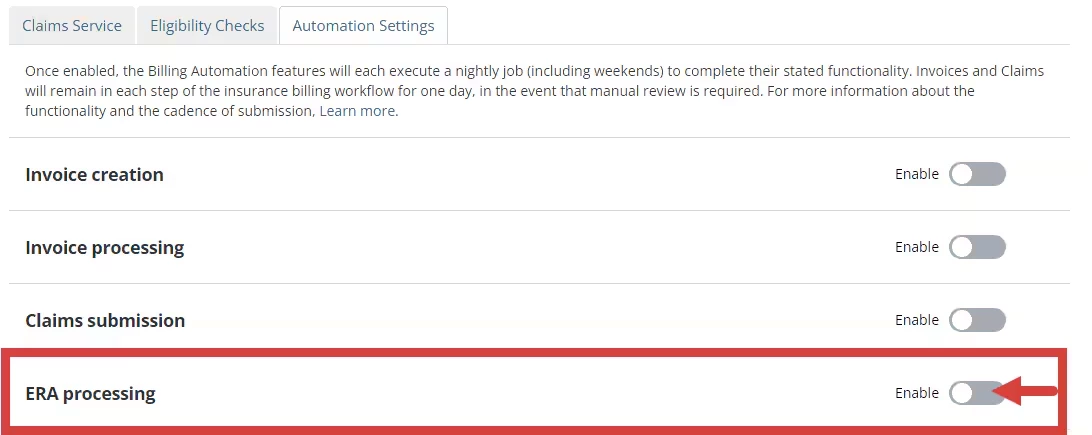
- Click the toggle to Enable Automated ERA Processing. A confirmation window opens.
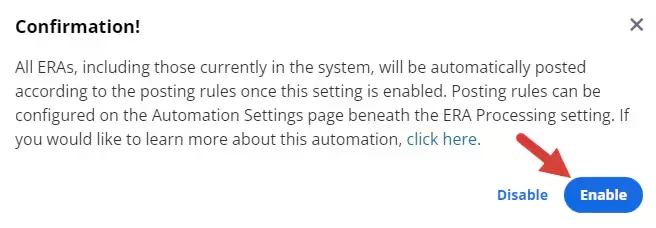
- Click Enable in the confirmation window. The toggle moves to the right and turns blue.
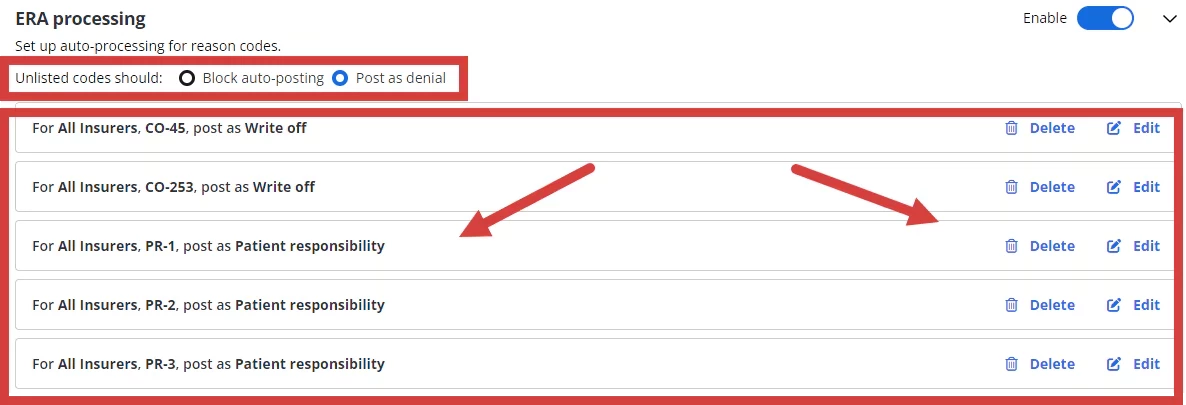
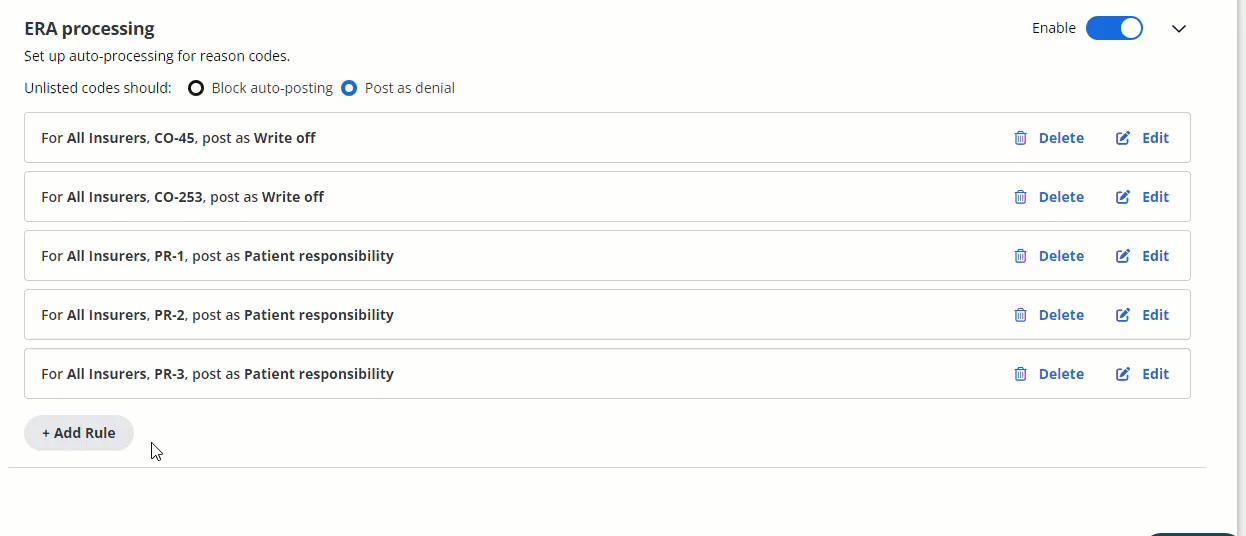
The Posting rules window opens where you can configure conditions to exclude claims from automatic processing.
NOTE: The following ERA Posting Rules will be populated by default after enabling ERA Processing Automation:
- For All Insurers, CO-45, post as Write off
- For All Insurers, CO-253, post as Write off
- For All Insurers, PR-1, post as Patient Responsibility
- For All Insurers, PR-2, post as Patient Responsibility
- For All Insurers, PR-3, post as Patient Responsibility
[Back to Top]
Set Posting Rules
You can exclude Claims from automatic ERA processing by configuring posting rules.
- The Posting Rules window opens when you enable the setting.
- Configure Unlisted Codes to Block auto-posting or Post as denial.
- Existing posting rules will auto-populate in the window. You can delete & edit these rules based on the needs of your organization.
- Click +Add Rule and select Insurer(s), Group Code, Reason Code, Post as (action).
- Click Save for each rule.
Disable Automated ERA Processing
- Click the toggle setting.

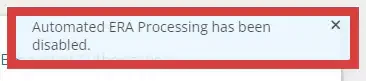
- A message displays to confirm the setting is disabled.
NOTE: A Disable button also displays in the confirmation window when you enable a setting but it is only used to cancel the Enable action.