When enabled, all future claims in Awaiting Submission status will be automatically submitted daily to their respective Payers. To exclude Claims from automatic submission, exclusion rules can be configured on the Automation Settings page.
NOTE: Feature availability depends on your subscription plan.
Jump to Section:
Enable Automated Claims Submission
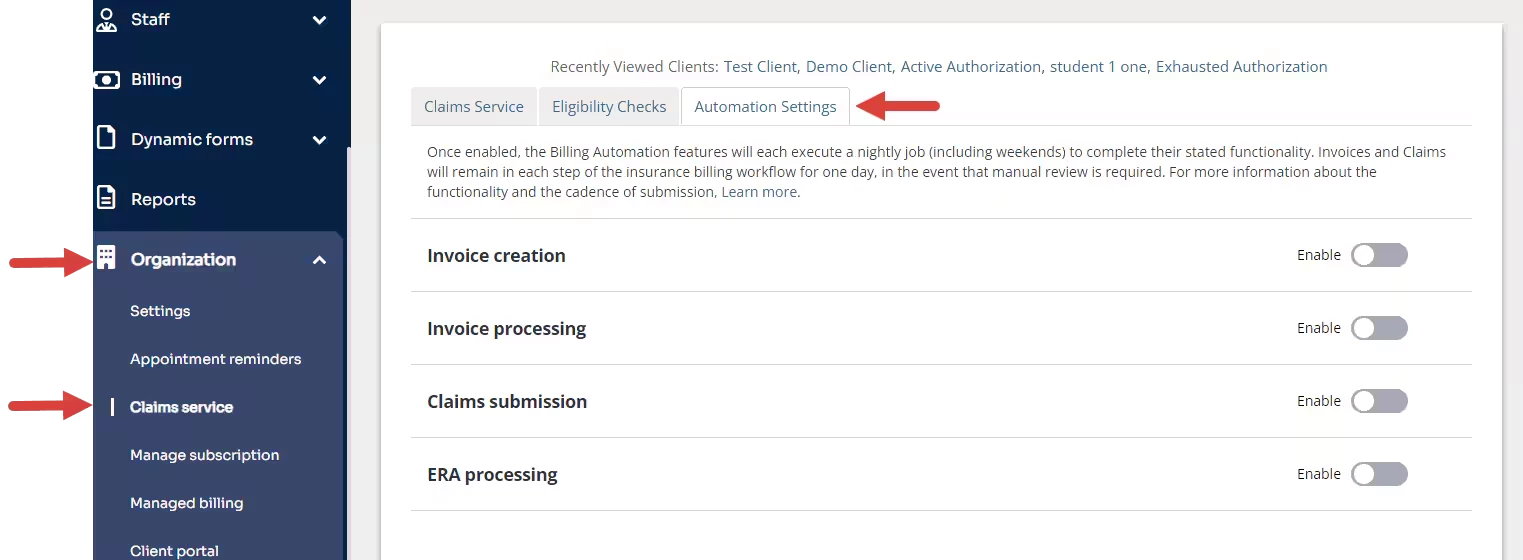
- Click Claims Service under Organization.
- Click the Automation Settings tab.
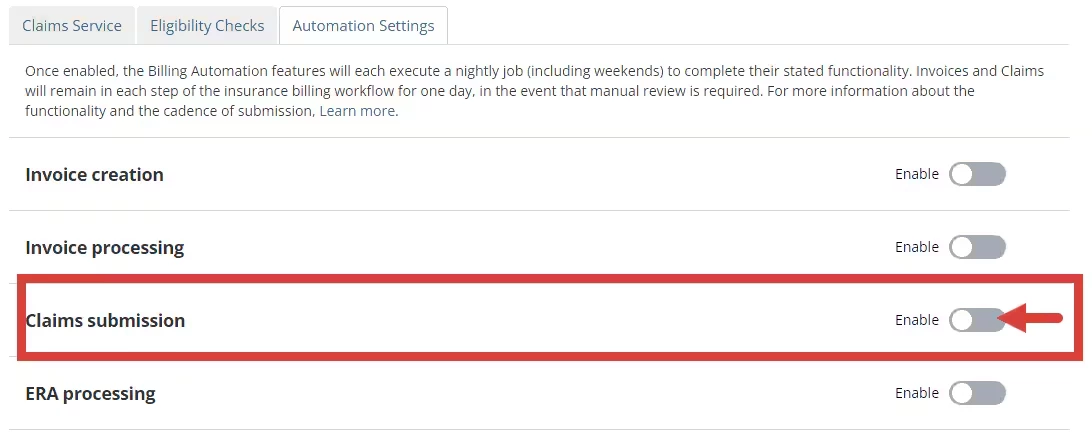
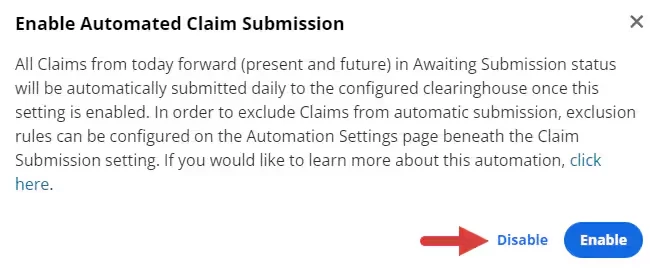
- Click the toggle to Enable Automated Claims Submission. A confirmation window opens.
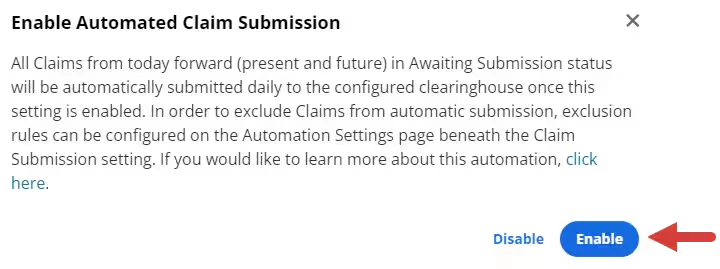
- Click Enable in the confirmation window. The toggle moves to the right and turns blue.
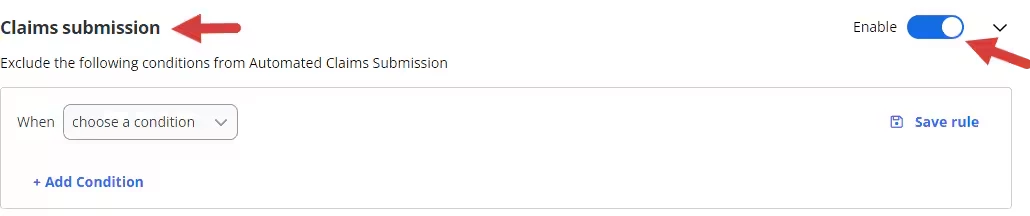
- The Exclusion window opens where you can configure conditions to exclude claims from automatic submission.
Set Exclusion Rules
You can exclude Claims from automatic submission by configuring exclusion rules.
- The Exclusion window opens when you enable the setting.
- Select conditions in the menu drop down for fields: When (condition) Equals (condition).
- Click +Add Condition to add as many conditions as needed.
- Click +Add Rule to add as many rules as needed.
- Click Save for each rule.
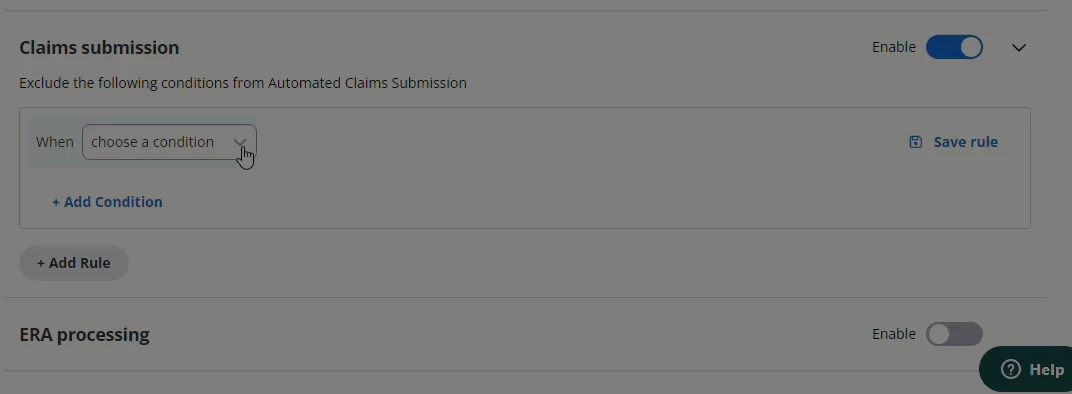
The following When conditions are available for configuring Claims Submission Exclusion Rules:
- Primary Insurer
- Secondary Insurer
- Claim Level
- Billing Provider
- Rendering Provider
- Place of Service
- Modifier
- Service Type
- Service Date
- Service Date range
- Progress Note Signed by provider
NOTE: If the supervisee has a supervisor who needs to approve, the progress note is considered signed when the supervisee has signed the note. If the supervisee has a supervisor who needs to cosign, the progress note is considered signed when both the supervisee and supervisor have signed the note.
Disable Automated Claims Submission
- Click the toggle setting.
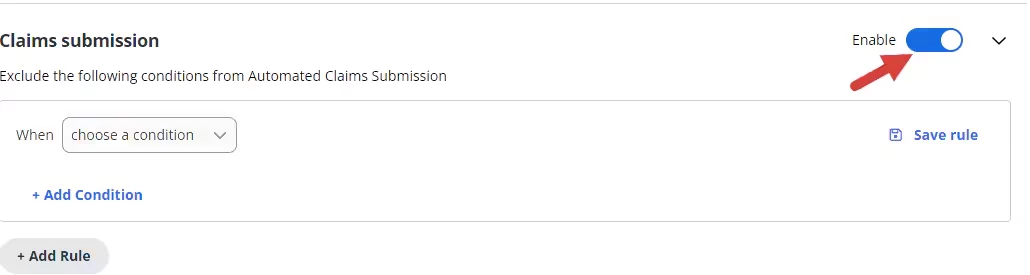
- A message displays to confirm the setting is disabled.
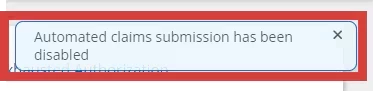
NOTE: A Disable button also displays in the confirmation window when you enable a setting but it is only used to cancel the Enable action.
Suggested Use Cases
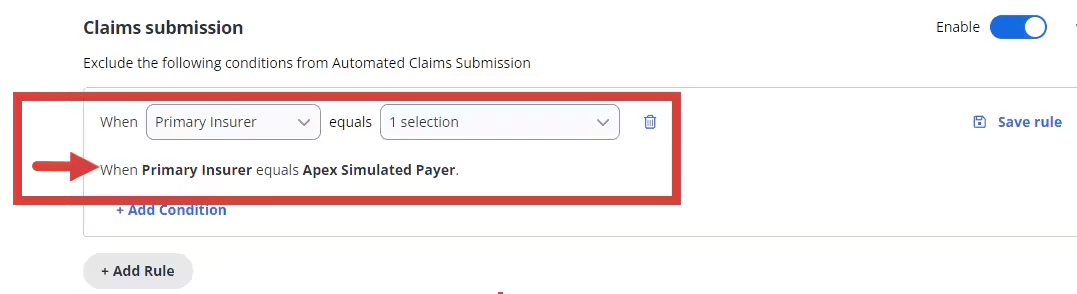
Exclude Primary Insurer
Use Case - If your Organization would like to prevent automated submission of all Claims that have a specific Primary Insurer, the following is an example of the exclusion rule that should be configured:
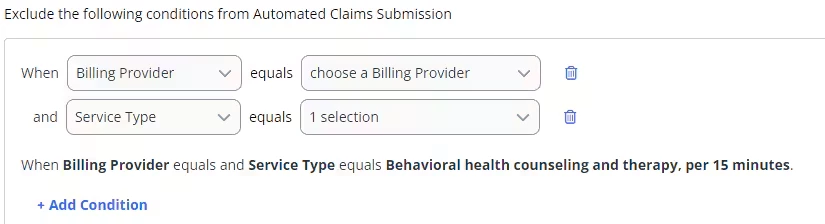
Specific Billing Provider and Service Type
Use Case - If your Organization would like to prevent automated submission of all Claims that have a specific Billing Provider and Service Type, the following is an example of the exclusion rule that should be configured:
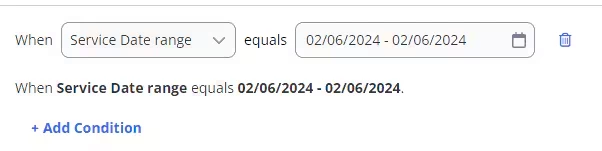
Service Dates within a Specific Service Date Range
Use Case - If your Organization would like to prevent automated submission of all Claims that have Service Dates within a specified Service Date range, the following is an example of the exclusion rule that should be configured:
Specific Place of Service and Modifier
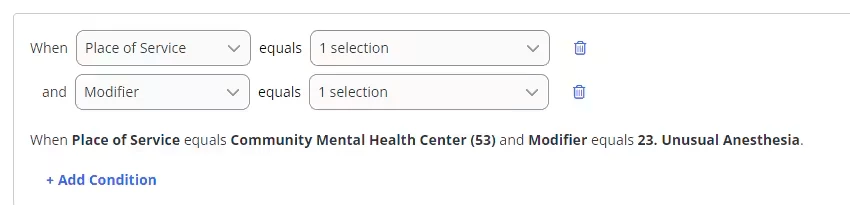
Use Case - If your Organization would like to prevent automated submission of all Claims that have a specific Place of Service and Modifier, the following is an example of the exclusion rule that should be configured: