


If your clinic has enabled the portal document upload feature, you’ll find a Documents tab at the top of your patient portal. This allows you to securely upload files for your clinic and provider. Documents uploaded by other portal users will not appear in your document list, and your uploads won’t be visible to other portal users.
Within the Documents tab, you can:
- Upload files directly for your clinic to review.
- View a list of documents you’ve personally submitted.
When uploading documents, file size limit is 50 mb. You can choose from a wide variety of file types. Below is a list of all the supported formats, organized by category:
- Document files (.pdf, .doc, .docx, .xls, .xlsx, .ppt, .pptx, .txt, .csv, .rtf, .json, .xml)
- Image files (.jpg, .jpeg, .png, .gif, .bmp, .tiff)
- Audio files (.mp3, .wav)
- Video files (.mp4, .mov, .avi, .mkv)
- Other supported formats (.zip)
NOTE: Files can not be renamed, edited or deleted once they have been uploaded. If you wish to delete a file that has been uploaded, please contact your provider.
- Click Documents at the top.
- Click the Upload Files button to select a file, or drag and drop the file over the Upload Files button.
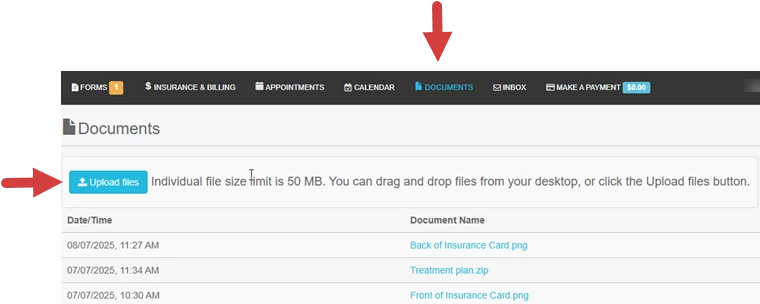
When the upload is complete, a green File Uploaded Successfully banner will display and the file will appear in the documents list.