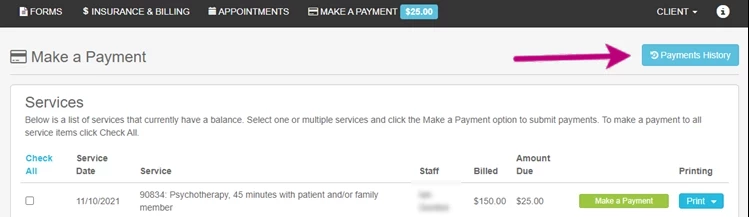
Once logged into the Client Portal you will be able to see a balance due and the Make A Payment option. You can also Print Invoices and Superbills.
NOTE: If the Make a Payment option is not visible, your Therapist/Organization will have to turn on the payment option. Please reach out to your Therapist if this is the case.
NOTE: Google Pay is only available in Chrome on desktop or mobile due to browser restrictions.
To enable payment processing on your iPhone, go to your Settings > Safari and toggle off Prevent Cross-Site Tracking and Block All Cookies.
To enable payment processing on your Mac, choose Safari > Settings, click Privacy, then uncheck Prevent Cross-Site Tracking and Block All Cookies.
iPhone Settings 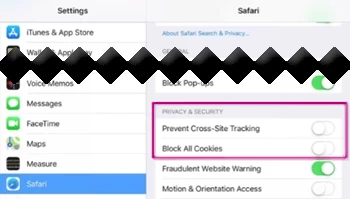
| Mac Settings 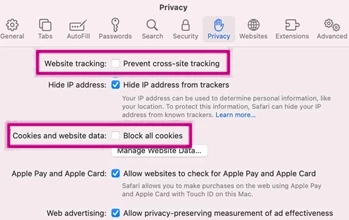
|
Make a Payment in Your Client Portal
- Click Make a Payment.
- Click Check All to the left of the services or click Make a Payment to the right of an individual service.
NOTE: If you click Make a Payment to the right of an individual service then you can edit the amount you pay in the Make a Payment window. If you click Check All, or make a payment towards two or more services, you will not be able to edit the amount you pay in the Make a Payment window.
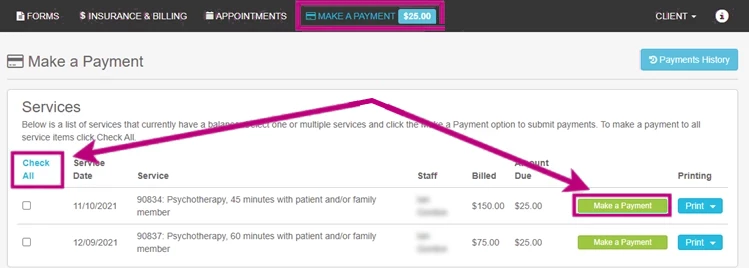
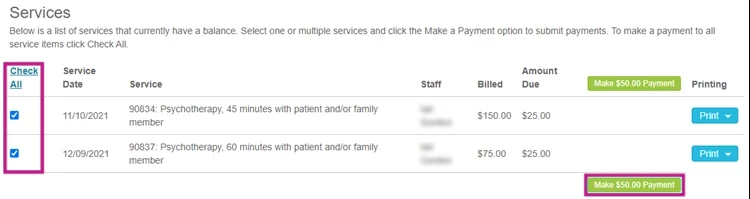
- The Make a Payment window launches.
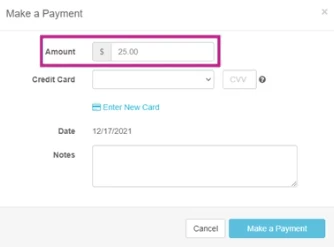
- You will be prompted to enter Payment Amount if you are making a payment for a single service.
- You have the option to enter Notes.
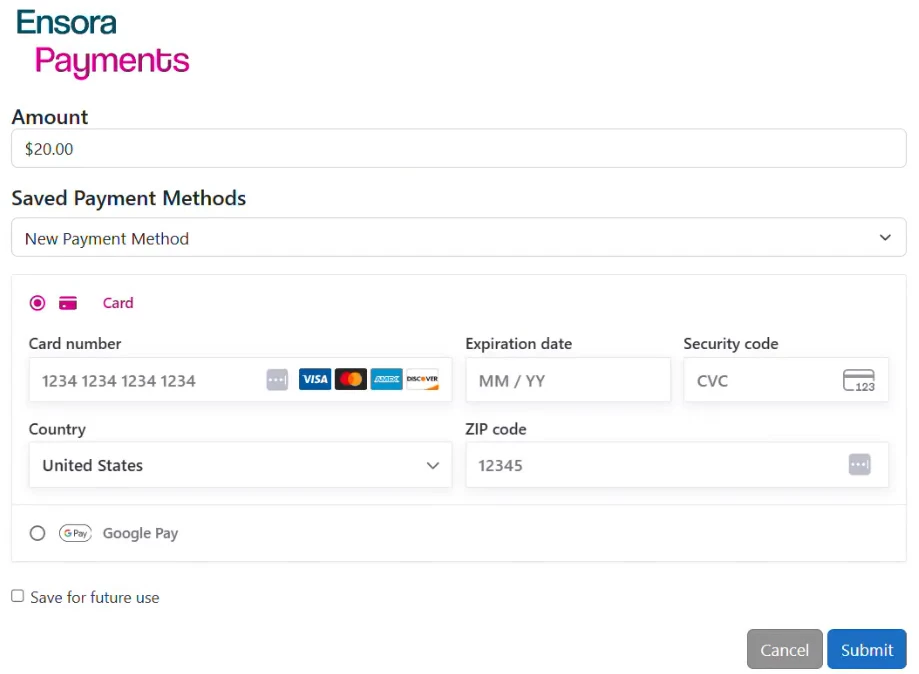
- Depending on the payment processor your Therapist/Organization is using, you will either be able enter Credit Card information and click Make a Payment on this screen, OR you will click Next to open the next window where you will enter payment information and click Submit.
NOTE: Some clients may see Google Pay as a payment option when making a payment. Google Pay is available for clients who are signed in to a Google account and using Chrome on desktop or mobile. If Google Pay is not available, you can continue to pay using a credit or debit card as usual.
- Enter Amount, select a saved Credit Card or click Enter New Card, enter Notes, then click Make a Payment.
- Enter Amount and Notes, then click Next.
- Select a Saved Payment Method or New Payment method, then click Submit.
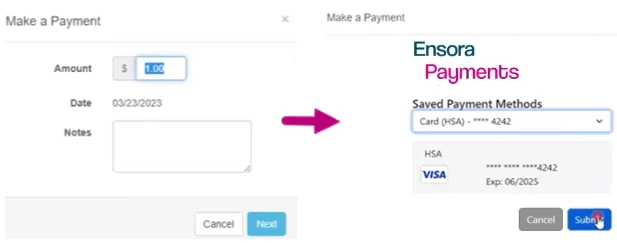
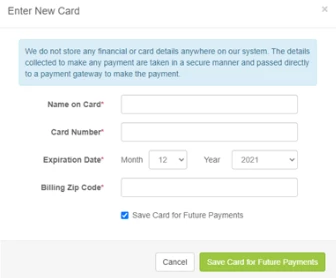
- If you are not using a saved method of payment, you will have the option to click Enter New Card or select New Payment Method. Click the Save Card for Future Payments or Save for Future Use checkbox to save the method of payment for use next time.
- If you clicked Enter New Card, you will enter payment information and click Save Card for Future Payments.
- If you selected New Payment Method, you will enter payment information and click Save for Future Use.
- You can view your past payments by clicking Payment History.