


The first time you e-Prescribe, you may have to complete a registration process with ID.me that includes entering prescriber information, uploading documents, and identity proofing. You will be automatically prompted to complete this process.
You will need your driver's license or state issued ID to verify your identity. You can use your smartphone to take photos of your driver's license or ID document. If you do not have a smartphone, you can also upload a scanned image of your driver's license or ID document (front and back) from your computer. Make sure to have the images scanned and ready before you begin. You will also need to provide a selfie via your smartphone or webcam.
If you encounter any issues with setting up or connecting your ID.me account to the system, reach out to support directly for troubleshooting assistance. See ID.me Support Requests for more information.
Verify Identity for eRx Registration
- Click Sign up for eRx only on the Welcome to e-prescribing screen.
- Select eRx Identity Proofing from the drop-down.
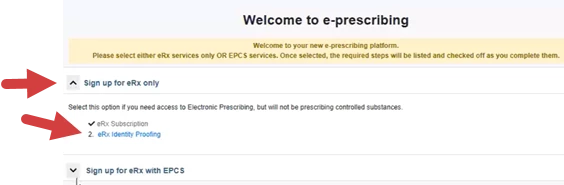
- Click the Verify with ID.me button.
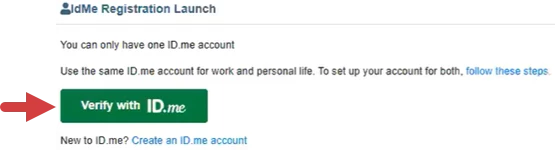
- Sign In to ID.me
If you do not have an account with ID.me, click the Create an ID.me Account. Once your account is created, you can continue to verify your identity. Learn More: Create an ID.me account for eRx Registration
If you already have an ID.me account, enter your Email and Password, then click the Sign In button.
- Click to select a Verification Method.
NOTE: This could be a driver's license or state ID, a passport, or a passport card. ID.me will also ask for your permission to use details from your credit profile and other public sources to verify your identity. This will not affect your credit score.
- Upload Photos of your License or State ID
- Upload a Photo of your Passport
- Upload Photos of your Passport Card
- Click the I acknowledge that i have received, read and agreed to these terms checkbox.
- Click the Continue button.
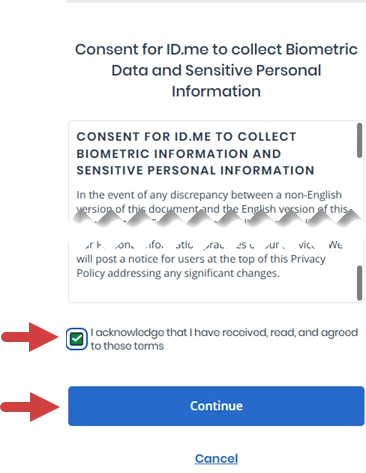
- Enter your smartphone number in the Mobile Phone Number field.
- Click the Continue button. You will receive a link via text to take photos of your identity document. You will see a confirmation screen that a link was sent to your while you upload your photos.
NOTE: Your smartphone must have a camera and a web browser. If you do not have a smartphone that meets this requirement, click the I Don't Have a Smartphone link to upload scanned images of your documents from your computer.
- Tap the link in the text you received to upload photos.
- Click the Start Document Upload button.
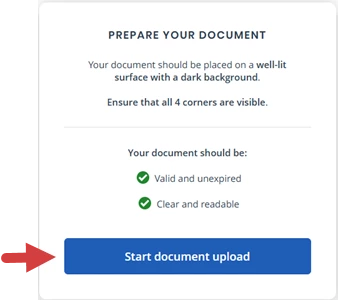
- Click the Take Photo links to upload photos of your document.
- Click the Continue button.
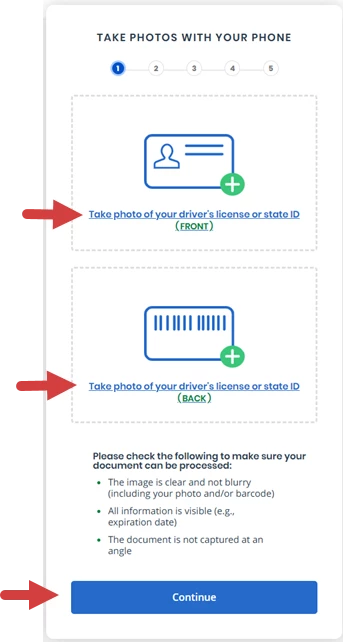
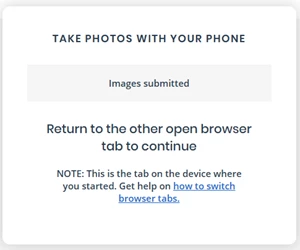
- Navigate back to the browser tab where you started the process when you see the Images Submitted confirmation.
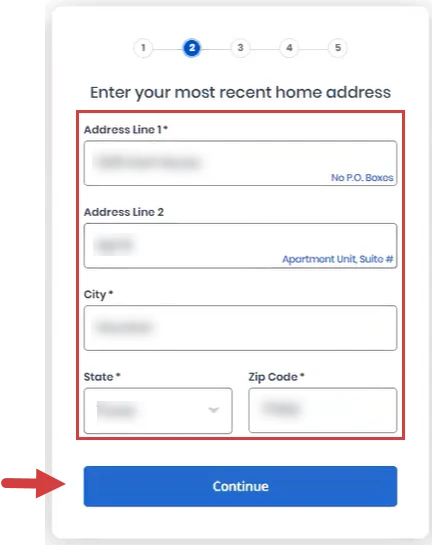
- Enter your most recent Home Address.
- Click the Continue button.
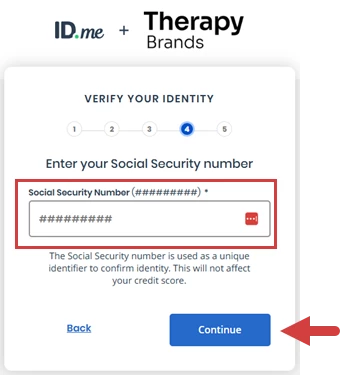
- Enter your Social Security Number in the Social Security Number field.
- Click the Continue button.
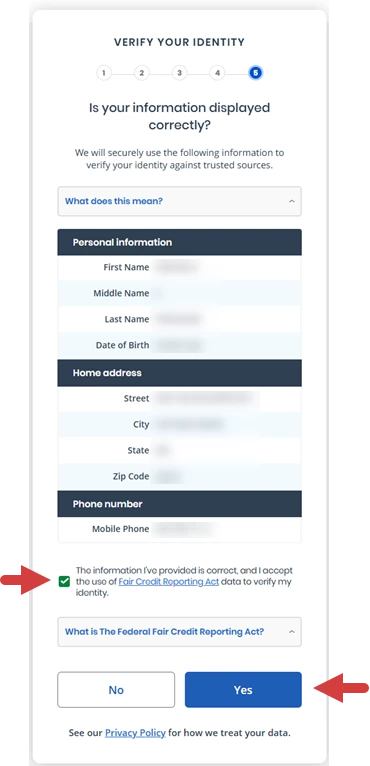
- Review your Personal Information, Home Information and Phone Number to confirm they are all correct.
- Click the checkbox to indicate that The information is correct and Accept use of the Credit Reporting Act data to verify identity.
- Click the Yes button.
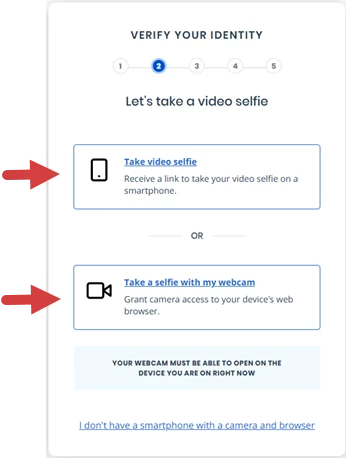
- Click to select a Selfie option, then follow the prompts to take a selfie via your phone or webcam.
- Take a Video Selfie
- Take a Selfie with my Webcam
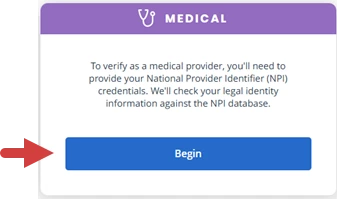
- Click the Begin button.
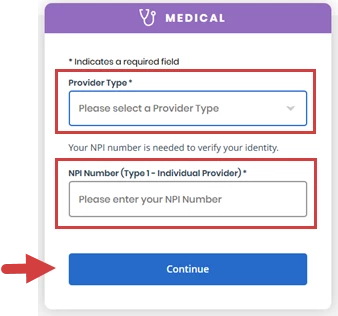
- Click the Provider Type dropdown and select a Provider Type.
- Enter your NPI Number in the NPI Number field.
- Click the Continue button.
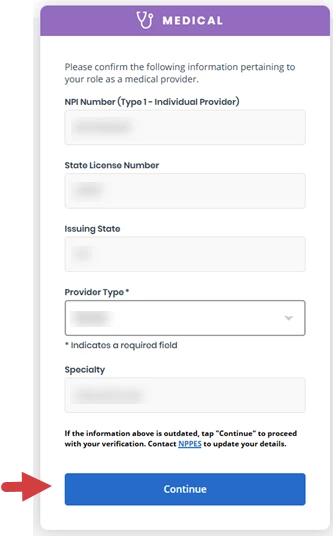
- Review the information pertaining to your role.
- Click the Continue button.
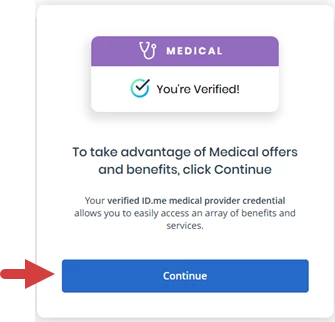
- The screen confirms verification. Click the Continue button.
- Click the Allow button.
The Registration Complete screen confirms that the identity verification process has been completed and documentation is being reviewed. Users will receive an email when ePrescribe registration is complete and full access has been granted.