


Jump to Section:
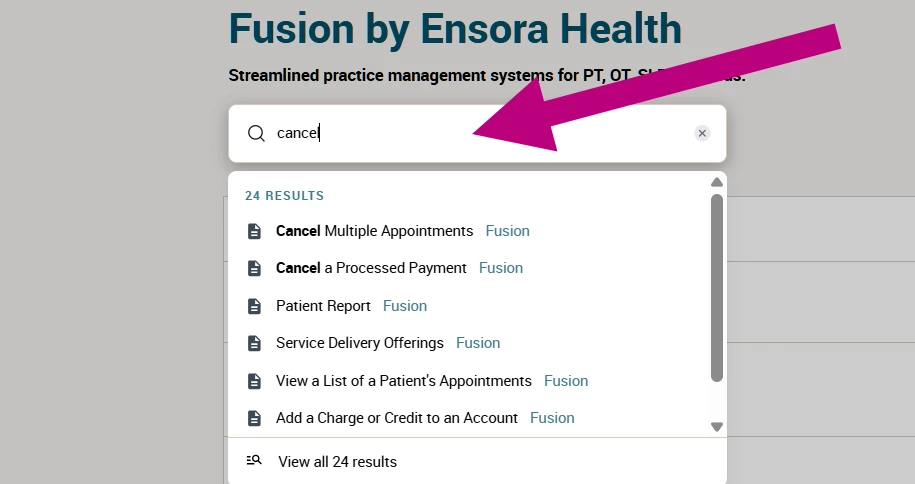
Search Your Product-Specific Knowledge Base
- Navigate to the Knowledge Hub.
- Click your product’s tile (e.g. Fusion, TheraNest, Procentive, etc.).

- Enter your keywords into the search bar inside your product knowledge hub to get answers related only to your product.
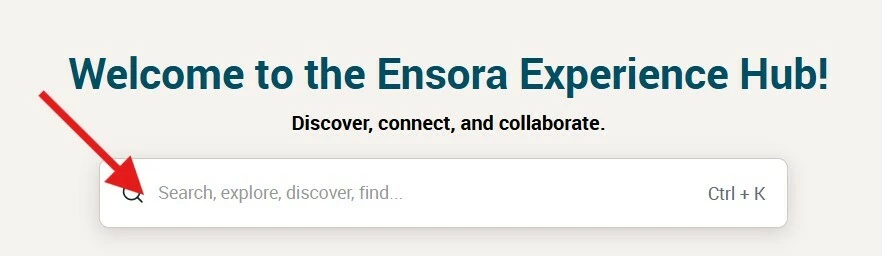
Want a broader search across multiple Ensora products, community threads, release notes, and training courses? Use the global search bar.
TIP: We recommend using broad keywords first, then narrowing your search as needed.
- For example, start with searching “appointments”, then try searching “schedule appointment” or “cancel appointment”
- Use wording or exact terms from within the product (e.g. exact error messages)
Apply Filters to Narrow Results
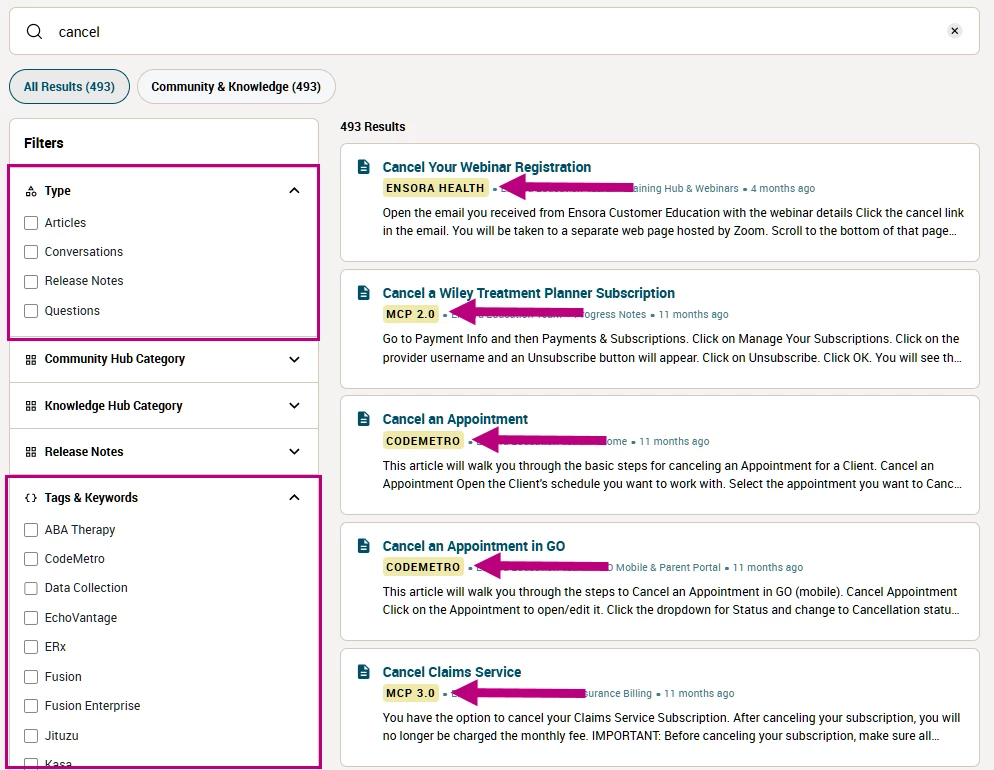
If your search returns a lot of results (especially if using the global search bar), use filters to refine what you see. The most effective filters we recommend are:
-
Tags & Keywords – Use this to check the box next to the product you use (e.g. Fusion, TheraNest, eRx, etc.)
-
Type – Filter by article, community conversations or questions or release notes.
TIP: Look for the yellow highlight that identifies the name of the product the article is for (ex. Ensora Health, Fusion, CodeMetro, TheraNest, etc.). Select the Tag for your product from Tags & Keywords to make sure you are only seeing the results that are relevant to you.
Use Quotation Marks for Exact Phrases
Searching for a specific title or sentence? Use quotes.
-
Example: “how to bill patients”