


SUBSCRIPTION REQUIRED: Ensai Note Enhancement is included with Fusion Essentials, Advanced, and Premier plans. If your clinic would like to upgrade to a plan that includes it, contact us to explore your options.
Ensai Note Enhancement is an AI writing assistant in Fusion clinical notes for PT, OT, and SLP clinicians (adult and pediatric).
A clinician selects Improve with Ensai on a note section. Ensai suggests a clearer, more polished version of the text, and the clinician decides whether to use it. Nothing is written to the note unless the clinician accepts it. The clinician always has the final say. The Improve with Ensai button is available on text sections in every note type, including:
- Daily/SOAP notes
- Initial Evaluations
- Progress Notes
- Re-Assessments
- Discharges
Jump to Section:
Enable or Disable Ensai Note Enhancement
PERMISSIONS REQUIRED: Clinic admins can enable or disable Ensai Note Enhancement for their clinic at any time.
NOTE: When Ensai Note Enhancement is enabled and available for the clinic, clinicians can access Improve with Ensai in their notes. When Ensai Note Enhancement is disabled, the Improve with Ensai button does not appear for anyone at the clinic.
- Go to Admin > Clinic Options > Document Settings > Edit Document Settings.
- Under Ensai Note Enhancement, select Yes or No from the dropdown menu to enable or disable the tool.
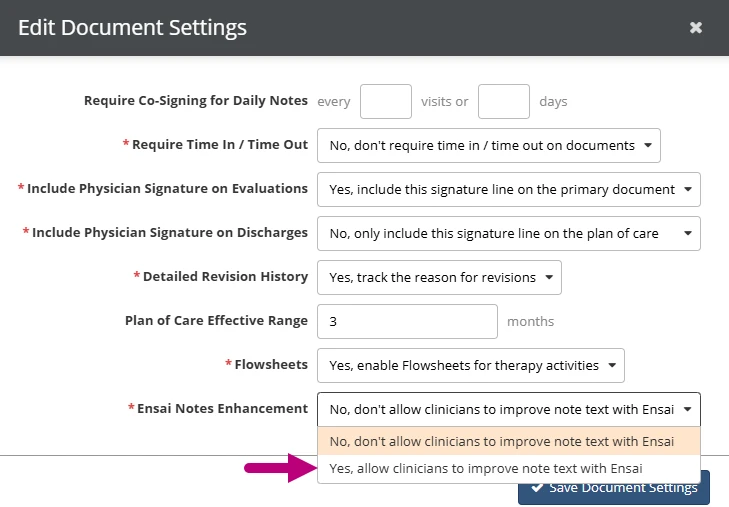
- Save the changes.
Generate a Suggestion
- Locate the Improve with Ensai button:
The button is in the section header next to the section's other actions when you are viewing a saved note, and in the edit header next to Cancel and Save when you are editing a section.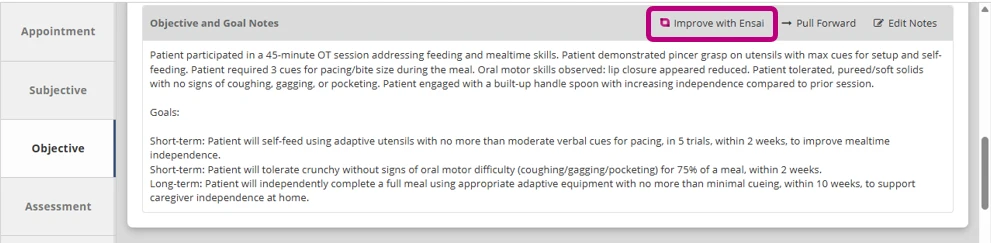
If the section is empty, the button will be greyed out. The button is enabled as soon as text is added.
- Click Improve with Ensai.
-
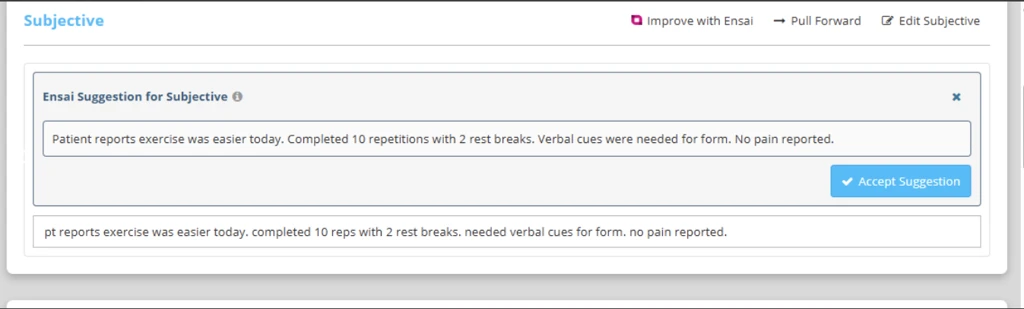
Review the suggestion in the bordered box. The original text remains visible below the panel for comparison.
NOTE: If there is not enough original text for a full response, Ensai will not provide a suggestion.
-
To accept and save the suggestion, click Accept Suggestion. To dismiss the suggestion and leave the original text unchanged, click the X button to close the panel.
-
The rest of the note actions remain available while the panel is open. For example, you can still use Edit, use Pull Forward, and scroll.
-
Privacy & Compliance
- AI suggestions comply with HIPAA.
- Ensai only receives the text of the section being improved, and only for that one request.
- Every use is logged for audit: when the button is clicked, and whether the suggestion was accepted or rejected. The log also records the note type and section, the clinician, the clinic, and the time. The audit log does not store note content or patient details.
- AI text never becomes part of the medical record without the clinician accepting it.