

Jump to Section:
Setting Up a Client Portal Account (First-Time Login) from an Email Invitation
- The client should open the email invitation and click Join Client Portal.
- The client will be prompted to set up a password.
- The client may enter demographic information (optional), then click Save.
- From there, the client can click Forms to complete intake paperwork.
Client Unable to Create a Portal Account - Email Invitation Sent First
- Confirm the client is clicking the Join Client Portal button in the original email invitation.
- Do not send the "New Invitation" link separately - it can cause system errors.
- Make sure the client’s email address is correct in their profile under Client>Client Details.
- If issues persist, contact Support for help.
Client Changed Their Email Address
- The client's new email becomes the login username; their password stays the same.
- The email must match what’s listed under Client > Client Details.
- If incorrect, update the email and click Save.
- The client can then click Forgot Password to reset their login.
Client Lost Access to Their Portal
- Client can use the login link in their original invite or appointment reminder email or you can share the Login Link you obtain under Organization>Client Portal>Login Link.
- Client clicks on Forgot Password.
- Client enters email address.
- Client checks their inbox (and spam/junk folders) for reset instructions.
- Client clicks Set New Password and create a new password.
NOTE: If no reset email is received, confirm the client is using the email associated with their account. For further assistance, please reach out to Support and provide Client ID.
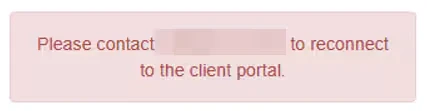
Client Received an Error Message
Ensure the client’s status is set to Active in the system