


PERMISSIONS REQUIRED: All Users can access. Information displayed will be different based on Permission Level.
Staff can access a list of Clients in the system. By default, all Staff will be able to view general Client Details (non-clinical). If you want Staff to only be able to view their assigned Client's you will need to set in Staff Permissions. See Set Staff Permissions for more information.
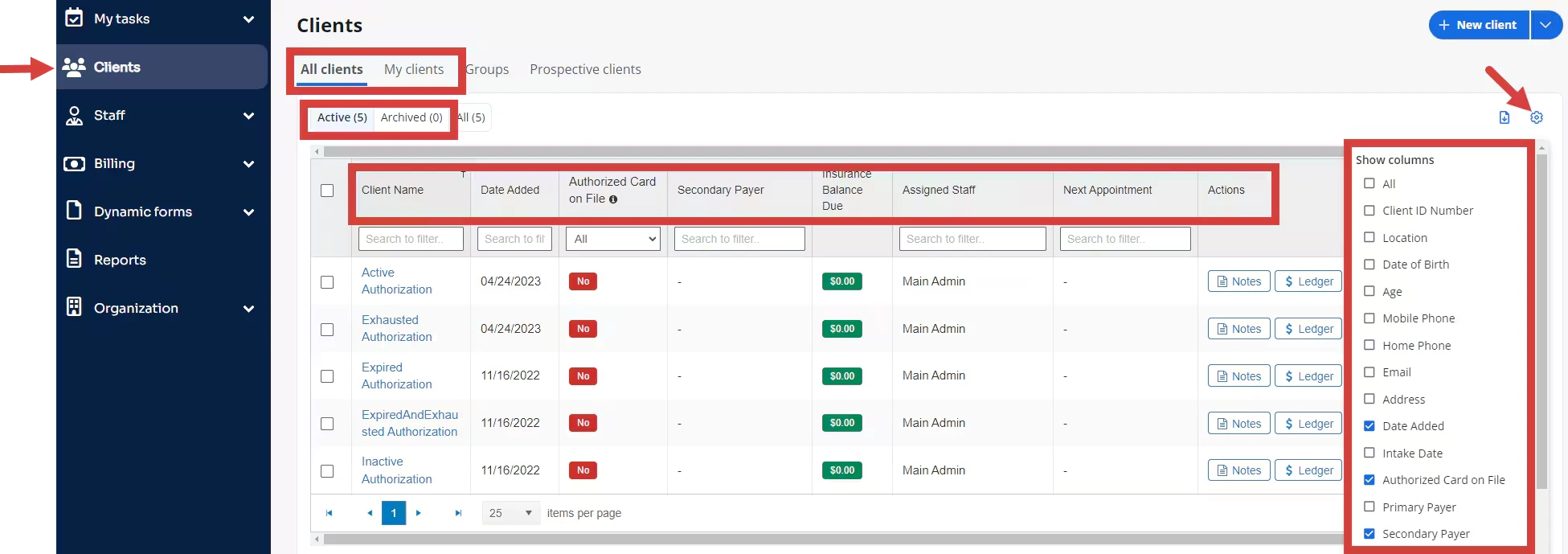
You can customize what information displays in the Client List by clicking on the customized grid button.
NOTE: Staff Members cannot export the Client List. This prevents "Patient Poaching." Administrators can export Client Information using the Export Client Data feature. See Export Client List or Data for more information.
- Click Clients in the navigation bar.
- Select the All Clients or My Clients tab.
- Select Active, Archived, or All (to show both Active and Archived clients).
- Click the Settings drop-down to Customize Grid and select the information you want displayed.
- As you make a selection, that information column is added to the Client List. Those selections will always automatically display for you going forward.
- Click on the column headers to Search or sort information.
Related Articles