


PERMISSIONS REQUIRED: You must be Therapist assigned to Case.
Jump to Section:
Group Notes
You can add Group Notes. This is different than adding Group Progress Notes and applying it to all Group Members. See Apply Progress Note to Entire Group for more information.
- Click Clients tab in primary navigation bar.
- Click Groups tab.
- Click Notes button. The Group Notes and Attendance tab opens.

- Click Details from the appropriate summary.

- Select Appointment from drop-down.
- Add a summary for the overall session.
- Click Save, or Save and E-Sign to sign the document.
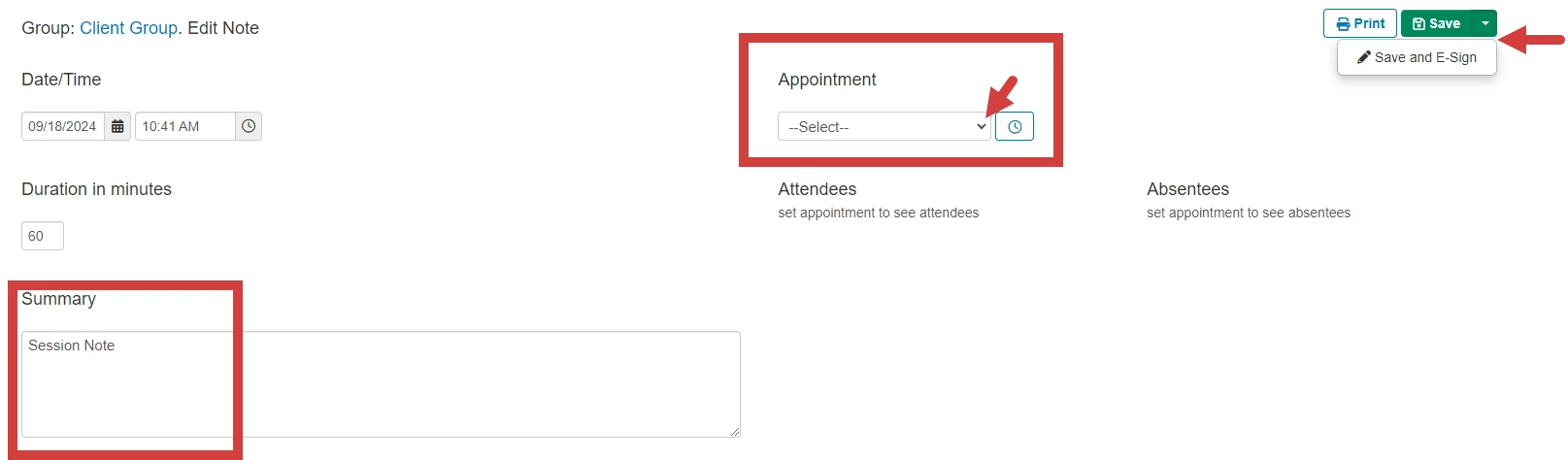
NOTE: If a therapist's permissions require a supervisor's approval or signature on notes, the therapist will select Save & Submit to Supervisor(s). Select Save and submit all from the drop down if you want submit all group notes.

Create Group Note from Agenda
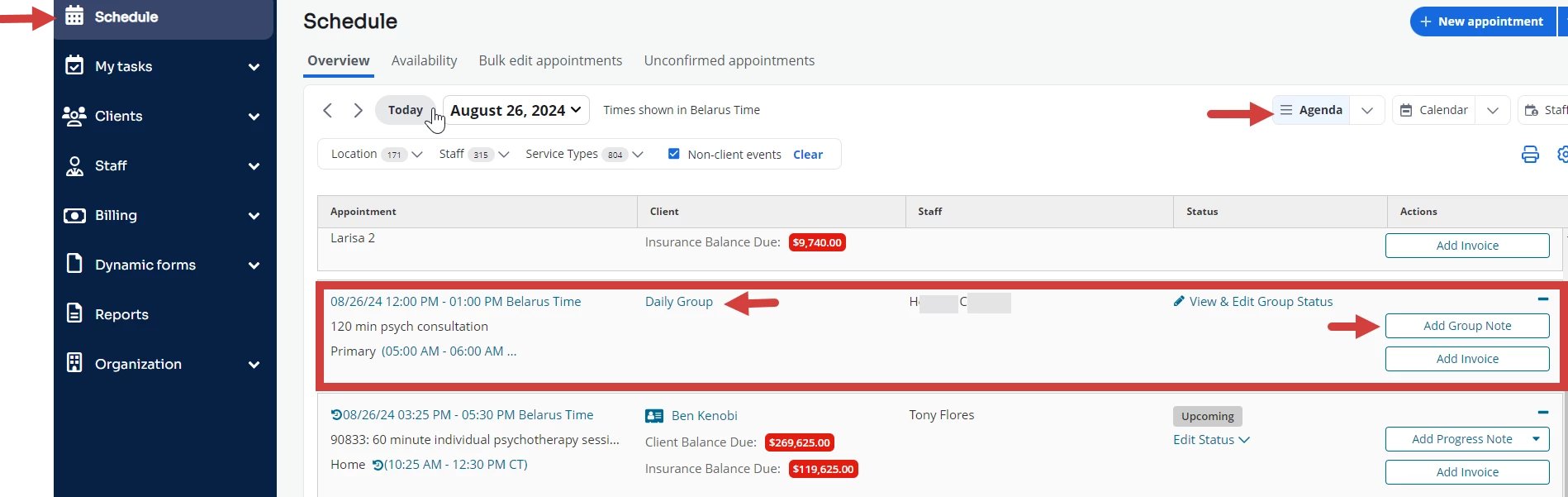
- Click Schedule from primary navigation bar.
- Click Agenda.
- Click Add Group Note for the appointment.
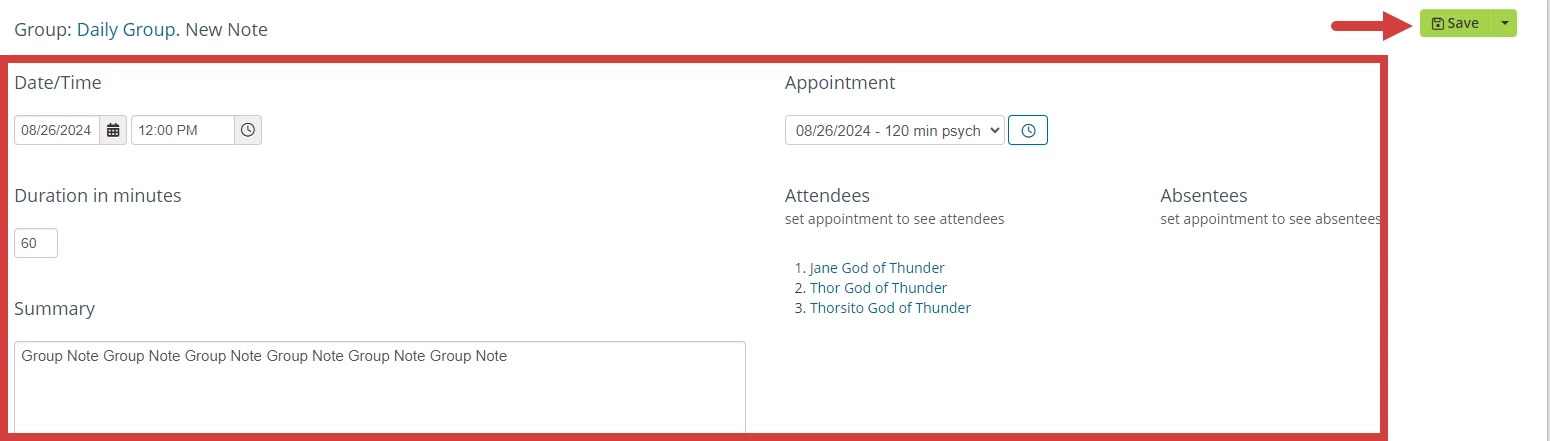
- Enter note information
- Click Save.
Co-Sign Group Notes
- Click Clients tab in primary navigation bar.
- Click Groups from side navigation.
- Click Notes button and Group Notes and Attendance tab opens.
- Select Details for the desired Appointment.
- A notification displays at top. "This document is signed and no further editing is allowed. Click here to view or co-sign the document."
- Click the here link.
- Click Sign the Document button.

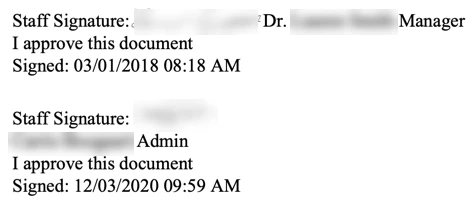
You'll then see both Staff Signatures on the document.
Related Articles: