You can manually add Clients or you can Import Clients using the import tool. When adding a New Client you will enter basic Client Details. You can immediately enter additional Client Details, or come back at a later time to do so.
NOTE: You have the ability to control who creates and imports clients in your organization. Use the Can create and import clients permission in the Default Permissions section.
Jump to Section:
Add a New Client
- Click Clients tab in primary navigation bar.
- Click + Add New Client button.

NOTE: You can also add a new client to the system when scheduling appointments. See Schedule Individual Client Appointment for more information.
- Click the Add icon.

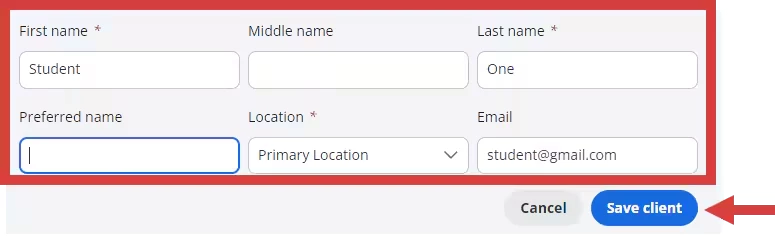
- Enter client details & click Save Client.
- Click the Add icon.
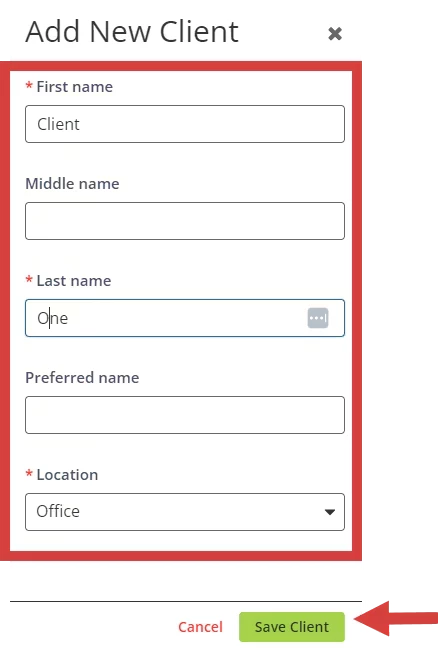
- Enter Add New Client Details:
- First and Last Name
- Preferred Name
- Location
- Click Save Client button. Client Details will open. You can add in additional Client Details now or do so later.
Export Client List Data
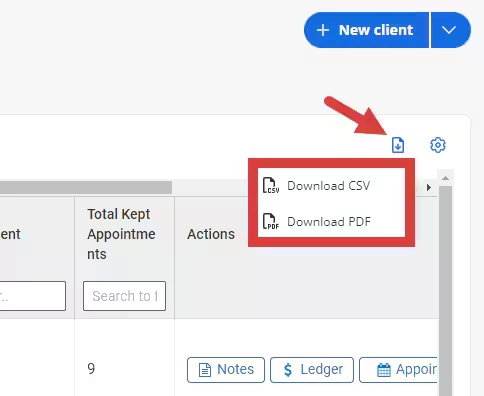
- Click the download icon above the client list and select CSV or PDF.