



PERMISSIONS REQUIRED : You must be assigned as Supervisor for Staff Member. The staff member must have Notes require supervisory review enabled with supervisory setting of Must review and approve all notes OR Must review and co-sign all notes.
If you need to review assigned staff Initial Assessments, Treatment Plans or Progress Notes, you will receive an alert when your Supervisee submits a Progress Note for review via the bell icon on the top menu. Staff will also receive notifications when documents are approved and signed.
Jump to Section:
Supervisor: Notifications for Submitted Notes
- The supervisee selects Save & Submit to Supervisor(s) for an Initial Assessment, Treatment Plan, Progress Note or Wiley Treatment Plan.
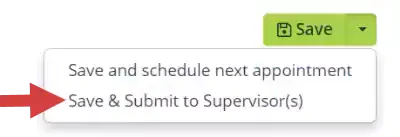
NOTE: Supervisees can continue editing Initial Assessments and Treatment Plans while under review. Supervisees cannot create additional Treatment Plans until the current plan has been signed by the supervisor.
- The supervisor(s) receives an email and alert notification to let them know an Initial Assessment, Treatment Plan or Progress Note is awaiting their review.
- Start the review process from the email or alert page.
E-mail
Alert Page
- Start the review process from the email or alert page.
Multiple Supervisors: Notifications for Submitted Notes
- If multiple supervisors are assigned to a supervisee, the alert via the bell icon will be sent to all supervisors at the same time. All supervisors will also see an indicator with a number next to the Notes icon at the top of the page. However, once the assessment, treatment plan, or note is signed by one of the supervisors, this number will be removed from the Note icon for the other supervisors so that they are aware another supervisor has completed the approval process. The alert will remain for all supervisors in the alert section, however.
- How can you tell if another supervisor has already approved the note?
- The alert for numbers of notes for Notes Awaiting Signature icon will be removed.
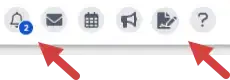
- The alert for numbers of notes for Notes Awaiting Signature icon will be removed.
- When navigating to the Notes Awaiting Signature page you will no longer see the document in your list of items that needs to be reviewed.
-
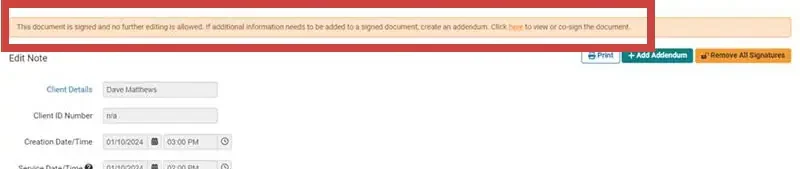
If you would like to co-sign the document by adding your signature, you can still find the alert for the document that was ready to be reviewed in your alerts tab. When you click on the document, a message displays to let you know you can co-sign the document.

Supervisee: Notifications for Approved Notes
- The supervisor approves the Initial Assessment, Treatment Plan or Progress Note.
- The supervisee receives an email and alert notification to let them know a document has been approved.
NOTE: No changes can be made to the document after it is approved. A message displays when the supervisee views the document:
This document was approved, therefore further editing is not allowed.
The supervisee can still E-sign the document even though it has not been signed by the supervisor. Learn more.- Review the approved document from the email or alert page.
Email
Alert page

- Review the approved document from the email or alert page.
Supervisee: Notifications for Signed Notes
- The supervisor signs the Initial Assessment, Treatment Plan or Progress Note.
- The supervisee receives an email and alert notification to let them know a document has been signed.
- Review the approved document from the email or alert page.
NOTE: Changes cannot be made to the document after it is signed. A message displays when the supervisee views the document:
This document is signed and no further editing is allowed. Click here to view or cosign the document.The supervisee can E-sign the document. Learn more.
Email
Alert Page
- Review the approved document from the email or alert page.