


PERMISSIONS REQUIRED: Therapists can make Addendums for their assigned Cases, and Administrators or higher can make Addendums for all Cases.
To begin the Client EHR an initial assessment is made and diagnostic codes are added to the assessment. You also have the ability to classify codes as Primary, Secondary, Tertiary, and Quaternary. Diagnosis codes and their classifications will appear on initial assessments and progress notes. The Diagnostic Impressions include diagnosis codes which are used for the client record and are linked to Progress Notes and Billing. See Create a Progress Note for more information.
NOTE: You can prevent your staff from submitting and signing progress notes that do not have a diagnosis code entered. See Prevent Staff from Submitting/Signing Progress Note Without a Diagnosis for more information.
IMPORTANT: The Initial Assessment and Diagnosis Codes should be completed followed by treatment plans prior to the creation of Case or Progress Notes. See Add or Edit a Treatment Plan for more information.
Complete Initial Assessment & Diagnosis Codes
- Locate Client and open Client Profile.
- Click Notes.
Select individual Cases if multiple cases are listed. - Click the Initial Assessment and Diagnostic information tab. See Add Client Diagnosis for more information.
- Click + Add Diagnosis to enter and classify a new Diagnosis code.
- Start typing keywords or a diagnosis code number to display diagnosis codes and select the desired code.
Click + Add Diagnosis and repeat the process to add another diagnostic code if needed.NOTE: You cannot free text to enter new codes or edit existing codes. Only codified diagnosis codes will be available.
- Complete the remaining fields as needed, such as Presenting problem, Pertinent history, Observations, Risk, Goals and plans, Special needs of client, etc.
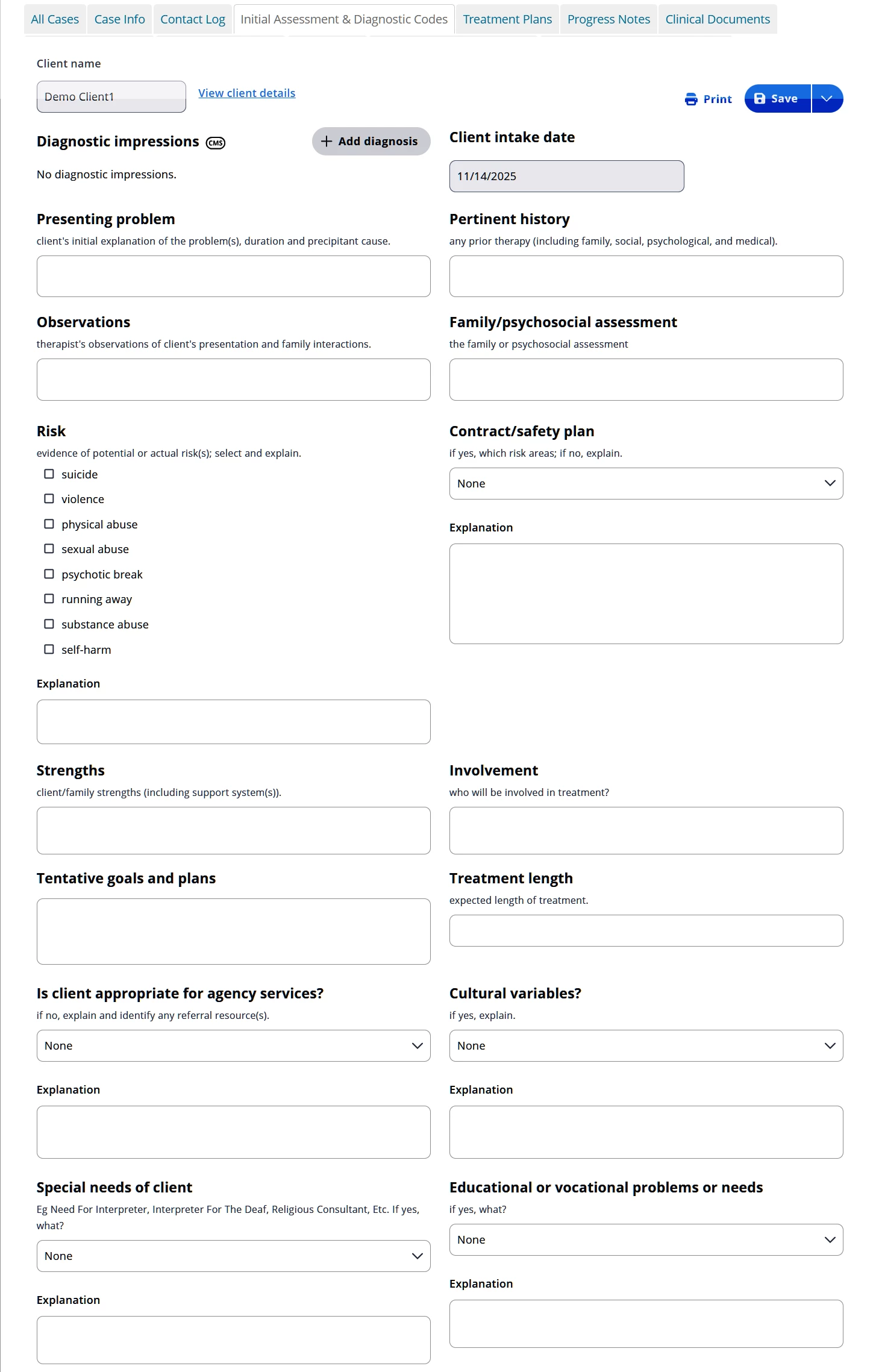
NOTE: Client Intake Date may not be changed here. If the intake date is incorrect, go to Client Details > Additional Details tab to change the Intake Date.
- Click Save.
Related Article: Add or Edit a Treatment Plan