


SUBSCRIPTION REQUIRED: As part of the Ensai Session Assistant add-on, AI In-Person Sessions automatically draft clinically aligned progress note content after a session recording is processed. Client consent is required before recording a session.
Jump to Section:
Interactive Walk-Through: In-Person Sessions
Explore In-Person Sessions with our interactive tutorial. If the interactive content does not load in your browser, access it using the link below.
Ensai Session Assistant: In-Person Sessions
Record an In-Person Session
IMPORTANT: Client consent is required before recording a session. Providers assigned an Ensai Session Assistant license can immediately access Ensai Session Assistant features. See Ensai Session Assistant: Overview for more information.
When using Ensai Session Assistant, obtain client consent before recording a session. You can stop and restart recording throughout the session as needed. To process the recording and generate AI content, you must finalize the session recording.
You can start a recording from the Schedule, Appointment, or Agenda by clicking the microphone icon.
NOTE: When AI Recording Consent is set to No – Client does not consent in Patient Details, the microphone icon is not available. If the field is set to No consent recorded, the provider is prompted to confirm client consent before recording.
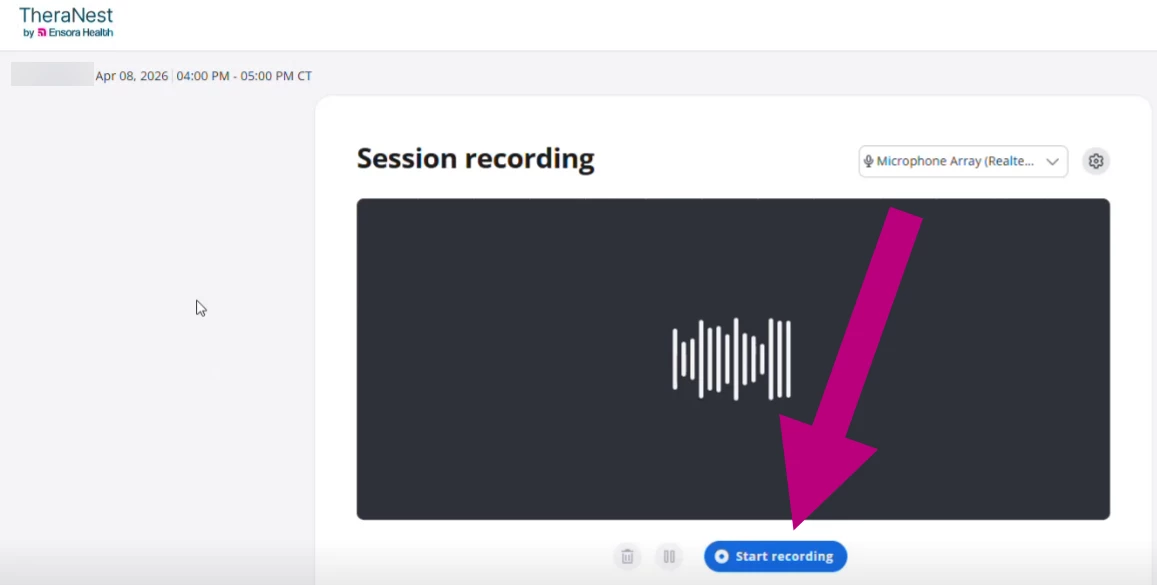
- Click the microphone icon to open the Session Recording screen.
- Click Start Recording.
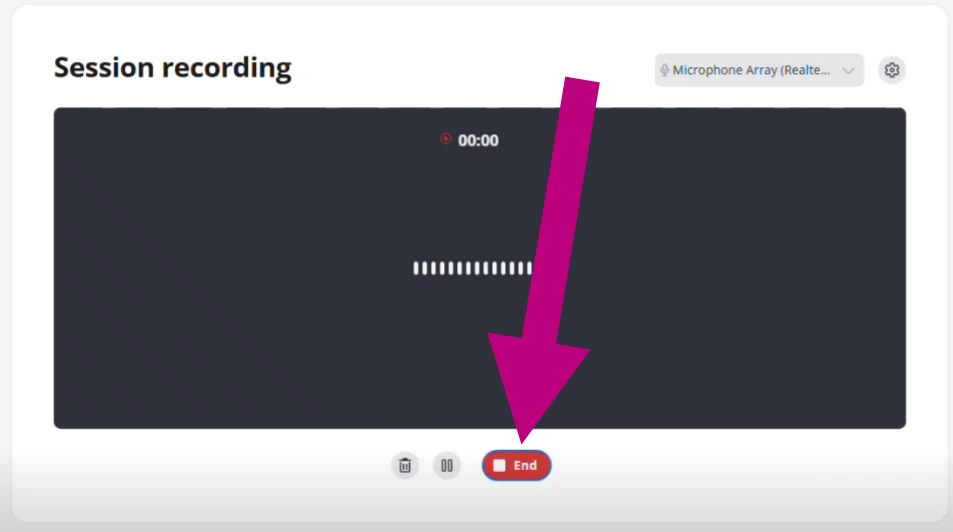
- When the session is complete, click End.
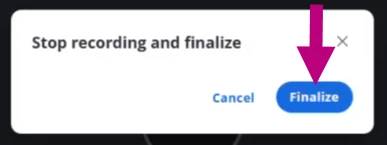
- Click Finalize to process the recording and return to the system.
- Wait for the notification that the AI Session Summary is ready.

See Ensai Session Assistant: Create AI Progress Note for instructions on creating a progress note from the recording.
Tips & Best Practices
- When AI Recording Consent is set to “No – Client does not consent”, the microphone icon is not available.
- If AI Recording Consent is set to “No consent recorded”, the provider must confirm consent before recording.
- Client consent is required before recording a session.
- Recordings are automatically deleted within 24 hours.
- Allow between 3 and 30 minutes for AI-generated content to become available after finalizing the recording.
Troubleshooting
| Issue | Possible Cause | Solution |
| Microphone icon is unavailable | Ensai Session Assistant license is not assigned | Verify that an Ensai Session Assistant license is assigned to the provider. |
| Client recording consent is set to "No – Client does not consent" | Verify that the client's recording consent settings allow recording. | |
| AI session summary does not appear in the note | Recording session is still open | Verify that you clicked End and Finalize to begin processing. |
| Progress note template does not support AI-generated content | Verify that the progress note template contains the AI Session Summary form element. | |
| Recording is still processing | Processing may take between 3 and 30 minutes. | |
| Connection Issue banner appears | Internet connectivity issue | Check the internet connection, but do not close the recording window. The system continues attempting to reconnect and process the audio. The session remains active while the recording window remains open and visible. |
| Reconnecting notice appears | Internet connectivity issue | Do not close the recording window, or the session audio may be lost. The system continues attempting to reconnect and process the audio. You can continue working in another browser window. |
Frequently Asked Questions (FAQ)
Can I use my existing progress note templates?
- Yes. Verify that the template includes the AI Session Summary form element. If it does not, add the form element or use the prebuilt AI Session Summary template.
Do I need to provide consent before using Ensai Session Assistant?
- No. Providers assigned an Ensai Session Assistant license can immediately access Ensai Session Assistant features.
How long does it take for an AI note to be ready?
- AI-generated content is created after the recording session is finalized. Be sure to click End and Finalize when the session is complete. Processing may take up to 30 minutes.
How will I know when the content is ready?
- A notification appears in the upper-right corner of the screen when AI-generated content is available. A notification also appears on the Agenda.
How long is AI-generated content available?
- After the AI Session Summary is ready, it remains available for use when creating a progress note. You do not need to create the progress note immediately.
Where can I find my AI-generated content after the session?
- After the recording is processed, you receive a notification. Create a progress note using a template that contains the AI Session Summary form element. The AI-generated content automatically populates that section of the note.