


SUBSCRIPTION REQUIRED: This feature is included with the Ensai Session Assistant add-on. To subscribe to Ensai Session Assistant, see Manage Your Subscription Plan & Add-Ons.
TIP: Want to create your own progress note template? Add the AI Session Summary form element when creating or editing a template. See Create a Dynamic Form: Progress Note for more information
Before You Begin
After a session recording has been processed, you can create a progress note using the AI Session Summary template or any template that contains the Session Summary [AI Enabled] field.
When the AI session summary is ready, you may receive up to three notifications:
- A badge appears on the appointment in the Agenda.

- A notification appears in the upper-right corner of your account.

- An alert appears under the notification bell if notifications are enabled.

Create an AI Progress Note
- Locate the appointment on the schedule and click Add Progress Note.

- Select AI Session Summary.
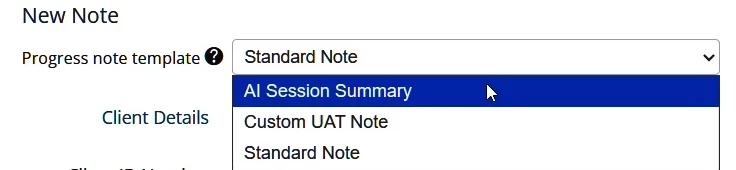
- Click Create Note.
- If an AI session summary is available, the Session Summary [AI Enabled] field automatically populates with AI-generated note content, including:
- Subjective
- Objective
- Mental Status Exam (MSE)
- Assessment
- Interventions and Modality
- Risk Assessment
- Plan
NOTE: If you saved the progress note before the AI session summary was available, click Load AI Summary to populate the field. Loading the summary overwrites any existing content in the field.
- Review, edit, and add information to the note as needed.
- Use the formatting tools at the top of the note to customize the content:
- Click the Arrow icon to change the font size.
- Click the B icon to apply bold formatting.
- Click the List icon to create bullet points.
- Additional actions available in the AI Session Summary section:
- Click Copy summary to copy the AI-generated content.
- Click Reload AI summary to generate a fresh version of the summary.
- Click Delete summary to remove the AI-generated content from the field.
Review AI-Generated Content
IMPORTANT: Ensai Session Assistant generates draft note content from session audio. Some sections, including the Mental Status Exam (MSE), may contain standard clinical language when information is not explicitly discussed during the session.
Always review and edit AI-generated content, including the MSE, to ensure it accurately reflects your clinical observations before signing the note.