


SUBSCRIPTION REQUIRED: As part of the Ensai Session Assistant add-on, AI Telehealth Notes automatically drafts clinically aligned progress note content after a progress note is created. Client consent is required before recording a session.
To subscribe to Ensai Session Assistant, see Manage Your Subscription Plan & Add-Ons.
Jump to Section:
Interactive Walk-Through: Ensai Session Assistant (AI Telehealth Notes)
Explore Ensai Session Assistant: AI Telehealth Notes with our interactive tutorial. If the interactive content does not load in your browser, access it using the link below.
Ensai Session Assistant: AI Telehealth Notes
Record a Telehealth Session
IMPORTANT: Providers assigned an Ensai Session Assistant license can immediately access AI Telehealth Notes. Client consent is required before recording a session. See Ensai Session Assistant: Overview for additional information.
When recording a telehealth session, a banner at the top of the screen indicates the recording status. You can stop and restart recording throughout the session as needed. After you stop recording, the session remains active until you end the session. The recording is processed only after the session ends.
- Begin the telehealth session with your client.
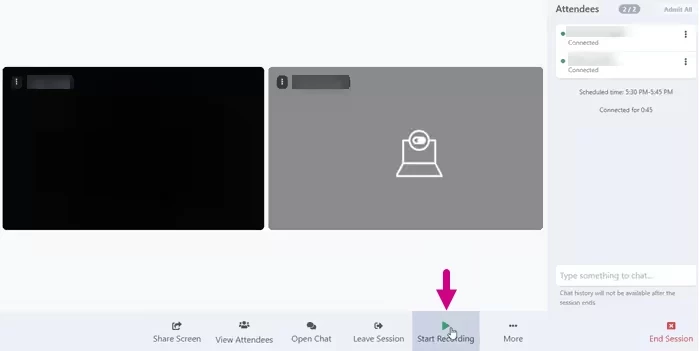
- Click the Start Recording button at the bottom of the screen.
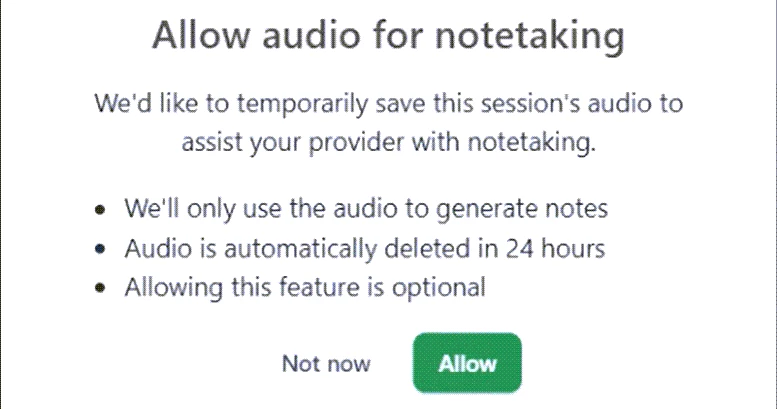
- If the client has already provided blanket recording consent, the consent prompt does not appear. Otherwise, the client must click Allow on the consent screen to permit audio recording.
If the client selects Not now, the session is not recorded.
Recording status banners display throughout the process:
Waiting for Client Consent to Record: 
Client Agreed and Recording has Started: Client Declined: 
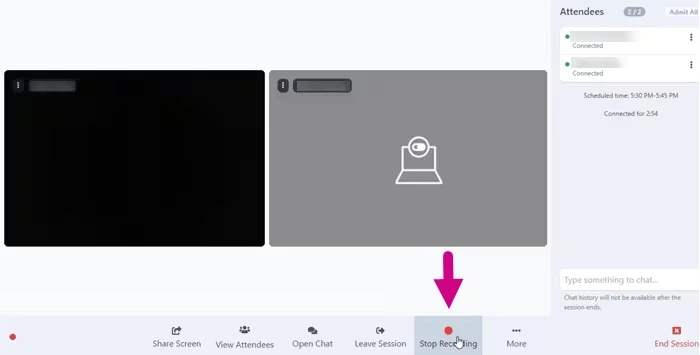
- Click the Stop Recording button when you no longer want to record the session.
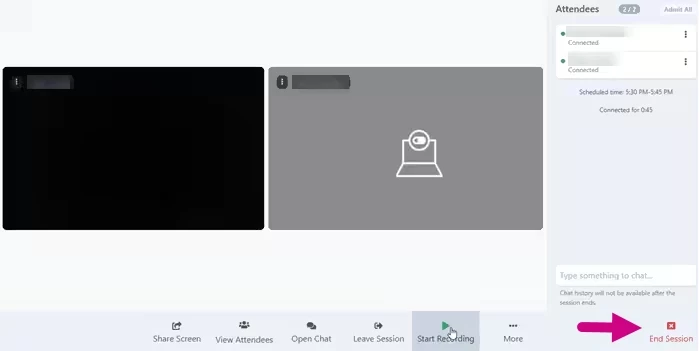
- Click the End Session button to end the session and begin processing the recording.
Tips & Best Practices
- Client consent is required before recording a session.
- Recordings are automatically deleted within 24 hours.
- End the session using End Session rather than Leave Session to ensure the recording is processed.
- Allow up to 30 minutes for AI-generated content to become available after the session ends.
Troubleshooting
| Issue | Possible Cause | Solution |
| Record button is unavailable | Ensai Session Assistant license is not assigned | Verify that an Ensai Session Assistant license is assigned to the provider. |
| AI session summary does not appear in the note | The telehealth session is still open | Verify that you clicked End Session instead of Leave Session. |
| Progress note template does not support AI-generated content | Verify that the progress note template contains the AI Session Summary form element. | |
| Recording is still processing | Processing may take between 3 and 30 minutes after the session ends. |
Frequently Asked Questions (FAQ)
Can I use my existing progress note templates?
- Yes. Verify that the template includes the AI Session Summary form element. If it does not, add the form element or use the prebuilt AI Session Summary template.
How long does it take for an AI note to be ready?
- AI-generated content is created after the telehealth session ends. Be sure to click End Session rather than Leave Session when the session is complete. Processing may take up to 30 minutes.
How will I know when the content is ready?
- A notification appears in the upper-right corner of the screen when AI-generated content is available.
How long is AI-generated content available?
- Once the AI session summary is ready, it remains available for use when creating a progress note. You do not need to create the progress note immediately.
Why do I not see the record button in my telehealth session?
- The record button is available only to providers assigned an Ensai Session Assistant license. If the button is unavailable, verify that the correct license has been assigned.
Where can I find my AI-generated content after the session?
- After the session ends and processing is complete, you receive a notification. Create a progress note using a template that contains the AI Session Summary form element. The AI-generated content automatically populates that section of the note.