


PERMISSIONS REQUIRED: You must have Administrator Permissions or higher.
Administrators can setup your account to use PQRS Quality Measure codes for reporting to Medicare. The system does not automatically send this information to Medicare.
After the PQRS codes has been activated in your account you will be able to add the codes to Client Appointments in the Client's Case.
Jump to Section:
Enable PQRS Codes
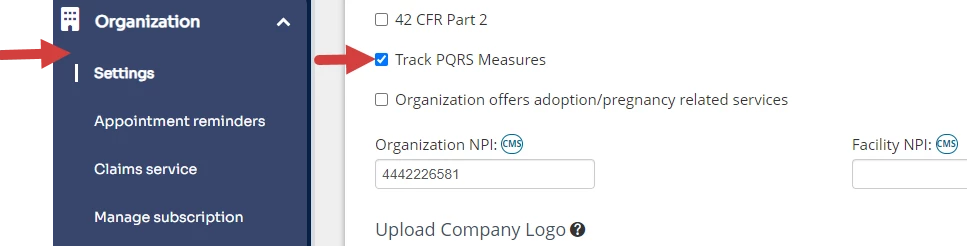
- Click Organization tab in primary navigation bar. The Settings tab will display.
- Scroll down and check the Track PQRS Measures box.
Add PQRS Codes to Client Appointments
After the PQRS codes has been activated in your account you will be able to add the codes to Client Appointments in the Client's Case.
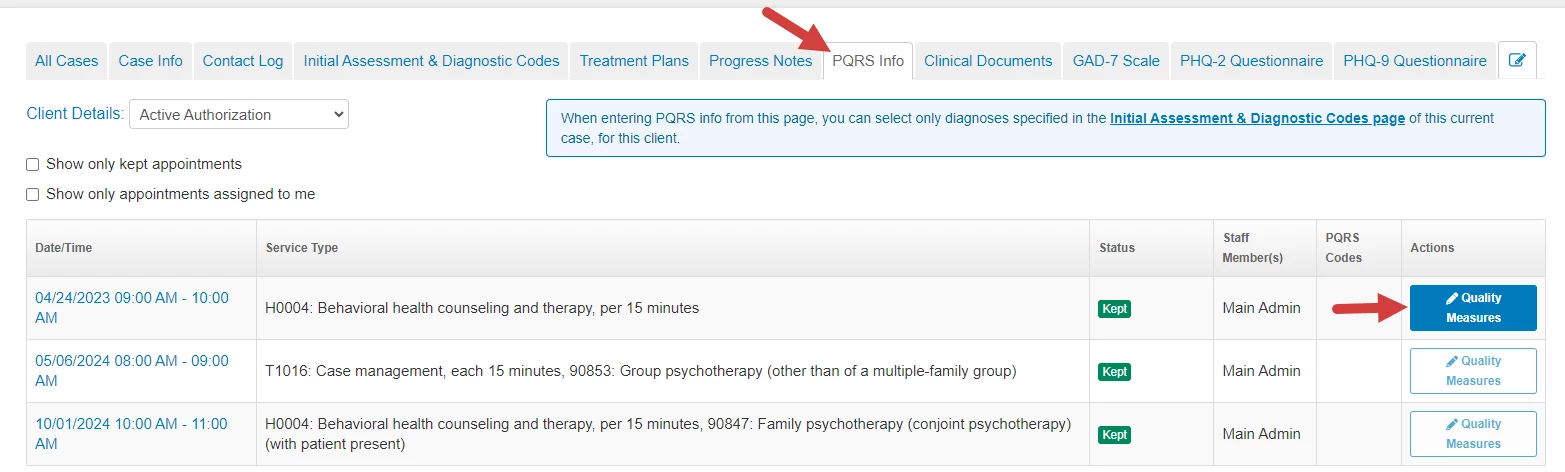
- Click the PQRS Info tab in the case.
- Click Quality Measures button to the right of the Client's Appointment.
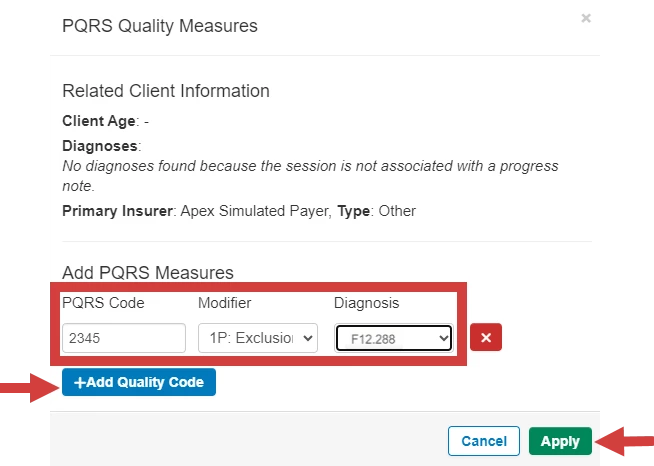
- Click + Add Quality Code.
- Enter the code in the text box and select the appropriate code from below.
- Select Modifier to the right.
- Select Diagnosis.
- Click Apply to the Client's Appointment.
- After you have entered the PQRS code for the Client's Appointment it will show under the PQRS column to the right of the Client's Appointment.
View or Edit PQRS Code in Client Appointment
You will also be able to view and edit the PQRS code for the Client's Appointment in the Client's Invoice.
