


PERMISSIONS REQUIRED: Therapists can create Notes for their assigned Cases, and Administrators or higher can create Notes for all Cases.
There are several ways to access and add a Progress Note for a Client. This is the recommended workflow as it will link your Progress Note to a Client Appointment.
NOTE: If you are subscribed to e-prescribe, the client's active medications entered in e-prescribe will pull into a new progress note or new note that has been copied over from a previous session. Any changes made to client medications will not be reflected on existing progress notes, regardless if the note is signed or unsigned. If you see a wrong medication in an existing progress note, you will need to update the medication(s) in e-prescribe and create a new progress note to reflect the changes.
If a progress note has been signed or approved, you may need to refer to the printed document to view active medications.
Jump to Section:
Add a Progress Note
- Be sure an Appointment has been created for this Client. See Schedule Individual Client Appointment for more information.
- On the Schedule, navigate to the appropriate Client Appointment.
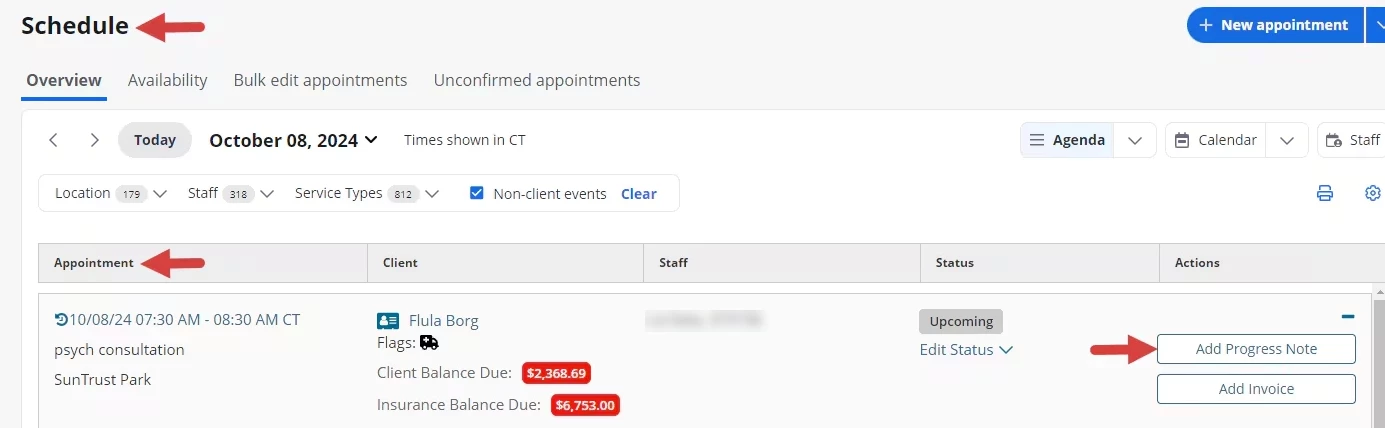
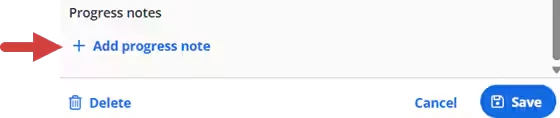
- Click the Add Progress Note button for the appointment on the Agenda, or open the appointment on the calendar and click the +Add Progress Note link at the bottom of the Edit Appointment Window.
NOTE: The option to add a progress note from the Edit Appointment Window is only available for clinics using Schedule Optimization. See FAQ: Schedule Optimization for more information.
- Agenda:
- Edit Appointment Window:
- Agenda:
- If there are no cases for this Client, a new Case will be created and you may select the default or other desired form.
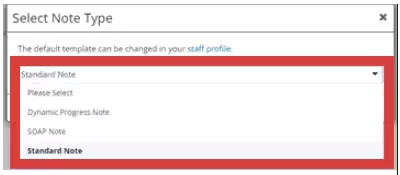
- If a Case has been created for this Client that you are not assigned to, a new one will be created.
- If there are multiple Cases you are assigned to, you will need to select the appropriate Case and form.
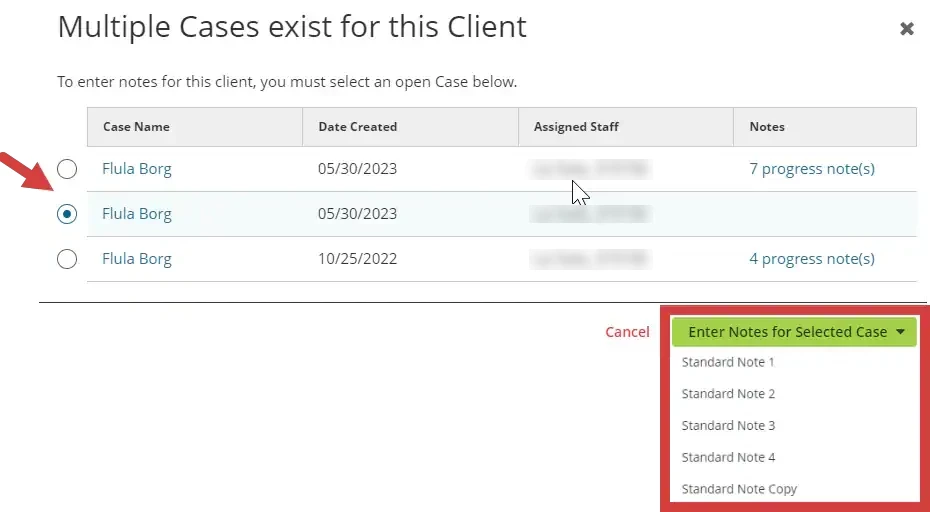
Complete a Progress Note
Add the appropriate information to complete and Save the Note. Form element inputs are saved to the draft.
NOTE: Progress Notes & Upcoming Appointment Status - Progress notes linked to appointments with an Upcoming status cannot be signed, submitted or approved. See Change Appointment Status for more information.
NOTE: This process describes the form elements in a Standard Note form. Your form may differ based on the selected Dynamic Progress Note Form. Form element inputs are saved to the draft. See Create a Dynamic Form: Progress Note for more information.
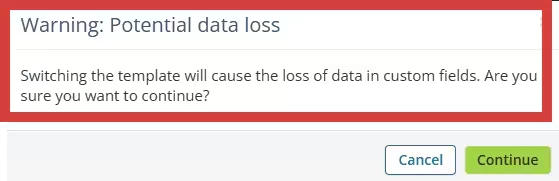
- You have the ability to update the note template directly in the note.

NOTE: A warning message opens to let you know changing the template will cause loss of data in custom fields.
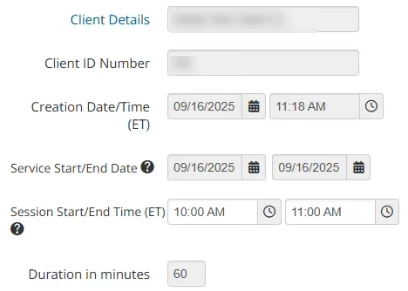
- Client Details - click the link to see client details page
- Client ID Number & Creation Date/Time - auto populates
- Service Start/End Date - populates based on the appointment date & can be adjusted as needed to update the duration
- Session Start/End Time - populates according to the appointment & can be adjusted as needed to update the duration
- Duration In Minutes - auto-fills with the appointment length or is based on adjustments made to session start/end time
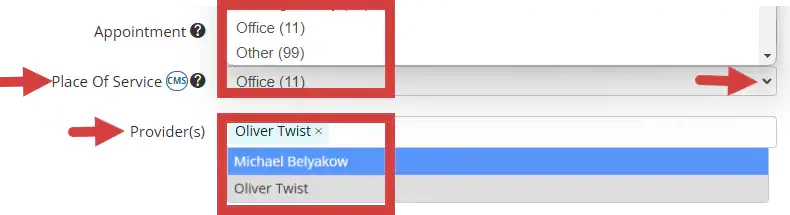
- Appointment - select the appointment time based on the date of service.
NOTE: if you do not see the correct appointment, you can create it here.

- Place of Service will auto-populate upon creation but can be adjusted as needed.
NOTE: If you have proper permissions you can Set or Edit Place of Service on Progress Note.
- The Provider(s) on the Appointment auto-fill. You can add/remove any Staff Member who is assigned to the Case or already on the Appointment.
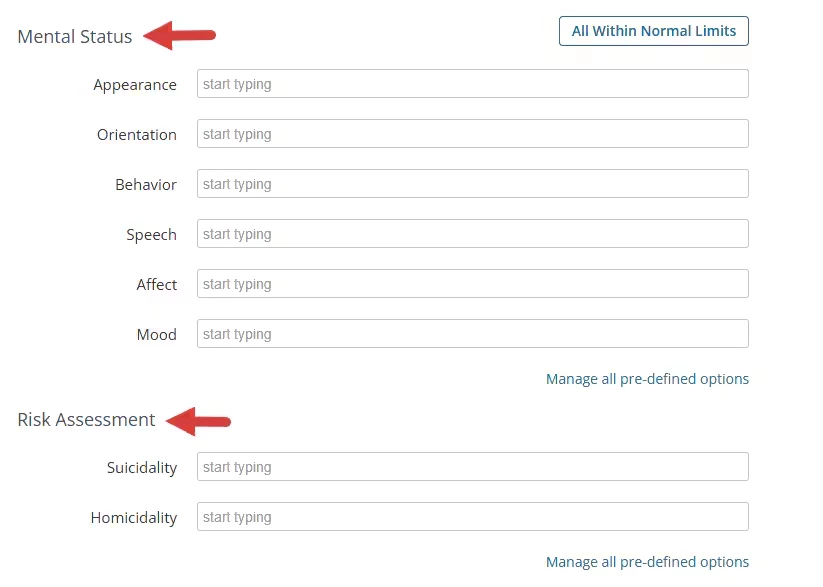
- Enter Mental Status and Risk Assessment. Type in the field and select from the list or enter a new phrase.
NOTE: Any status or assessment you enter will be set and available for ALL users of the system. Check the list first, then add only descriptors that are necessary.
- The Diagnostic Impressions from the Initial Assessment & Diagnostic Code tab and the History of Treatment Goals display on the note. Click the Initial Assessment & Diagnostic Codes tab to edit.
NOTE: You can prevent your staff from submitting and signing progress notes that do not have a diagnosis code entered. See Prevent Staff from Submitting/Signing Progress Note Without Diagnosis for more information.
- If the progress note is created before codes are entered on the initial assessment, the codes will not display automatically and you will need to manually link them.
- If the progress note is created after codes have already been entered on the initial assessment the codes will display automatically from the initial assessment or most recent addendum.
- When linking diagnosis codes, the codes available for linking will pull from the Initial Assessment or most recent addendum.
- Any changes to diagnosis codes will not affect existing progress notes, regardless if they are signed or unsigned. If you want the updated codes to display on any existing progress notes, you will need to manually link them.
-
If a diagnosis code is no longer active for the case, it will not be removed from existing progress notes. A tooltip will appear next to the code in the progress note letting you know the code is no longer active. If you manually un-link the code, it cannot be re-linked unless it is added back to the case.
-
- If you select + Copy from last session to create a new progress note, the diagnosis codes from the last session will not copy over to the new note.
- As you fill in the Note, your draft auto-saves and will display a message in the top right corner.
NOTE: If you leave the page without pressing the green Save button, you can still retrieve the Note by clicking View Draft Copies of This Note. Loaded drafts disappear after the Note is saved. See Access Document Drafts for more information.
- When you have completed the note click the green Save icon.
Add Diagnosis to Progress Note if Created After Codes Entered on Initial Assessment
- Create a new progress note after you have entered the diagnosis code(s) in the Initial Assessment.
- All codes entered will automatically display from the initial assessment or most recent addendum.
NOTE: Diagnosis codes entered in the initial assessment will not pull into progress note drafts.
- Click Link Diagnosis Code(s) if you want to select/deselect specific codes. Otherwise, all codes will be included.
- Select the diagnosis code(s) you would like on the progress note and click Link Code(s).
NOTE: There is no spell-check capability for Notes but can be enabled in your browser settings.