


Jump to Section:
Initial Assessment
User Role: Therapist or Admin assigned to Case
Why: Completing the Initial Assessment first will ensure that the diagnostic code populates on other necessary documentation such as the Treatment Plan, Progress Note, Superbill, and Insurance Claims.
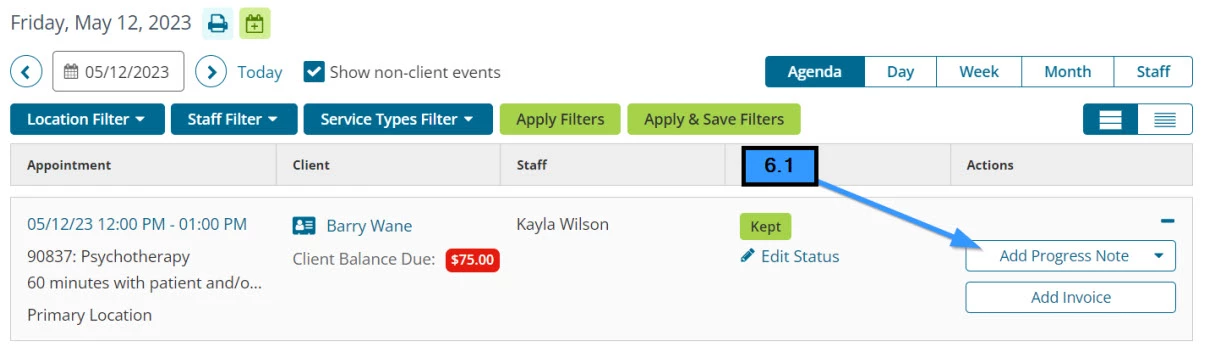
- 6.1 Click the Add Progress Note button
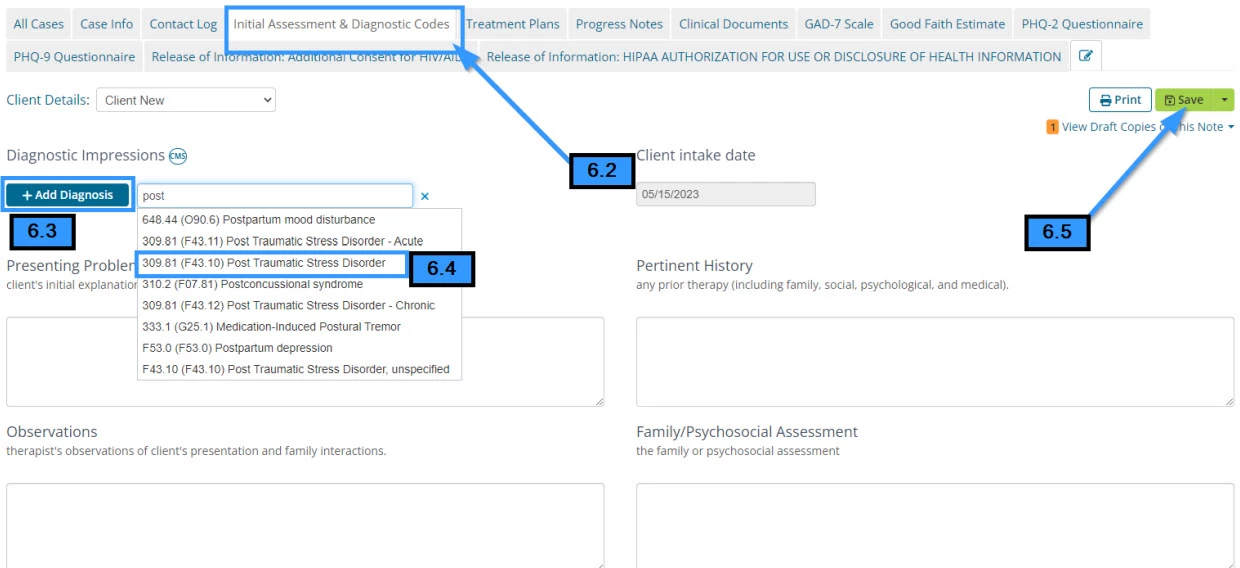
- 6.2 Click the Initial Assessment & Diagnostic Code tab
- 6.3 Click the Add Diagnosis button
- 6.4 Select a diagnosis from the list
- 6.5 Click Save
Related Articles:
Treatment Plan
User Role: Therapist or Admin assigned to the Case
Why: Completing the Treatment Plan will ensure that the Client Goals populate on other necessary documentation such as the Progress Note.
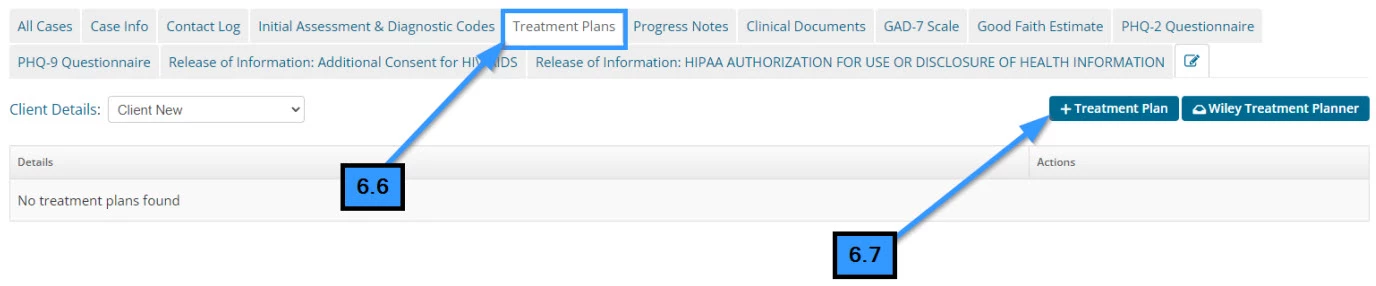
- 6.6 Click the Treatment Plans tab
- 6.7 Click the Add Treatment Plan button
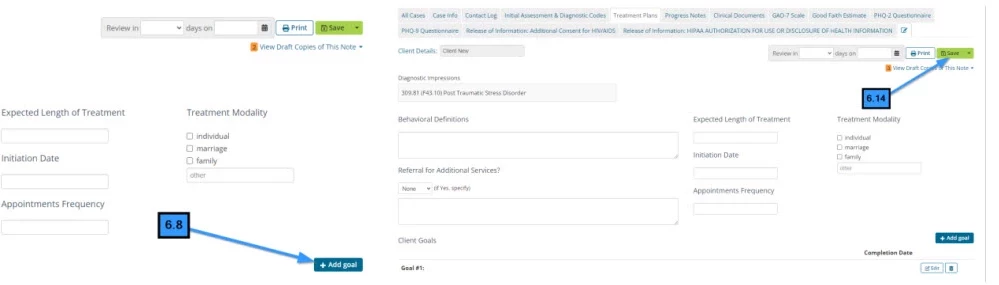
- 6.8 Click the Add Goal button
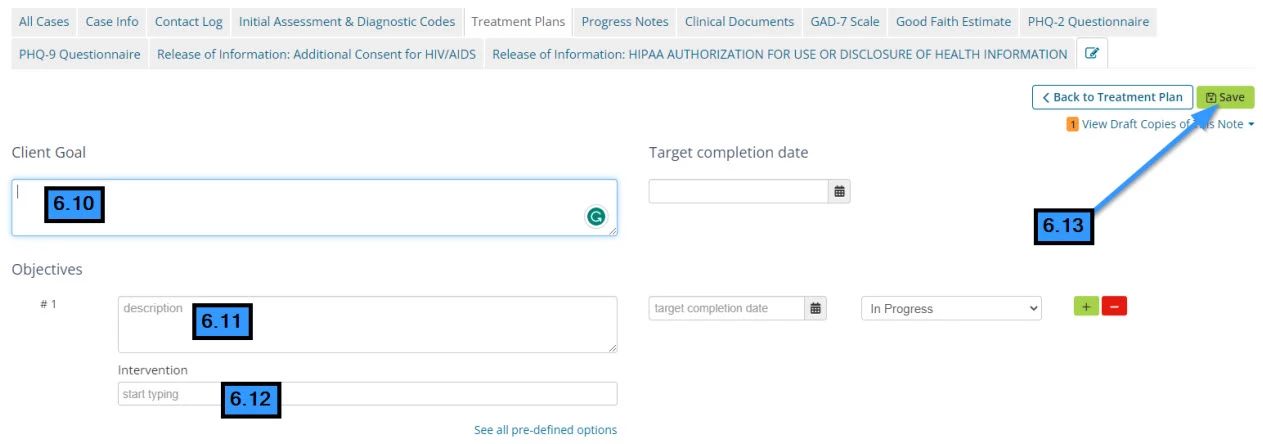
- 6.10 Enter the Goal
- 6.11 Enter the Objective
- 6.12 Select the Intervention
- 6.13 Click Save (to save goals)
- 6.14 Click Save (to save the Treatment Plan)
Related Articles:
Progress Note
User Role: Therapist or Admin assigned to Case
Why: Creating a Progress Note will ensure that the Appointment, Service Type, Diagnosis, and Goals are all connected to complete the Client EHR. This will also allow for proper billing.
- 6.15 Click the Progress Note tab
- 6.16 Click the Add+ Progress Note button
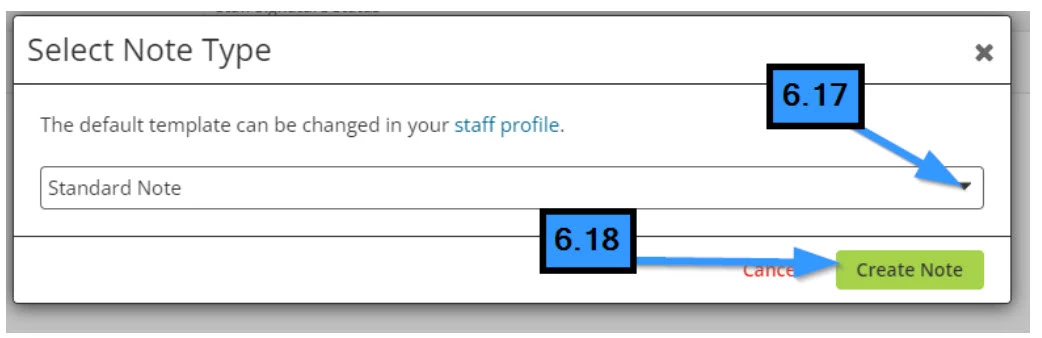
- 6.17 Select the Note Type template
- 6.18 Click the Create Note button
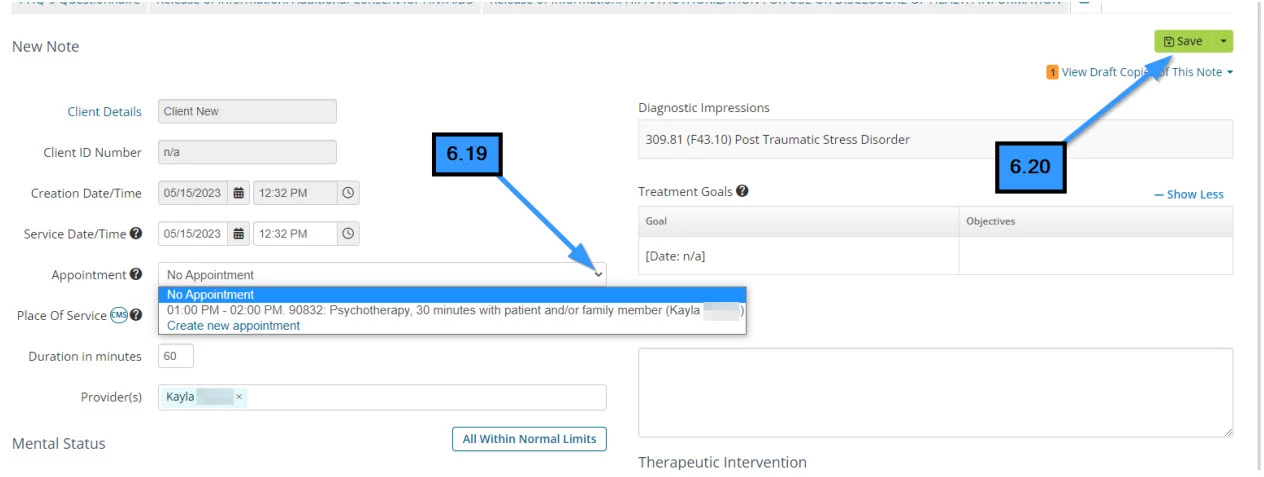
- 6.19 Select the appointment from the list
- 6.20 Click Save

Related Articles: