



SUBSCRIPTION REQUIRED: This feature is part of the add-on AI Session Assistant.
To subscribe to AI Session Assistant please see the license instructions for your particular subscription plan here: Manage Your Subscription Plan & Add-Ons
TIP: Want to customize your own template? You can add the new AI Session Overview form element manually when editing or creating template. See Create a Dynamic Form: Progress Note for more information.
Before You Begin
After the telehealth session recording has been processed, you can create a progress note using the AI Session Summary note template. You will receive a notification when the recording has been processed, and a badge will appear in the Agenda when the AI Session Summary is ready.
You may receive up to three notifications when the summary is ready to be added to the progress note:
- A badge appears on the agenda for the appointment.

- A notification appears in the upper-right corner of your account.

- An alert shows up under the bell icon if the preference is enabled.

Create a AI Progress Note
- Locate the appointment on the schedule and click Add Progress Note.

- Select AI Session Summary.
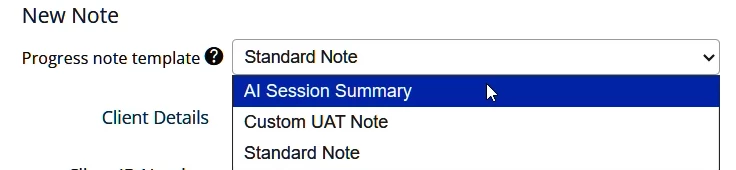
- Click Create Note.
- Because the note was created from the appointment and a session summary is available, the session overview field auto-populates with the AI-generated SOAP note.
NOTE: If you saved the progress note before the summary was ready, click the Load AI summary button to add the summary. This will overwrite any existing text in the field.
- Because the note was created from the appointment and a session summary is available, the session overview field auto-populates with the AI-generated SOAP note.
- Edit and add to the note as needed.
- Click the icons at the top of the note to format the note.
- Click the Arrow icon to change the font size.
- Click the B icon to add bold text.
- Click the List icon to add bullet points.
- Click Copy summary to copy the note.
- Click Reload AI summary to reload the note.
- Click Delete summary to delete the note.
- Click the icons at the top of the note to format the note.
IMPORTANT: Because AI Session Assistant generates draft notes from session audio alone, some sections, such as the Mental Status Exam (MSE), may include standard or assumed clinical language when details are not explicitly discussed during the session. Always review and edit AI‑generated notes, including the MSE, to ensure they accurately reflect your clinical observations before signing.