


SUBSCRIPTION REQUIRED: As part of the AI Session Assistant add‑on, AI Telehealth Notes automatically drafts clinically aligned progress note content once a note is created. Client consent is required before recording a session.
To subscribe to AI Session Assistant please see the license instructions for your particular subscription plan here: Manage Your Subscription Plan & Add-Ons
Jump to Section:
Interactive Walk-Through: AI Session Assistant (Ensai Session Assistant) (AI Telehealth Notes)
Explore AI Session Assistant (Ensai Session Assistant): AI Telehealth Notes with our interactive tutorial. If the interactive content fails to load in your browser, access it by clicking the link below.
AI Session Assistant (Ensai Session Assistant) - AI Telehealth Notes
Record a Telehealth Session
IMPORTANT: Providers assigned an AI Session Assistant license can immediately access AI Telehealth Notes. Client consent is required before recording a session. See AI Session Assistant (Ensai Session Assistant): Overview for more information.
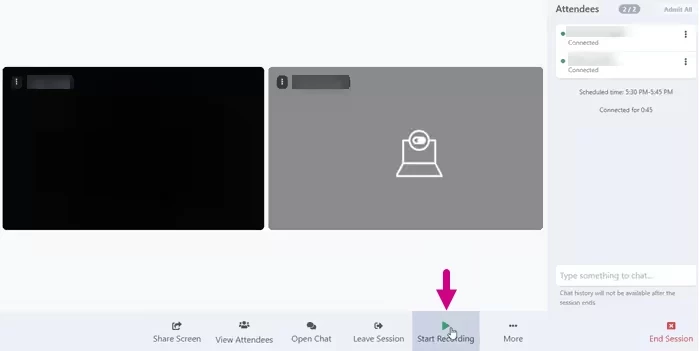
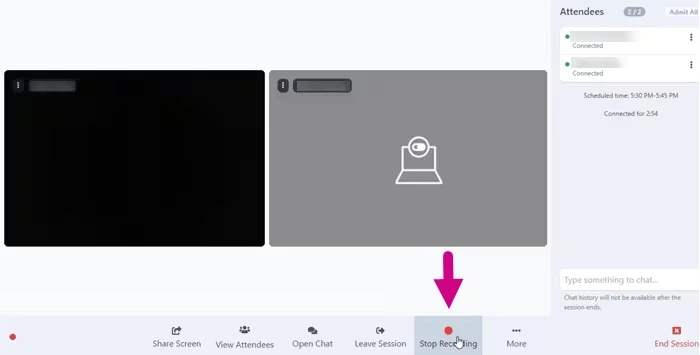
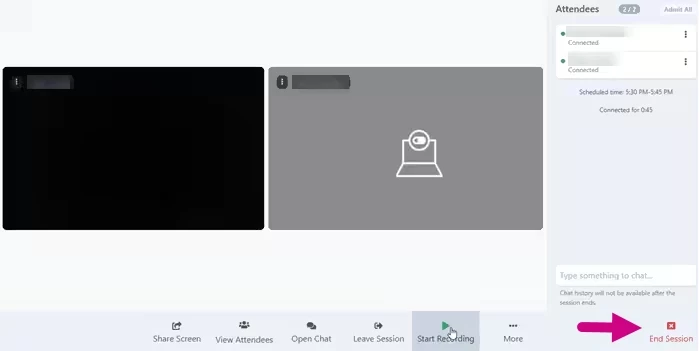
If you are using AI Telehealth Notes, client consent must be obtained before recording the session. A banner at the top of the screen indicates when recording has started. You can stop and restart recording during the session as needed. When you stop recording, the banner at the top of the session will indicate that recording has stopped, but the session is still in progress. You must end the session before the recording can be processed and added to your progress note.
- Begin the telehealth session with your client.
- Click the Start Recording button at the bottom of the screen.
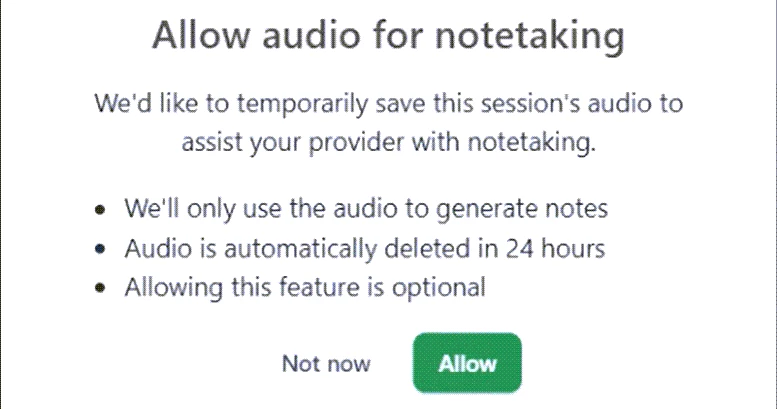
- If the client has already provided blanket recording consent, they will not receive the pop-up. Otherwise, the client must click the Allow button on the Allow audio for notetaking screen for the audio to be recorded. If the client clicks Not now, the session will not be recorded.
A banner at the top indicates that you are waiting for the client to consent. After the client provides consent, the banner indicates that recording has started. A red banner displays if the client declines consent.Waiting for Client Consent to Record: 
Client Agreed and Recording has Started: 
Client Declined: 
- Click the Stop Recording button at the bottom of the screen.
- Click the End Session button to end the session and process the recording.
Tips & Best Practices:
- Client consent is required before recording a session.
- Recordings are automatically deleted within 24 hours.
Troubleshooting
| Issue | Possible Cause | Solution |
| Option to record isn't available | AI Session Assistant license is not assigned | Verify that an AI Session Assistant license has been assigned to the provider. |
| AI Summary isn't showing in the note | The telehealth session is still open | Ensure you’ve clicked End Session (not Leave Session) when your session is complete so the recording can start processing. |
| Progress note template doesn’t support AI | Verify the progress note template contains the AI Session Summary form element. | |
| Recording is still processing | Check the time the session ended. The recording can take 3-30 minutes to process. |
FAQ
Can I use my existing progress note templates?
- You can, just make sure they include the AI Session Summary form element. If not, you can add it or use our ready-made AI Session Summary template.
How long does it take for an AI note to be ready?
- Your AI note is generated after the telehealth session ends. Make sure to click End Session (not Leave Session) when you’re done. Once the session ends, it can take up to 30 minutes for the note content to be ready.
How will I know when it’s ready?
- You’ll see a small notification pop up in the upper-right corner letting you know your content is available.
How long will the AI content be available?
- Once your AI session summary is ready, it will remain available for you to use when creating your progress note. You don’t need to create your progress note right away.
Why can't I see the record button in my telehealth session?
- The record button is available to providers assigned an AI Session Assistant license. If the record button is unavailable, verify that the appropriate license has been assigned to your account.
Where do I find my AI-generated notes after the session?
- After your session ends and the recording is processed (3-30 minutes), you'll receive a notification. Then create a progress note using a template with the AI Session Summary form element – the AI content will automatically populate in that section.