


The document templates in the Client Profile (Initial Assessment & Diagnostic Codes, Treatment Plans, and Progress Notes) all have a Draft feature built in. Document drafts are different than an "auto-save" feature:
- As you type a draft is saved.
- Navigate away from the page and all the drafts since the last time the page was saved are kept.
- Return to the page and the original document (since the last save) is displayed. Access previous drafts to continue on with the most recent changes included.
- Saving the page keeps all the changes shown and deletes any drafts saved to that point.
Access Document Drafts
- Start typing in one of the templates, a message appears in the top right corner to alert you that a draft is being Saved.
- Navigate a way from the Note or Document and return.
- The document you first saw when you started to make changes is displayed.
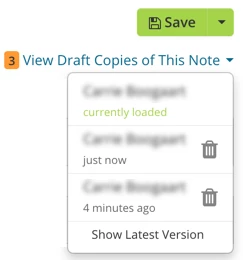
- View Draft Copies of This Note is accessed from just below the Save button.
- Click the View Draft Copies of This Note list drafts by date created.
- Click desired draft to open it.
IMPORTANT:
- Returning to a document displays the document prior to any changes.
- Open the most recent draft to access the copy with the most recent changes.
- All current drafts will be deleted when you click Save.