


Jump to Section:
Overview
Clinics with multiple tax IDs can assign a different tax ID and billing address to each location in the system. This supports accurate claims, remits, and reporting by using the correct tax ID for each location. For general location settings, see Locations for more information.
Assign Alternate Tax ID to a Location
The default tax ID is stored at the clinic level in Admin > Basic Setup > Clinic Options.
To assign an Alternate Tax ID to a location:
- Go to Admin > Basic Setup > Locations.
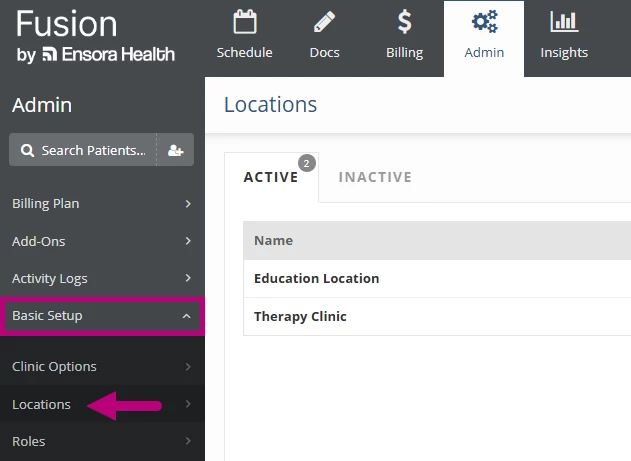
- Select a Location.
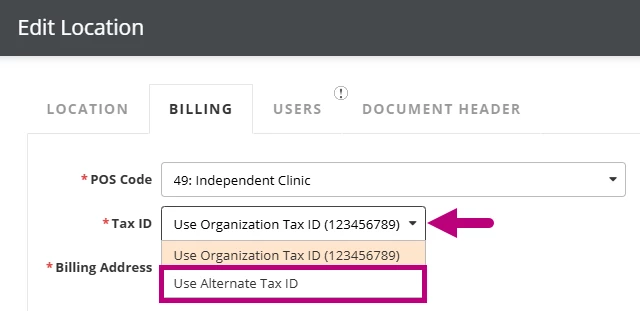
- Open the Billing tab.
- Set the Tax ID field to Use Alternate Tax ID.
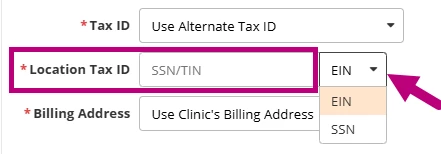
- In the Location Tax ID field, enter the Alternate Tax ID, and select EIN or SSN.
- Click the Save Location button.
When a location has an Alternate Tax ID, the system uses it instead of the clinic’s default tax ID for appointments at that location. This applies to:
- Claim Box 25: Federal Tax ID Number and Tax ID Type
- Invoices configured to print additional billing details, where the tax ID appears next to the appointment’s charges
The Alternate Tax ID is also used to match incoming electronic remits to the clinic.
Assign Alternate Billing Address to a Location
The default billing address is stored at the clinic level in Admin > Basic Setup > Clinic Options.
To assign an Alternate Billing Address to a location:
- Go to Admin > Basic Setup > Locations.
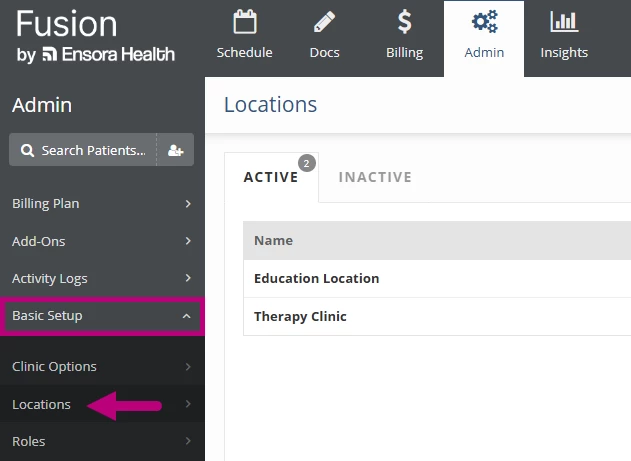
- Select a Location.
- Open the Billing tab.
- Set Billing Address field to Use Alternate Billing Address.
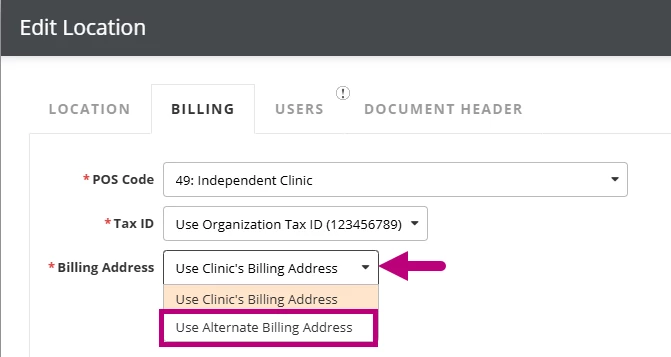
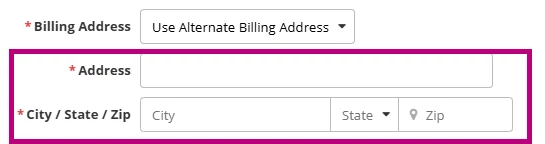
- In the Address and City/State/Zip fields, enter the Alternate Billing Address.
- Click the Save Location button.
When a location has an Alternate Billing Address, the system uses it on claims for that location in Claim Box 33 (Billing Provider Address, City, State, and ZIP Code). Claim rules can override this box.
Reports
In new Insights, the Appointments and Claims, Patients, and Charges reports include a Tax ID field, Tax ID filter, and chart grouping by Tax ID. See Reports for more information.