PERMISSIONS: You need the Admin permission to create Activity Lists.
Creating Activity Lists allows you to group multiple therapy activities into a predefined set, making it easier for therapists to add frequently used activities to documentation with a single selection. Activity lists can include associated billing codes along with default sets and repetitions, which helps streamline documentation, improve consistency, and reduce data entry time.
When billing codes are configured on an activity list, those codes will also appear in the Charges section of the daily note after the activity list is used in documentation. After the note is signed, these billing codes pull into the claim form.
NOTE: Flowsheets must be enabled for billing codes and other default settings to automatically carry forward into documentation and claim forms. Learn more: Flowsheets Overview
Jump to Section:
Add or Edit an Activity List
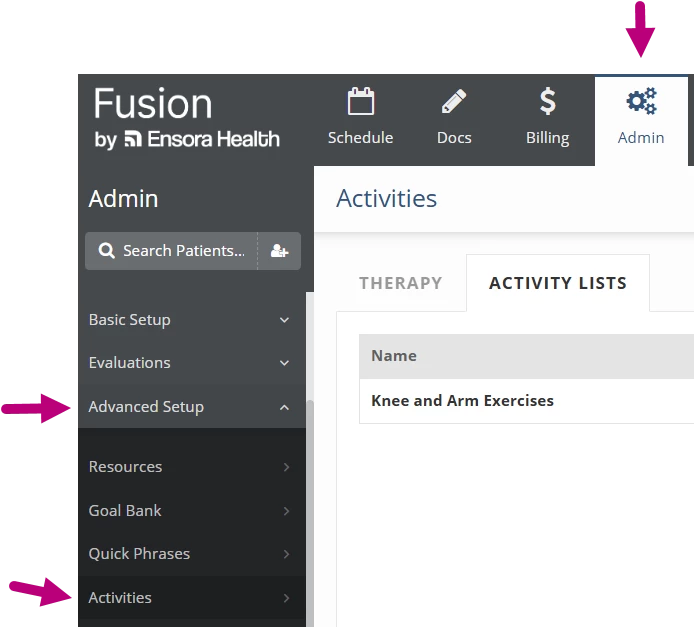
- Click the Admin tab at the top of the screen.
- Click Advanced Setup in the menu on the left.
- Click Activities.
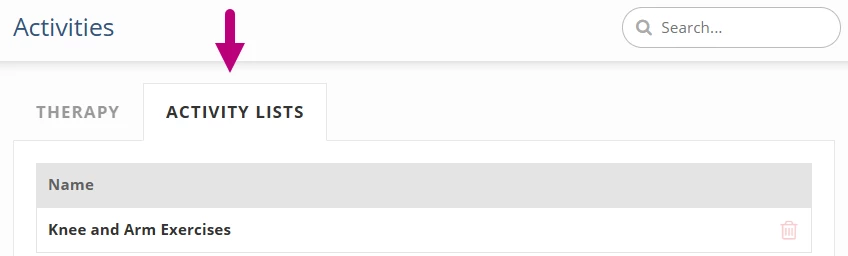
- Click the Activity Lists tab.
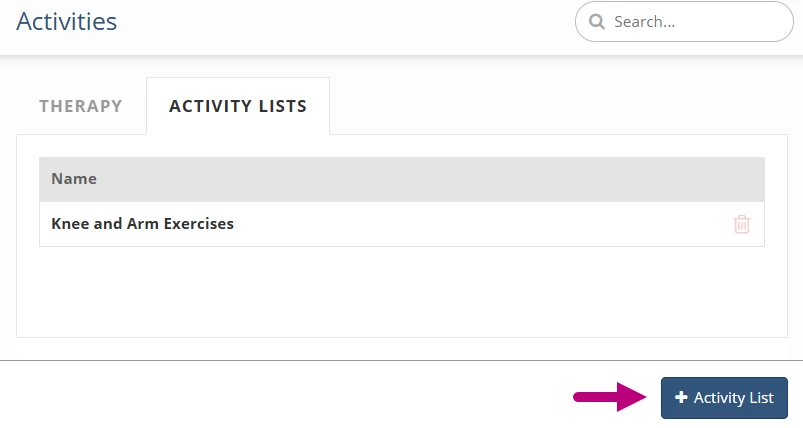
- Click the + Activity List button to create a new activity list, or click an existing activity list to edit that list.
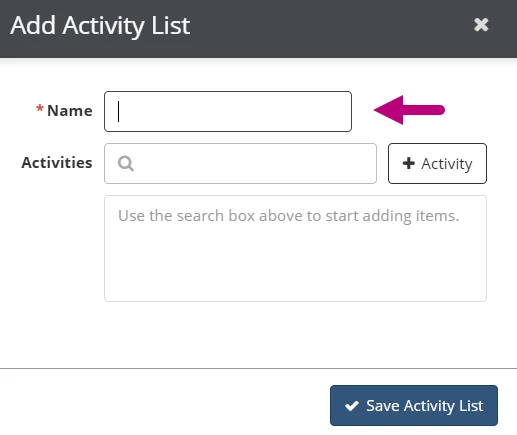
- Enter a Name for the activity list.
NOTE: This is the name therapists use to identify and select a predefined set of activities. It is not displayed on patient documentation.
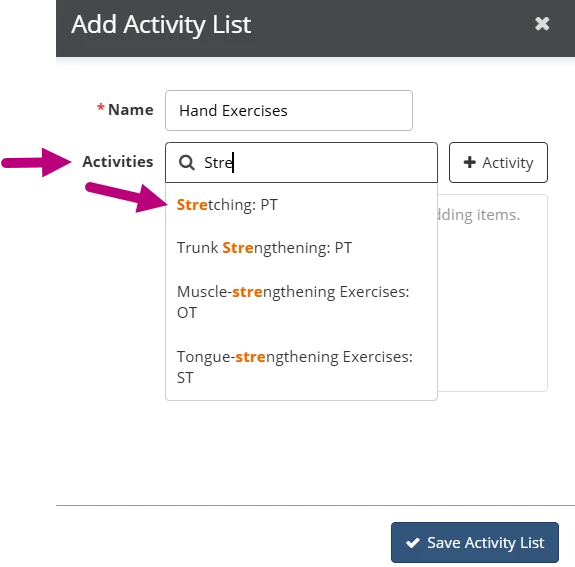
- Click the Activities search field to search for and select activities to add to the list.
TIP: If you don’t see the activity you need, click the +Activity button to add a new activity to the system. Then, search for the newly added activity to add it to the activity list.
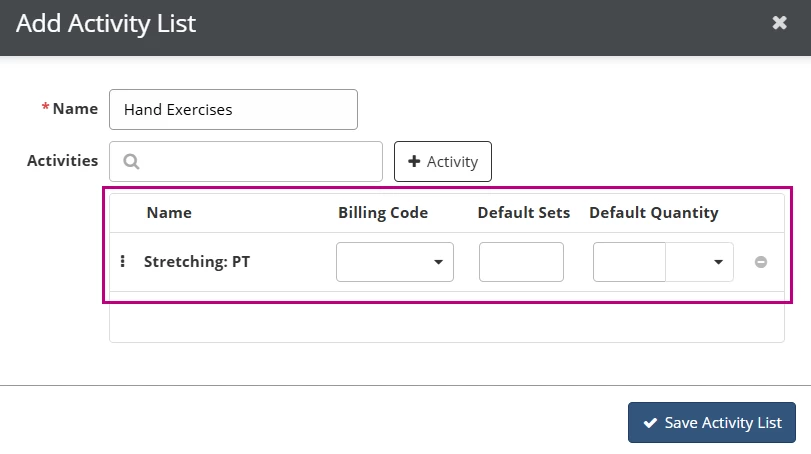
- Optional: Enter Billing Code, Default Sets and Default Quantity (Mins, Secs or Reps).
NOTE: When an Activity List is added to the Objective section of the Daily Note, associated billing codes and default values automatically populate for each activity. Billing codes configured on an activity list also pull into the Charges section of the note, and into claims after the note is signed. Therapists can modify this information within the note as needed to accurately reflect the care provided during the visit.
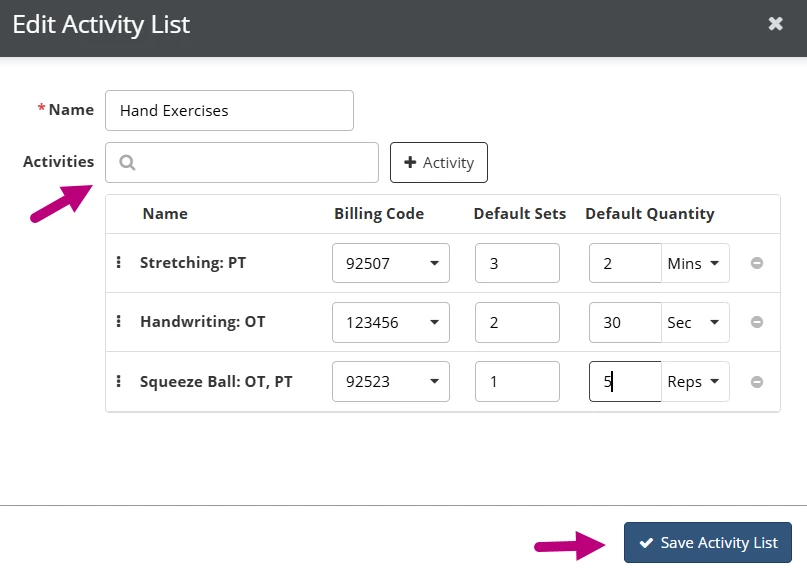
- Click back into the search field to add additional activities to the list.
- Click the Save Activity List button.
Delete an Activity List
- To the right of the activity list, click the Delete icon.
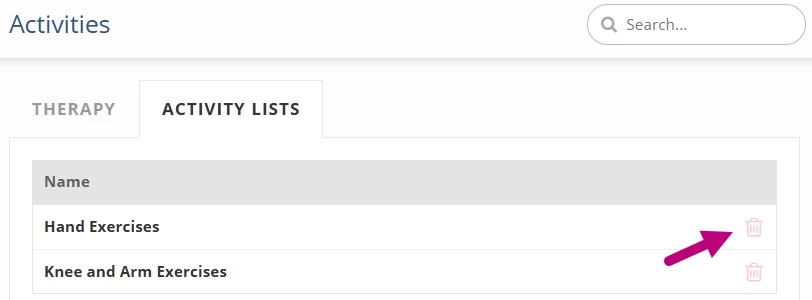
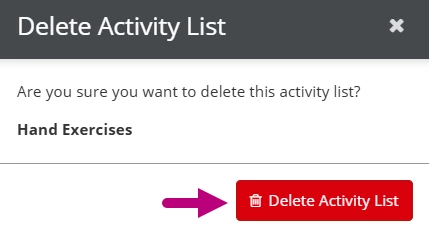
- Click the Delete Activity List button.